Beginners Guide

How to Add Categories and Subcategories in WordPress

How to Add Categories and Subcategories in WordPress

Recently, a reader asked us how to create subcategories in WordPress.

In WordPress, your posts can be organized into different categories and tags. You can even create subcategories for further organization.

It’s important to use categories and subcategories correctly, so you can help your readers find the content they’re most interested in. Proper content categorization can improve your website’s SEO rankings as well.

In this article, we’ll show you how to add categories and subcategories in WordPress, step by step.

Adding categories and subcategories to WordPress

Understanding Parent and Child Categories in WordPress

Categories are a powerful tool. They’re not just a way to sort your content. They also help you develop a proper site structure that is meaningful and semantic. This is great for your WordPress SEO.

Important: If you’re not clear about the difference between categories and tags, take a look at our guide on categories vs tags. This explains why categories and tags are different, and how to use them correctly.

Now you might be wondering why and when would someone need to use child categories (subcategories) on their WordPress website?

Let’s say you’re creating a travel blog for different destinations around the world. You might want users to be able to find articles by both country and city.

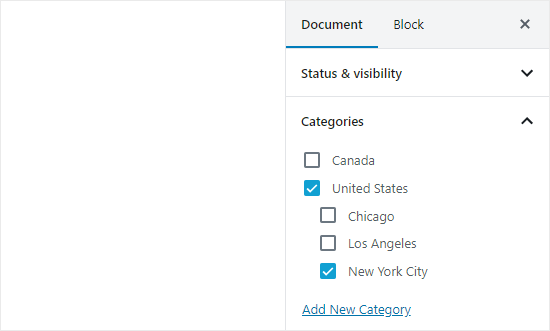
For example, you might have an article about the best waterparks in the United States. It would make sense to use ‘United States’ as the category for that post.

But you might also have articles about the best places to eat in New York City, Los Angeles, Chicago, and more.

This is where you can use child or sub categories. ‘United States’ can become a parent category, and the cities can become child categories.

Child and parent categories in WordPress

A post filed under a child category doesn’t need to also be filed under the parent category. In our example, we could have left ‘United States’ unchecked and just put the post in the ‘New York City’ category.

If you file a post under the child category but not under the parent category, then your post will appear only on the archive pages of the child category. This is particularly helpful when you want to avoid duplicate content.

Having said that, let’s take a look at how to add both regular categories and child categories in WordPress.

Adding a Category in WordPress

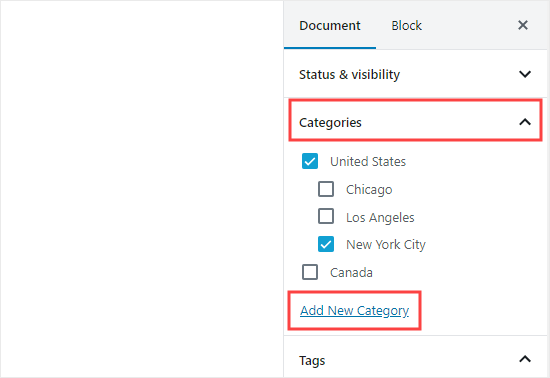
You can easily add a new category in WordPress when writing a post. In the Document panel on the right hand side, open up the Categories tab.

Then, you can simply click the ‘Add New Category’ link to create your new category.

Adding a new category in the document settings of a post

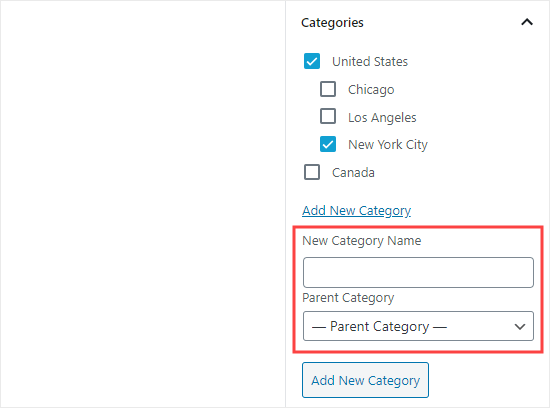
Once you click the link, two new boxes will appear where you can add your category. For a regular category, you don’t need to select anything from the Parent Category dropdown.

The boxes to add your new category are now visible

Once you’ve typed in the name for your category, click the ‘Add New Category’ button.

The box for that category will then be automatically checked for your current post. You can uncheck it if you want.

The new category has now been added to your site

You can also add a new category without editing a post.

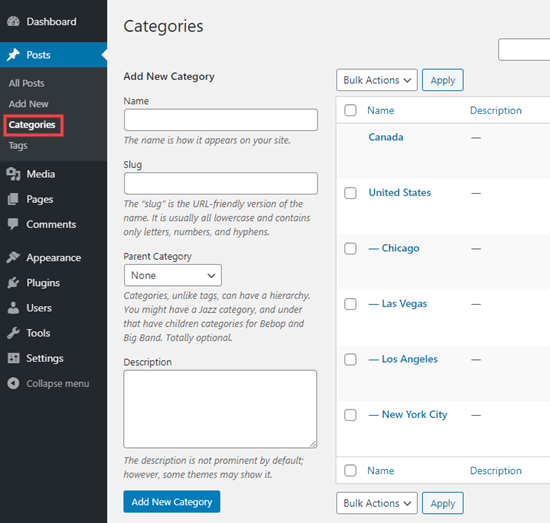
Simply go to Posts » Categories and add your new category. This is handy if you want to create all your categories before adding content.

This method also lets you edit the slug (URL) for your categories. You can delete and rename categories here, too. You can even give them a description. See how to to add SEO keywords and descriptions in WordPress.

Adding a new category under Posts - Categories in WordPress

Adding a Child Category (Sub Category) in WordPress

You can add and edit child categories in exactly the same way you added your parent categories.

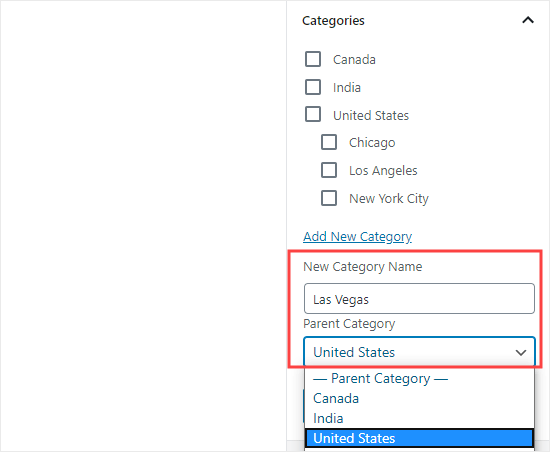
When you’re editing a post, open up the Categories tab and type in the name for your child category. Select the category that you want to use as the parent from the dropdown list.

Adding a new child category while creating a post

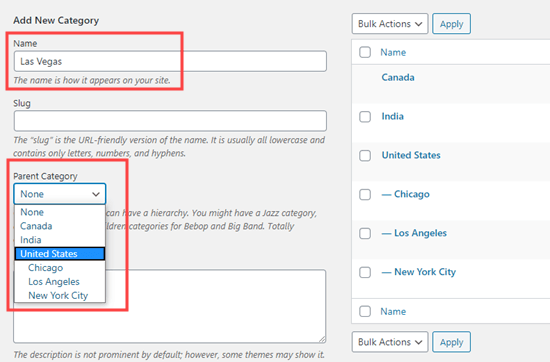
Similarly, you can also go to Posts » Categories to add child categories. Just type in the name for your child category and select the parent category from the dropdown menu.

Adding a new child category under Posts - Categories

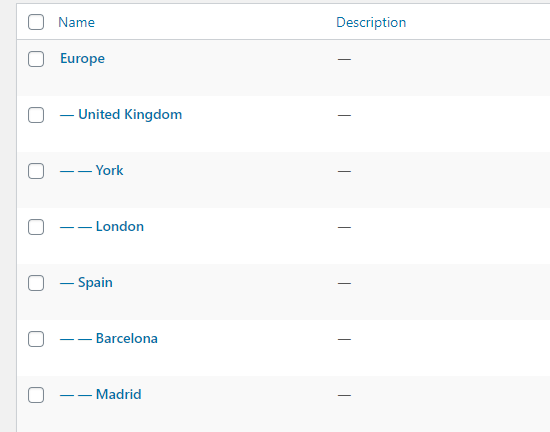
Your child categories can also have their own child categories, if you want. For instance, we might decide to develop a category structure that used continents, countries, and cities, like this:

A list of child categories with their own children

Here, Europe is a category, with the United Kingdom and Spain as child categories. These then have their own child categories: York and London for the United Kingdom, and Barcelona and Madrid for Spain.

Categories on the same level within a parent category are sometimes called “sibling” categories. For instance, United Kingdom and Spain are sibling categories here.

Categories can only have one parent. You can’t add one sub-category under two different parent categories.

SEO Benefits of Category Based Site Structure

Your category URLs will look something like this:

http://example.com/category/united-states/new-york-city/

This is meaningful and helps search engines and visitors understand what your page is about. You also get a chance to add keywords into your URL. Keywords help people find content on search engines.

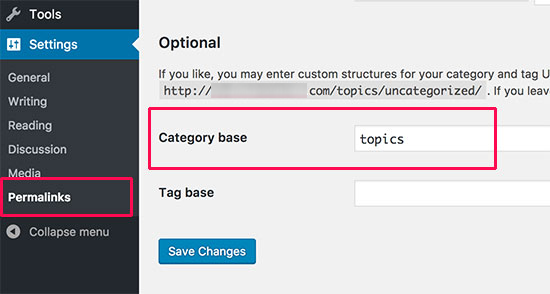
WordPress also allows you to easily change the /category/ prefix your category URLs. You can even remove it completely if you want.

Simply go to Settings » Permalinks page and scroll down to ‘Category base’ section.

Changing category base section

Here you can enter the prefix you would like to use and click on the Save Changes button to store your changes.

The ‘category’ prefix in your category URLs doesn’t add any benefit to your SEO. You might want to get rid of it by installing the FV Top Level Categories plugin. Simply install the plugin and it will remove the word ‘category’ from your category archive pages’ URLs. Instead, they’ll look like this:

http://example.com/united-states/new-york-city/

Important: If you decide to change category base on an existing WordPress site, then you’ll need to set up redirects to avoid 404 errors for search engine visitors. For more detailed instructions, please follow our guide on how to change the category base prefix in WordPress.

How to Display Categories and Child Categories in WordPress Sidebar

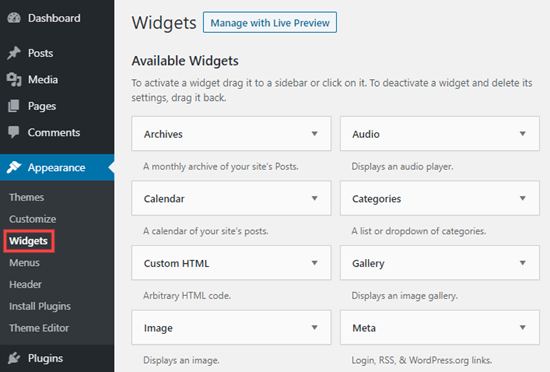
You can add a widget to your WordPress sidebar or footer to show a list of categories. In your WordPress dashboard, go to Appearance » Widgets.

Adding a new widget to your sidebar

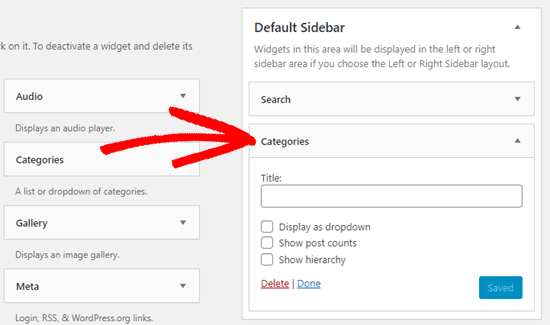
If you haven’t changed your widgets from the ones that WordPress puts there by default, you should see the Categories widget already in place. If not, you can drag and drop it from the list of Available Widgets on the left hand side.

Dragging and dropping the categories widget into place on your sidebar

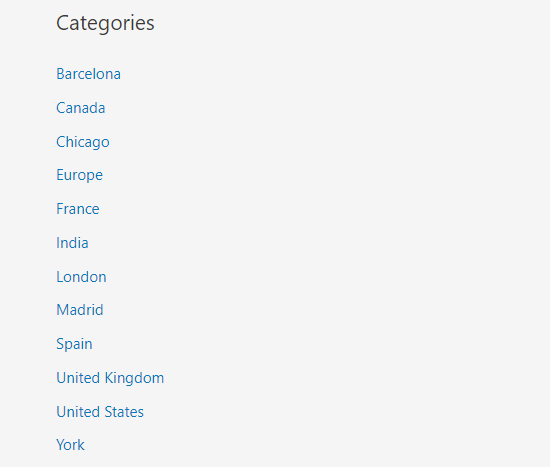
By default, the widget will show all your categories in a flat list, in alphabetical order:

A flat list of categories

Tip: Categories will only display on the list if you’ve assigned at least 1 published post to them.

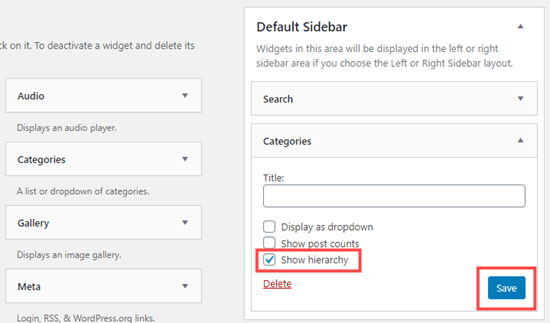
You can change it to show the child categories (subcategories) beneath their parent categories, if you want. Simply check the ‘Show hierarchy’ box in the widget like this. Don’t forget to click the Save button.

Check the 'Show hierarchy' box to list child categories beneath their parents

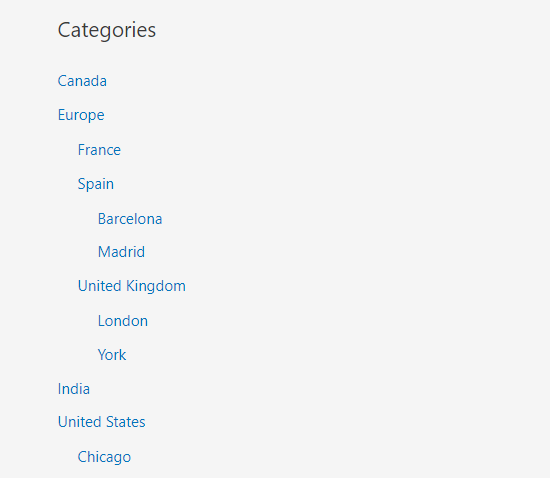
On your site, you should now see your parent categories with the child categories nested beneath them.

A hierarchical list of categories in WordPress

Tip: If your sidebar changes don’t show up, you might need to clear your WordPress cache.

BEGINNER’S GUIDE: HOW TO PUBLISH A WEBSITE IN 2021 (STEP BY STEP)  Beginner’s Guide: How to Publish a Website in 2021 (Step by Step)

BEGINNER’S GUIDE: HOW TO PUBLISH A WEBSITE IN 2021 (STEP BY STEP) Beginner’s Guide: How to Publish a Website in 2021 (Step by Step)

Do you want to publish a website but are worried about technical stuff?

It is a misconception that you need to be a web designer or developer to code a website. There are many tools that make it super easy to put your website online without writing any code.

In this article, we’ll show you how to easily publish a website with step by step instructions.

A beginners guide on publishing a website online

Using a Website Builder to Publish a Website

Most beginners feel that they need to learn programming and web design skills to publish their websites.

It was true in the early days of the internet. At that time, businesses hired web developers or they had to learn coding skills to publish a website on their own.

However, things have changed over the years and technical skills are no longer a hurdle in publishing your content on the web.

These days, beginners, businesses, and even developers use website builders like WordPress to easily publish websites.

More than 69% of all websites on the internet are built using a website builder or CMS platform. This means, even developers don’t need to write code from scratch to publish a website.

These platforms allow anyone in the world to easily publish a website and put it on the internet. We’ll show you the easiest and most popular way to publish your website (no coding required).

1. Publish a Website with WordPress

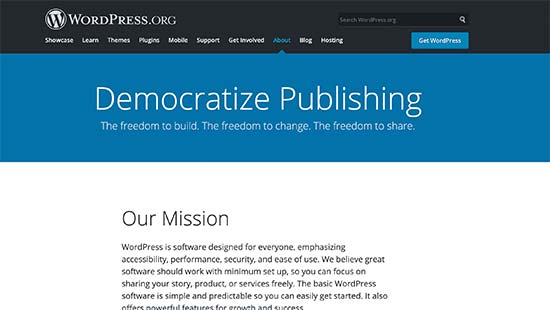
WordPress is the most popular website builder on the market with the slogan ‘Democratize Publishing’. It is a free (as in freedom) and open-source software that anyone can use to build any type of website.

WordPress mission is to democratize publishing

Over 42% of all websites on the internet are powered by WordPress.

To get started with WordPress, you’ll need a domain name (e.g. wpbeginner.com) and web hosting (this is where your website files are stored).

We recommend using Bluehost. They’re offering WPBeginner users a free domain name and a generous 60% discount on hosting ($2.75/month).

If you want to try an alternative, then we recommend SiteGround or any of these top WordPress hosting providers.

Next, you’ll need to install WordPress. We have a step by step WordPress installation tutorial that’ll walk you through the installation process.

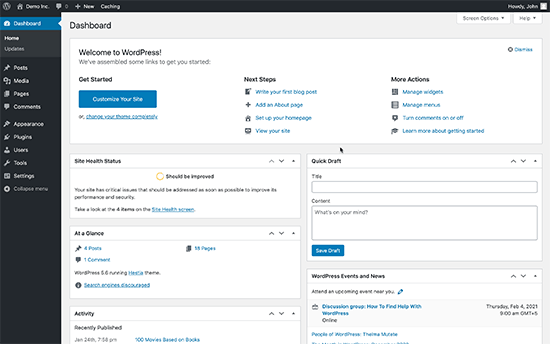
Once you have installed WordPress, you’ll see the WordPress dashboard which looks like this.

WordPress dashboard

Next, you need to install and activate the SeedProd plugin. For more details, see our step by step guide on how to install a WordPress plugin.

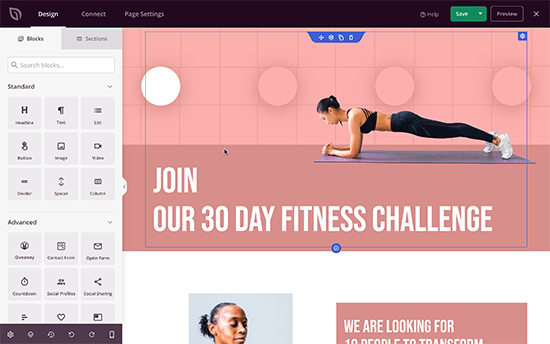
SeedProd is the best WordPress page builder plugin. It allows you to quickly publish professionally designed web pages for your website using a simple drag and drop user interface.

SeedProd user interface

It is super easy to use and allows you to quickly publish your website with professional designs that are already optimized for sales, conversions, and SEO.

Alternatives to SeedProd

There are several popular page builder tools for WordPress. You can use any of the following to publish your website without any coding or design skills.

  • Beaver Builder – A drag and drop WordPress website builder with advanced theme customizations
  • Divi Builder – Another beginner friendly WordPress theme builder with tons of ready made templates
  • Elementor – A powerful page builder tool for WordPress suitable for both beginners and developers

We believe WordPress is the most beginner-friendly platform to publish your website.

It is widely used and trusted by millions of beginners as well as big name brands like Microsoft, Facebook, and even US government uses WordPress to power the The White House website.

The best part about WordPress is that there are over 58,000 WordPress plugins that let you add just about any functionality to your website such as online store (eCommerce), contact form, SEO features, and more.

You can think of plugins like addons or apps for your iPhone. They make it easy for even first time users to configure and publish a website that search engines love and is easy to use for your customers.

2. Publish a Website with Web.com Website Builder

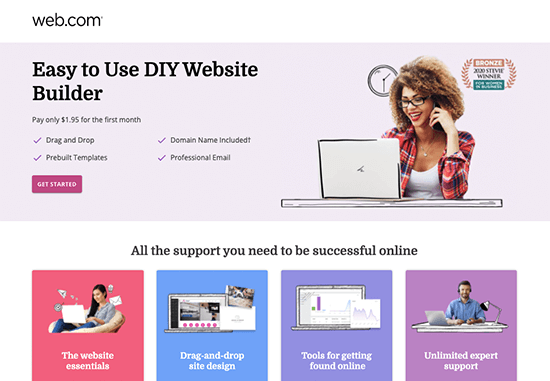
Web.com is one of the oldest and most well-recognized website publishing tool for small businesses.

Web.com Website Builder Landing Page

If you don’t want to go through the trouble of purchasing a web hosting service, domain name, and installing a web application software, then Web.com website builder would be the right tool for you.

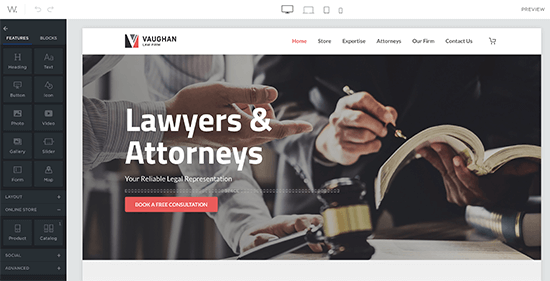
It is a drag & drop website publishing tool that allows you to simply follow a step by step wizard to publish a website. You’ll answer some questions, and it will generate ideal layouts for you complete with the dummy content.

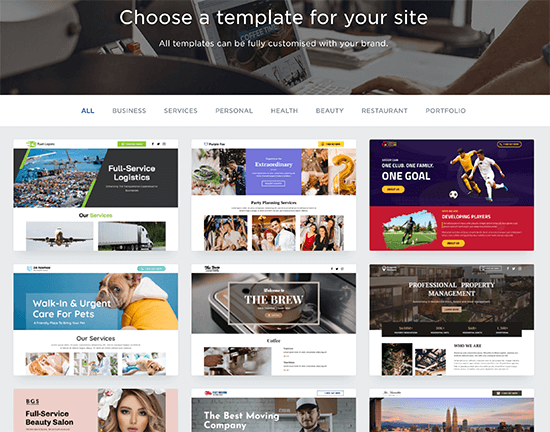
They offer hundreds of professionally designed templates that you can choose from.

Web.com Website Builder Templates

You can customize your website design in any way you want using a simple drag and drop interface. Once you’re done, simply click the Publish button.

Web.com Website Builder

The best part about using Web.com website builder is that you don’t need to worry about hosting or updates. You also get reliable support via chat, phone, and email.

How to Know if Your WordPress Website Uses Cookies

How to Know if Your WordPress Website Uses Cookies

Do you want to know if your WordPress website uses cookies?

Cookies are tiny files used by websites to store temporary information in users’ browsers. Many countries have different cookie laws that require website owners to disclose which cookies they use and what information they track and store.

In this article, we will explain how to find out if your WordPress website uses cookies and how you can manage those cookies to comply with local laws.

How to see which cookies are set by your WordPress website

What are Cookies?

Cookies are small files containing data sent by a website to store in a user’s browser. Cookies play a significant role on the web and are widely used to improve user experience.

WordPress uses two types of cookies out of the box.

First, there are session cookies. These cookies are used to login and are set for all logged-in users on a WordPress website.

Then, there are comment cookies. These cookies are set when users leave a comment on your WordPress blog. Their purpose is to store user’s name, email address, and URL information so that they don’t have to re-enter it the next time they comment on your website.

Apart from WordPress, third-party plugins and tools may also set cookies for your WordPress website.

What are Cookie Laws?

Cookies are a powerful tool that can be used to track a lot of information about users. Considering the privacy risks, many countries and regions have enacted laws that set compliance guidelines for website owners.

For instance, European Union has GDPR Law and ePrivacy Directive. Similarly, countries like Canada, UK, Japan, and many more have laws that require website owners to get user consent and disclose the information they collect, store, and track about users.

That’s the reason why you see cookie popups on many different websites. These banners allow website owners to comply with GDPR, cookie laws, and other privacy laws in different countries.

How to See Which Cookies Are Stored by a WordPress Website

All modern web browsers make it easy to view the cookies set by any website you visit.

Google Chrome

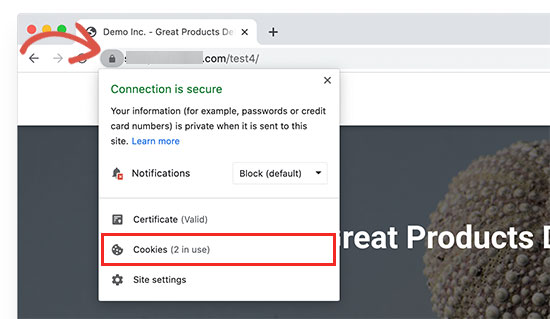
In Google Chrome, first, you need to visit your WordPress website. After that, click on the Padlock or Not Secure icon in the browser’s address bar. This will open a menu where you need to click on ‘Cookies’.

Viewing stored cookies in Google Chrome

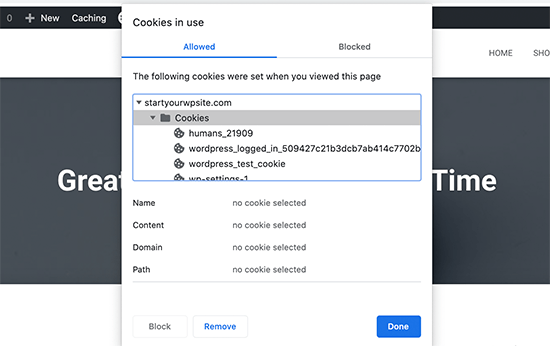
This will bring up the cookies popup where you will see all the cookies set by that particular website in your browser.

Cookies stored by a WordPress website

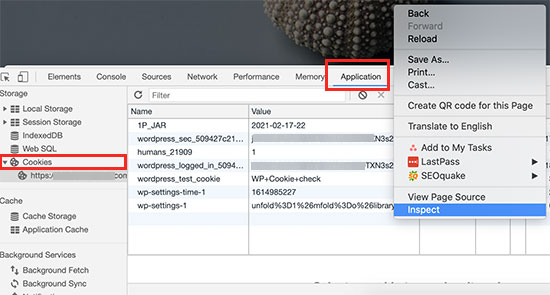
You can also view these cookies by using the Inspect tool. Simply visit your website and left-click anywhere to select the Inspect tool.

This will split your browser window and you’ll see the developer console panel. From here you need to switch to the ‘Application’ tab.

Viewing cookies using developer tools

Next, you need to click on the Cookies menu from the left column and you’ll be able to see all the cookies stored on your site. More importantly, you’ll be able to see the data stored by the cookie under the ‘Value’ column.

Mozilla Firefox

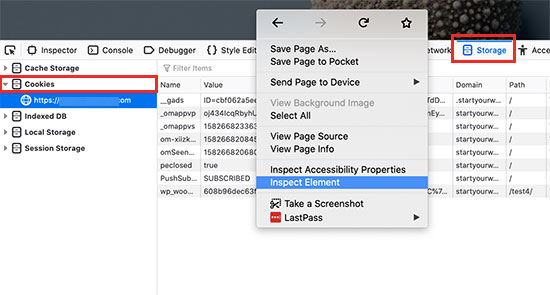
In Firefox, you need to visit the website you want to check and then right-click anywhere to select the ‘Inspect Element’ tool.

This will split the browser window and you’ll see the developer console panel. From here, you need to switch to the ‘Storage’ tab and click on ‘Cookies’ to view all the cookies.

Viewing cookies set by WordPress using Firefox

Plugins That Allow You to Turn Off Cookies

Now when reviewing cookies set by your WordPress website, you may notice that there are some cookies set by different WordPress plugins you are using.

As a website owner, you may not want to use these cookies to comply with cookie laws in different countries and limit your liabilities.

However, not all WordPress plugins come with easy ways to turn off cookies and make your website compliant. Following are some of the plugins that allow you to easily turn off cookies without breaking plugin functionality.

1. MonsterInsights

MonsterInsights is the best Google Analytics plugin on the market. It allows you to properly install Google Analytics and setup EU compliance addon.

First, you need to install and activate the MonsterInsights plugin. For more help, see our article on how to install Google Analytics in WordPress.

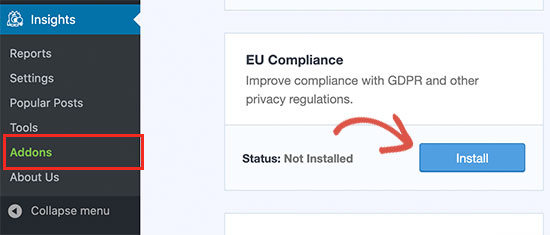
Once you have set up the plugin, go to Insights » Addons page and install EU Compliance addon.

EU Compliance addon for MonsterInsights

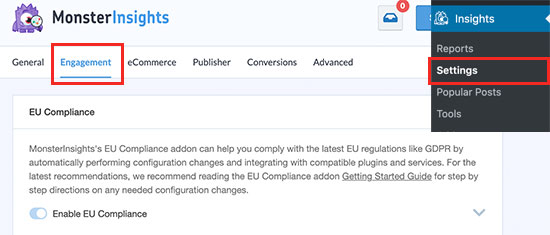
The addon works out of the box, and there are no settings for you to configure. You can see it’s enabled by visiting Insights » Settings page and switching to the Engagement tab.

EU Compliance addon status

The addon will now automatically anonymizes IP addresses, disable the Demographics and Interests Reports, turn off user and author tracking, and more. It also integrates with Cookie Notice and CookieBot plugins automatically.

2. WPForms

WPForms is the best WordPress contact form plugin on the market. It allows you to easily create GDPR compliant forms for your WordPress website.

First, you need to install and activate the WPForms plugin. For more details, see our step by step guide on how to install a WordPress plugin.

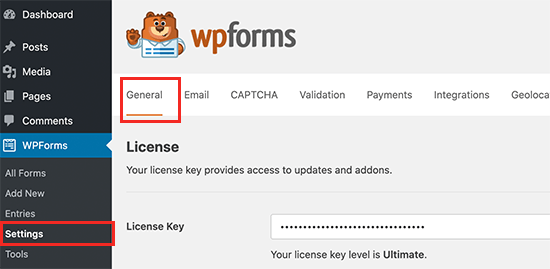
Upon activation, you need to visit WPForms » Settings page and switch to the General tab.

WPForms settings

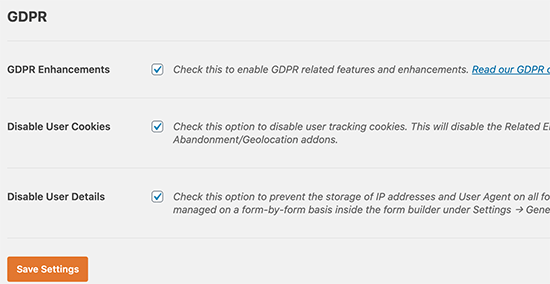
From here you need to scroll down to the GDPR section and check the box next to GDPR enhancements option.

WPForms GDPR settings

Checking the option will expand it and you’ll see the option to disable user cookies and user details for all forms.

WPForms also allows you to make individual forms GDPR compliant. For more details, see our article on how to create GDPR compliant forms in WordPress.

3. OptinMonster

OptinMonster is the best lead generation software on the market. It helps you create GDPR compliant optin forms and lead campaigns for your website.

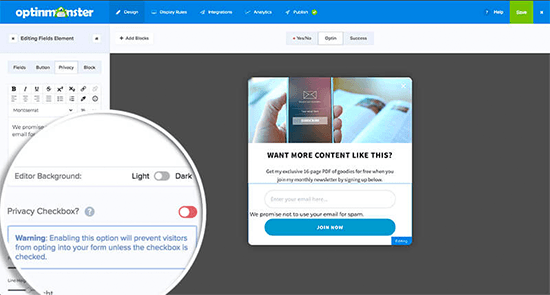
It allows you to easily add a Privacy Policy with a customizable checkbox. Users can then only submit the form once they’ve checked the box. It also allows you to enable double optin for your forms.

Adding privacy policy checkbox to OptinMonster campaigns

Plus, OptinMonster lets you target visitors based on their location. That way, you can make sure you’re showing GDPR-compliant optins to customers in EU countries. OptinMonster only creates cookies to improve user experience on your website and these cookies can only be utilized for on-site tracking.

4. Smash Balloon

Smash Balloon is the best social media plugin for WordPress websites. It allows you to create social media feeds that are compliant with cookie and GDPR laws.

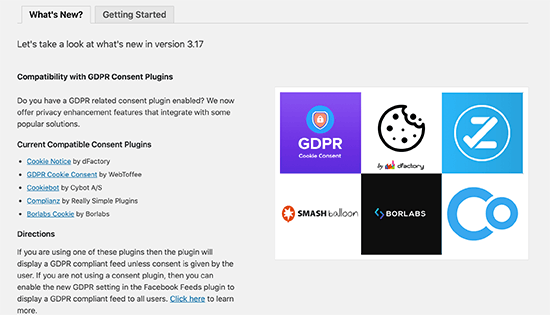
Smash Balloon GDPR compliance

The plugin detects if you have a cookie notification plugin enabled and then holds any cookies until user give cookie consent.

Ultimate Guide to Geolocation Targeting in WordPress – Step by Step

Ultimate Guide to Geolocation Targeting in WordPress – Step by Step

Do you want to use Geotargeting in WordPress to enhance the customer experience?

Geotargeting allows website owners to show personalized content to users based on their geographic location. It helps improve user experience and conversion rates for businesses.

In this ultimate guide, we’ll show you how to use Geotargeting in WordPress to boost sales and customer satisfaction.

Using geotargeting in WordPress and WooCommerce

Why Use GeoTargeting in WordPress?

Geotargeting or Geo-Location targeting is a marketing technique that allows businesses to offer custom user experiences based on a customer’s geographic location.

You can use geotargeting to make your content, products, and website more relevant to the customer. Research shows that it helps build user interest, boosts engagement, results in higher conversions, and generate more sales.

A Google study found that 61% of smartphone owners prefer to buy from sites that customize information for their location.

For instance, a real estate website can use geotargeting to show specific real estate listings in a user’s region. Similarly, an online store can offer customers free shipping by detecting their geolocation first.

Having that said, now let’s take a look at some of the easiest ways to use geotargeting effectively in WordPress. Here is a quick overview of what we’ll cover in this guide.

  • Tracking User Geographic Locations in WordPress
  • Using Geotargeting in WordPress and WooCommerce with OptinMonster
  • Using Geolocation Data in WordPress Forms
  • Using GeoTargeting in WooCommerce

Tracking User Geographic Locations in WordPress

Before you learn how to target users in different geographic locations, you need to gather the data about where your users are coming from.

The easiest way to track user’s geographic locations is by using MonsterInsights. It is the best Google Analytics plugin for WordPress and allows you to easily track website visitors.

MonsterInsights

First thing you need to do is install and activate the MonsterInsights plugin. For more details, see our step by step guide on how to install a WordPress plugin.

Upon activation, the plugin will automatically guide you to connect your WordPress website to your Google Analytics account. If you need help, then see our step-by-step guide on how to install Google Analytics in WordPress.

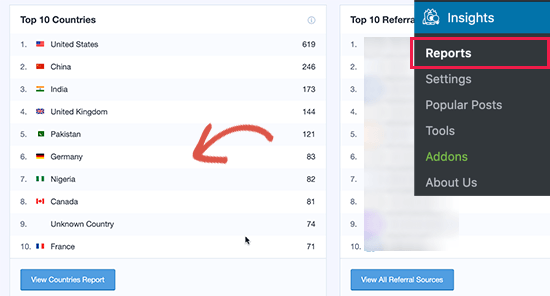
After that, you can view your website traffic reports by visiting the Insights » Reports page.

View countries report in MonsterInsights

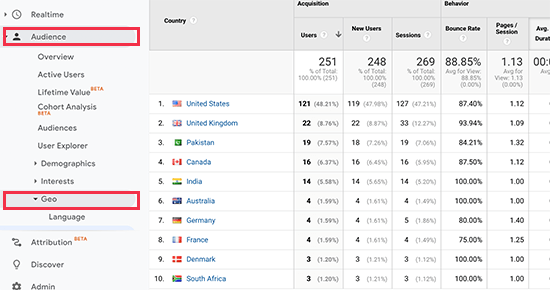
It will show you a section of the top 10 countries, and you can view more data by clicking on the ‘View Countries Report’ button. This will take you to the Google Analytics website where you will see a full list of countries.

Google Analytics Geolocation report

You can click on each country to see how users from that country used your website, how many pages they viewed, how much time they spent, did they convert, and more.

You can then adjust your strategies to target regions that are not performing so well and find more ways to increase revenues from locations that are doing well.

Using Geotargeting in WordPress and WooCommerce with OptinMonster

The most common use of geotargeting is to show personalized content to your users based on their location.

This is where OptinMonster comes in.

It is the best conversion optimization software in the world because it helps you convert abandoning website visitors into customers and subscribers.

It also comes equipped with incredibly powerful display rules including geotargeting to show targeted messages on your website.

First, you’ll need to sign up for an OptinMonster account.

Note: You’ll need at least their Growth plan to access Goetargeting features.

OptinMonster

After signing up, switch to your WordPress website to install and activate the OptinMonster plugin. For more details, see our step by step guide on how to install a WordPress plugin.

This plugin acts as a connector between your WordPress website and your OptinMonster account.

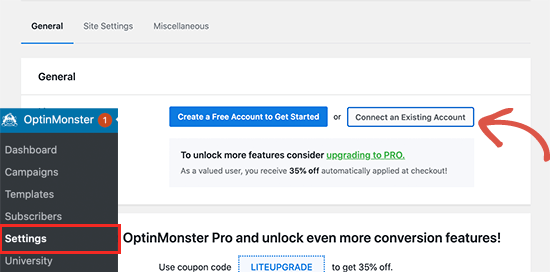
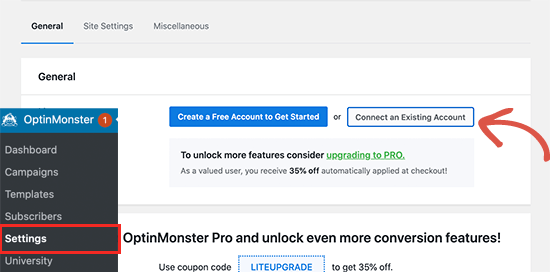
Upon activation, you need to visit OptinMonster » Settings page and click on the ‘Connect existing account’ button.

Connect OptinMonster account to WordPress

This will bring up a popup where you can log in and connect your WordPress site to your OptinMonster account.

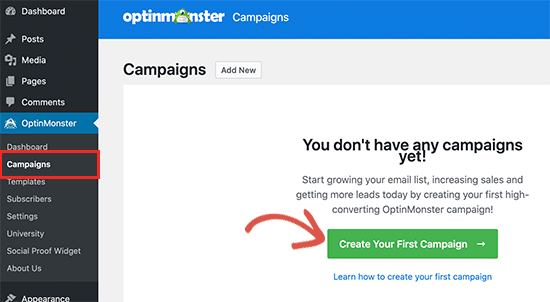
Now that your WordPress site is connected, you are ready to create your first geotargeted campaign. Go to the OptinMonster » Campaigns page and click on the ‘Add New’ button.

Create campaign

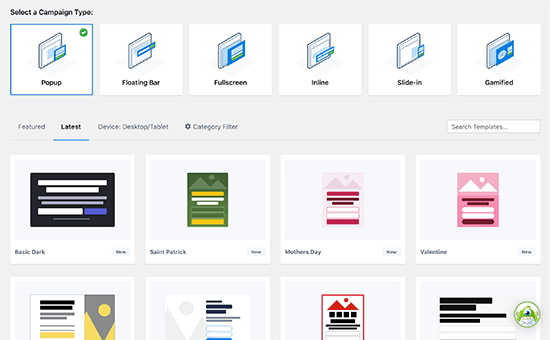
First, you’ll need to choose your campaign type. OptinMonster supports lightbox popups, floating bars, inline optins, fullscreen, slide-in, and gamified campaigns.

For the sake of this tutorial, we’ll choose a lightbox popup campaign. Below that, you can select a campaign template by clicking on it.

Select campaign type and template

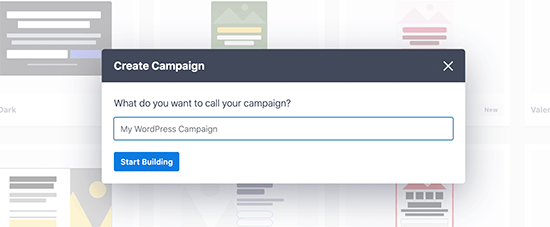
Next, you need to enter a name for your campaign. You can enter any name here, and then click on the ‘Start building’ button.

Enter campaign name

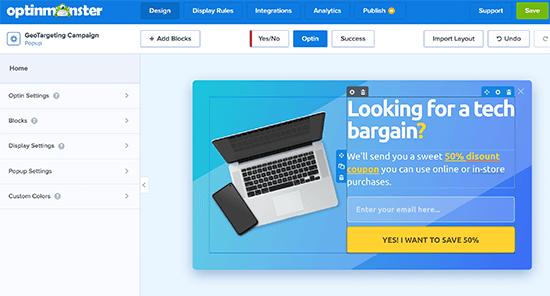
This will launch OptinMonster’s campaign builder interface with a live preview of your campaign in the right panel.

Editing OptinMonster campaign

You can simply point and click on any item in the preview to edit, move, or delete it. You can also add new elements from the left column.

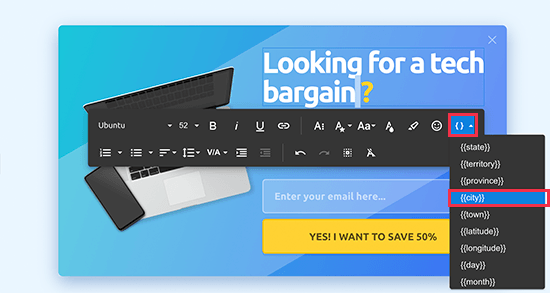
Let’s add some personalized geotargeted messaging to this campaign. To do that, we will be using an OptinMonster feature called Smart Tag.

Simply click on a text area or add a new text block and then in the text toolbar click on the Smart Tag button.

Detect and show user's location in OptinMonster using Smart Tag

It will show you a list of smart dynamic texts that you can add to your content.

We’ll add {{city}} smart tag to our campaign. This tag will automatically detect user’s city and display it in the campaign content.

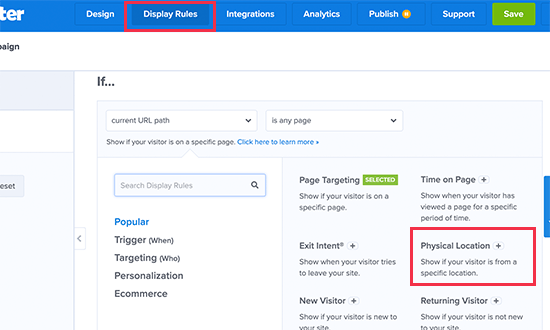
Once you are finished editing your campaign, you can switch to the ‘Display Rules’ tab. This is where you can configure when to show your campaign.

Display rules to set up geotargeting campaigns

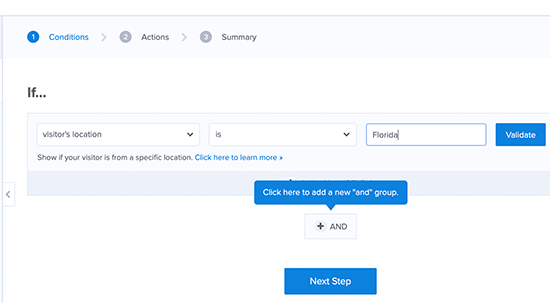
Next, you need to create a new Ruleset and use Physical location as the condition to check.

After that, you will be asked to select the criteria you want to match. For instance, we want to show this campaign if the visitors’ location is in Florida.

Display criteria for geotargeting

Click on the Validate button to make sure that your condition is setup correctly. After that, click on the Next Step button to continue.

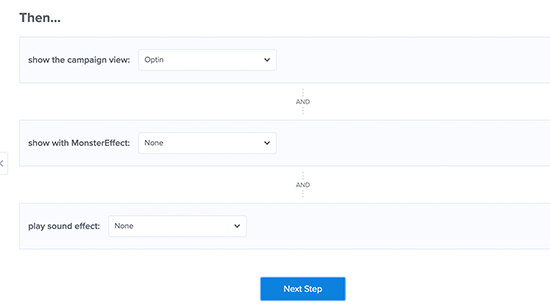
Next, you’ll be asked which campaign view you want to show and if you want to use special effects.

Campaign display settings

Click on the Next Step button to continue and save your ruleset.

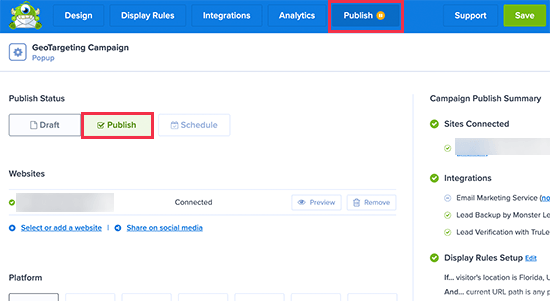
Now that everything is set up, you can switch to the Publish tab to make your campaign go to live. Simply switch to the ‘Publish Status’ from Draft to Publish by clicking on it.

Publish your geotargeting campaign in WordPress

Don’t forget to click on the Save changes button to save your campaign settings and then click on the close button to exit the builder.

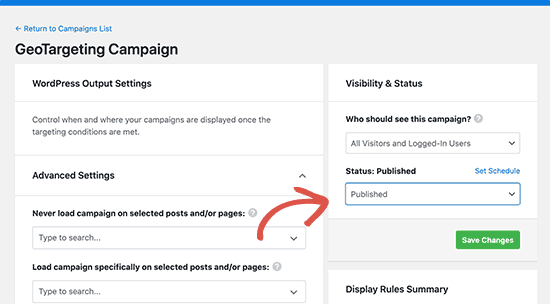
After that, you’ll be redirected back to your WordPress site, where you can configure where and when you want to display the campaign.

Publishing your campaign in WordPress

Simply set the status from pending to published and click on the ‘Save Changes’ button to launch your campaign.

You can now visit your WordPress website in incognito mode to view your campaign. You’ll need to be in the location that you are targeting to view the campaign.

Geotargeted popup in WordPress showing a custom message

Note: If you are not located in that region, then you can check out a VPN service that has servers located in that region. This will allow you to mimic the location you want to target with your geotargeting campaigns.

Other Geotargeting Campaign Ideas for WordPress using OptinMonster

A header bar announcing free shipping with a countdown timer to trigger the FOMO effect.

A floating banner with countdown timer triggered by geo-location targeting

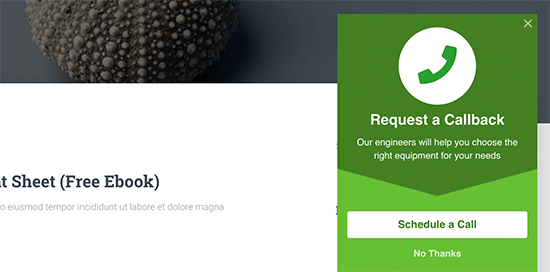
A slide-in message targeting local users to request a callback from your sales team.

A geo targeted slidein message

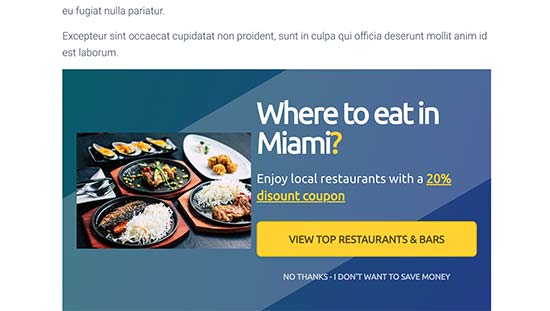
Here is an example of an inline campaign to help users discover content relevant to their location.

Inline campaign showing users locally relevant information

Using Geolocation Data in WordPress Forms

Forms help you generate leads, engage with customers and website visitors, and grow your business. Using geolocation data, you can learn more about your customers and offer them more local content.

For this, you’ll need WPForms. It is the best WordPress form builder plugin on the market and allows you to create any kind of form you need.

It also comes with a Geolocation addon that helps you collect users’ geolocation information with form submissions.

First, you need to install and activate the WPForms plugin. For more details, see our step by step guide on how to install a WordPress plugin.

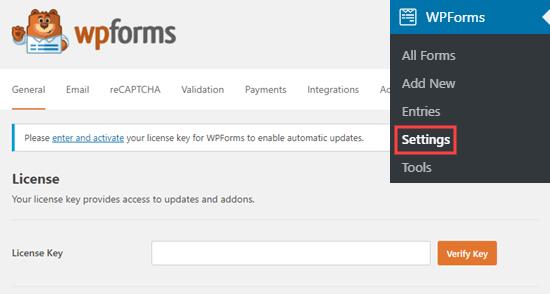
Upon activation, you need to visit the WPForms » Settings page to enter your license key. You can find this information under your account on the WPForms website.

Enter WPForms license key

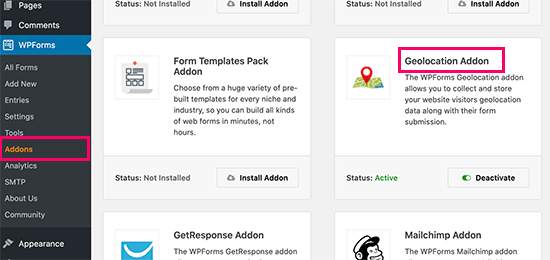
Next, you need to visit WPForms » Addons page. From here, you need to click on the ‘Install Addon’ button next to the GeoLocation Addon.

Geolocation addon

WPForms will now fetch, install, and activate the addon for you.

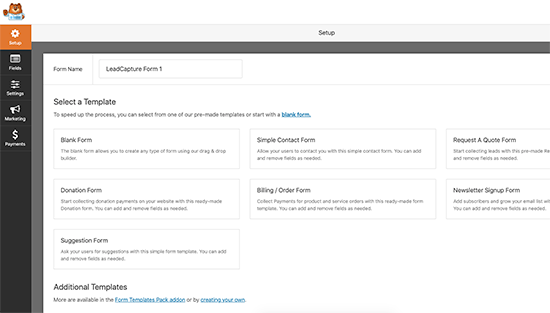
You can now go ahead and create your first form by visiting WPForms » Add New page. You’ll start by entering a name for your form and choose a template.

Creating a new form

A template is a starting point that you can use to quickly make forms. You can start with a blank form too, if you want.

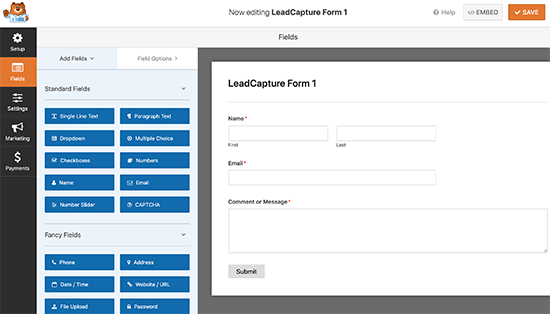
Clicking on a template will launch the form builder interface. On the right, you’ll see pre-loaded form fields based on the template you choose. You can add new fields from the column on your left side.

Form builder

You can also just click on any field to edit it, drag and drop to move it, or delete any form field.

Once you are finished, don’t forget to click on the Save button to publish your form.

Your form is now ready. In order to collect Geolocation data, you need to add the form to your website.

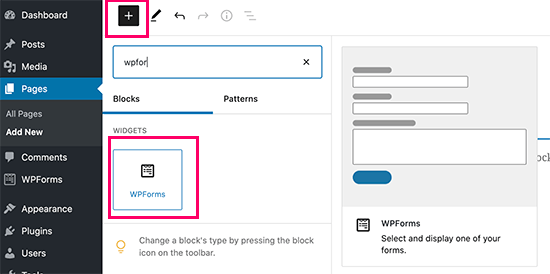
WPForms makes it super easy to add your forms anywhere on your website. Simply edit the post or page where you want to add the form and click on the (+) add new block button.

Locate the WPForms block and add it to your post.

WPForms block

From block settings, simply select the form you created earlier. WPForms will load a live preview of your form in the content editor. You can now save your post or page and view your form in action.

Viewing Geolocation Data for Your Form Entries

After you have added the form to your website, wait for it to collect a few form entries or go ahead and add a few test entries on your own.

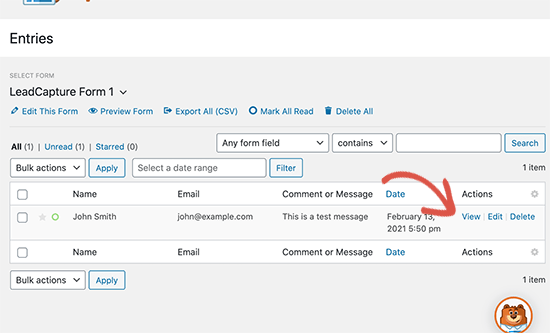
After that, you can go to WPForms » Entries page and click on your form name to view entries. On the Entries page, click on the View link next to any entry to view the details.

Viewing form entries in WPForms

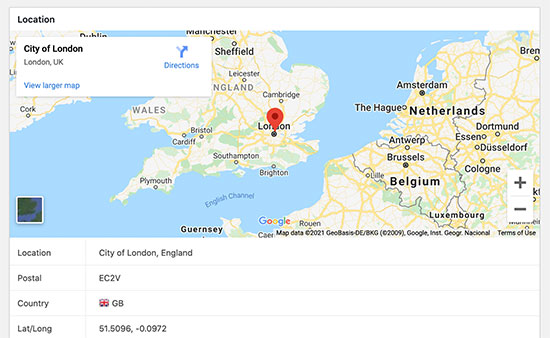
On the entry details page, you will see a box with user’s Geographic location marked on the map.

Geolocation pointed on a map

Using Geolocation Data for Your WordPress Forms

Geolocation data can be used to grow your business. You can figure out which regions are showing more interest in your products, services, or website.

You can match this data with your Google Analytics reports to see which regions are not performing well. If your business serves a global audience, then you may consider offering forms in local languages.

Using GeoTargeting in WooCommerce

WooCommerce is the biggest eCommerce platform in the world that runs on top of WordPress. It comes with built-in geolocation feature that allows you to detect user’s location and use it to display taxes and shipping information.

For this section, we assume that you have already set up your online store. If you haven’t, then follow our guide on how to create an online store for step by step instructions.

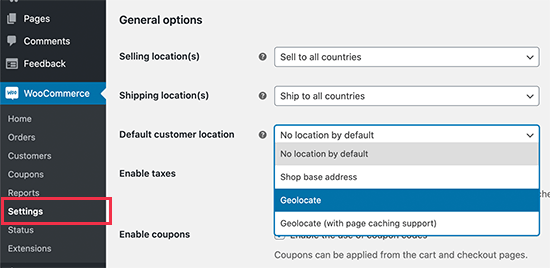
After that, you need to visit WooCommerce » Settings page and scroll down to the ‘General Options’ section.

Geolocation settings in WooCommerce

From here you can select the countries or regions where you sell or ship to. You can also modify the ‘Default customer location’ option.

By default, WooCommerce assumes customer’s location to ‘no location’. You can change that to use your store address or use Geolocate to find the customer’s country.

Note: Geolocate feature will only lookup user’s country using their IP address and WooCommerce uses a third-party integration to fetch this information.

You can also use Geolocate with page cache support. The downside of choosing this is that your product URLs will show a v=XXXX string.

Don’t forget to click on the ‘Save Changes’ button to store your settings.

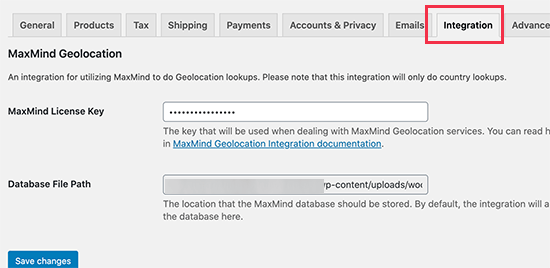
Next, you need to switch to the Integrations tab and you’ll see an option where you’ll be asked to provide a MaxMind API key.

MaxMind API key

This third-party service will lookup for GeoLocation information for your WooCommerce store.

Now, you need to sign up for a MaxMind free account. Once you have completed the sign up, go ahead and login to your account dashboard.

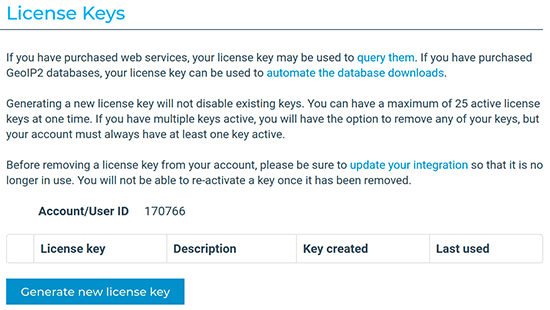
From here you need to click on Services » Manage License Keys menu. On the next page, click on the Generate New License Key button.

Generate license key

After that, simply copy the generated API key and paste it into your WooCommerce settings.

HOW TO ADD FEATURED IMAGES OR POST THUMBNAILS IN WORDPRESS  How to Add Featured Images or Post Thumbnails in WordPress

HOW TO ADD FEATURED IMAGES OR POST THUMBNAILS IN WORDPRESS How to Add Featured Images or Post Thumbnails in WordPress

Featured images also known as post thumbnails are a well-known WordPress feature supported by most themes.

They are the primary image for your blog posts, and they often appear next to the heading on your home page and social media. All popular WordPress themes come with built-in support for featured images.

In this article, we’ll show you how to easily add featured images or post thumbnails in WordPress.

Adding featured images in WordPress

Beginners Guide to Featured Images in WordPress

Featured images are a WordPress theme feature. Almost all WordPress themes come with built-in support for featured images and display them beautifully across different areas of your WordPress website.

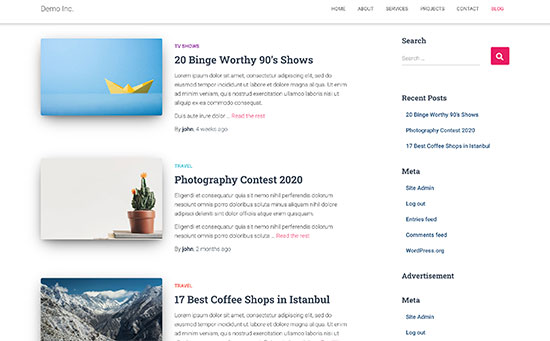
Featured images preview on a typical WordPress blog

As humans, we find visual elements more engaging than plain text. Featured images help you make your blog pages look more appealing.

They also help you build user engagement and increase page views. Search engines and social media websites may also use these images and display them in search results and social media news feed.

Mostly featured images are used for blog posts, but you can also set featured images for pages and custom post types.

Note: Featured images are not the same as cover image. See the difference between cover image vs featured image in WordPress.

That being said, let’s take a look a how to easily add featured images in WordPress.

Video Tutorial

Subscribe to WPBeginner

If you’d prefer written instructions, just keep reading.

Adding Post Thumbnail or Featured Image in WordPress

To add a featured image in a WordPress post, simply edit or create a new blog post.

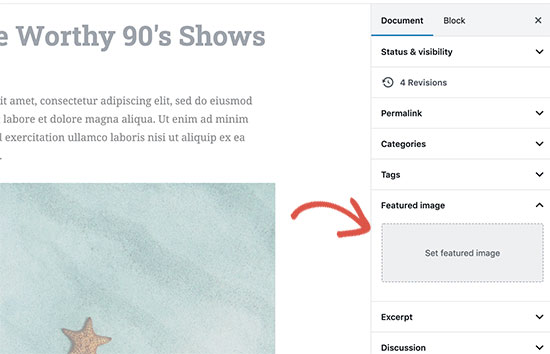
In the content editor, you’ll find the featured image tab in the right column.

Featured image section on post edit screen

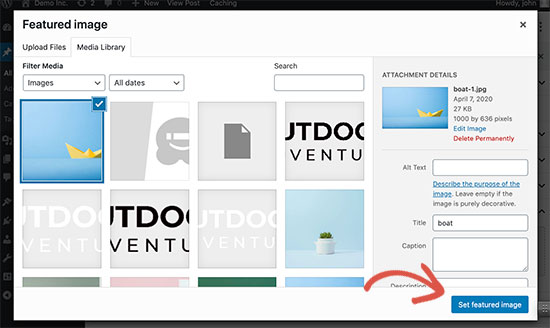
You need to click on the ‘Set Featured Image’ area, and this will bring up the WordPress media uploader popup.

From here, you can upload an image from your computer or use an existing image from your media library. Once you select the image, simply click on the Set Featured Image button.

Setting a featured image

WordPress will now show a preview of the featured image in the right column. However, the actual featured image would look different depending on your WordPress theme.

You can now save or publish your post and preview it to see how the featured image will appear on your live website.

Depending on settings defined by your theme developer, your featured image will automatically appear with your posts.

How to Find and Effectively Use Featured Images?

Now, the next big question that most beginners come across is where to find images to use as featured images?

You cannot just use Google image search and use any image from the internet. Those images are protected by copyright laws and using them without proper permission can cause legal trouble.

Luckily, there are several resources available that you can use to find free images for your blog posts.

Our top favorites are:

    • Shutterstock – They have a few free images, but the real value comes from their paid plans which give you access to tons of high quality photos, illustrations, drawings, videos, and more. This is what we use for WPBeginner site.
    • Unsplash – A popular online resource publishing high-resolution images that you can use on your website and other projects.
    • Negative Space – A well-organized collection of copyright-free images.
    • New Old Stock – A collection of vintage photographs from public archives.

Unsplash is a popular free image resource for bloggers

Note: All these sources provide high-resolution images, which means they are large in filesize and dimensions. You’ll need to optimize images for the web before using them as featured images.

Featured images are handled by your WordPress theme. In order to change how your theme displays featured images, you’ll need some basic CSS or WordPress coding skills.

If you are comfortable with coding, then continue reading for more tips.

Theme Developers Guide to Featured Image and Post Thumbnails in WordPress

The featured image is a popular feature supported by almost all WordPress themes. In rare situations, you may come across a theme that does not support featured images, or you may not like how they handle feature images.

In that case, you can add featured image support to your theme or change how it appears.

If you are comfortable editing WordPress theme files and know your way around a little custom CSS, then you can do it yourself.

If your theme does not support featured images, then you’ll not see the option to add a featured image in the content editor.

To add featured image support in a WordPress theme, you need to add this line of code in your theme’s functions.php file:

1
add_theme_support( 'post-thumbnails' );

This code will enable featured image support for posts and pages. You can now go to posts or page block editor, and you will see the featured image option enabled.

However, when you set a featured image, it will not automatically display in your WordPress theme. To display featured images in your theme, you need to edit your templates and add this line of code where you want to display the featured image:

1
<?php the_post_thumbnail(); ?>

The files you add the above code in will vary based on your theme. You will want to add the code inside your post loop.

Related: See WordPress theme hierarchy cheat sheet to better understand how themes work.

The above code is the basic function that you need to add featured image support and display featured images in your theme. To set image size for featured images you upload, you need to add this line of code to your functions.php file.

1
set_post_thumbnail_size( 50, 50);

The parameters for set_post_thumbnail_size are in this order: width, height.

You can also set additional image sizes to use with the_post_thumbnail() function. For example:

1
2
// Image size for single posts
add_image_size( 'single-post-thumbnail', 590, 180 );

In this example we have added a new image size called single-post-thumbnail with 590px with and 180px height.

To use this image size in our theme, we will still need to add it to the appropriate theme file.

Checkout our guide on adding additional image sizes in WordPress for more details.

If you have previously uploaded featured images, but they are still appearing in some other size, then you need to regenerate thumbnails and image sizes for older posts.

Below is an example of the featured image function with specific image size.

1
<?php the_post_thumbnail( 'single-post-thumbnail' ); ?>

This is the broken-down version of the full functionality. There are many other things you can do with featured images.

FAQs About Featured Images in WordPress

As a beginner, you may come across questions or issues when using featured images on your blog. Following are just some of the most frequently asked questions about featured images.

1. Why featured image is appearing twice on my posts?

Sometimes beginner add a featured image and then add the same image inside the content part of the post editor.

All you have to do is remove the image from the content area and only use featured image metabox to add featured image. For more on this topic, see our article on how to fix featured image appearing twice in WordPress.

2. What is the difference between the cover image and featured image?

Cover images are used in the content area of your posts or pages. They are normally used to separate different sections of a lengthy page or post.

Featured image is the representative image of an article. It does appear before or alongside the content but not inside the actual article.

For more on this topic, see our guide on the difference between cover image and featured image in WordPress.

3. How to display featured images next to recent blog posts?

The WordPress block editor comes with a ‘Latest Posts’ block which allows you to display recent posts with post thumbnails.

You can also display recent posts with thumbnails in sidebar widgets using Recent Posts Widget Extended plugin. For more details, see our article on how to display recent posts in WordPress.

4. How to remind authors to add featured image in WordPress?

Featured images are prominently displayed on your homepage, blog page, and other archive pages.

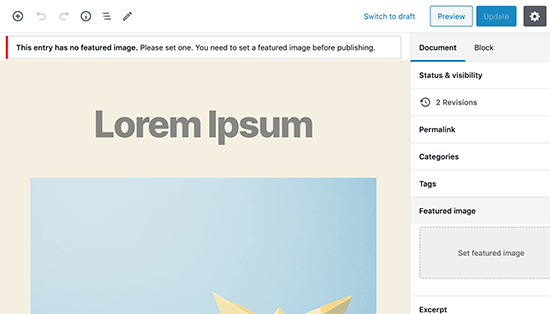
If you or another author on your blog forgot to set one and published the post then it will appear without a featured image. This will look bad and inconsistent, which is not good for user experience.

You can install and activate the Require Featured Image plugin, which will show a notification when anyone tries to publish a post without featured image.

Require featured image

For more details, see our article on how to require featured images in WordPress.

Checklist: 10 Things To Add To Your Footer on WordPress Site

Checklist: 10 Things To Add To Your Footer on WordPress Site

Are you wondering what to add in the footer of your WordPress site?

Footer is the area at the bottom of your website. It is often overlooked by website owners but can be used in significant ways to improve the user experience on your website.

In this checklist, we will share the top things that you should add to the footer of your WordPress website.

Which things to add to the footer of your WordPress website

What is Footer in WordPress?

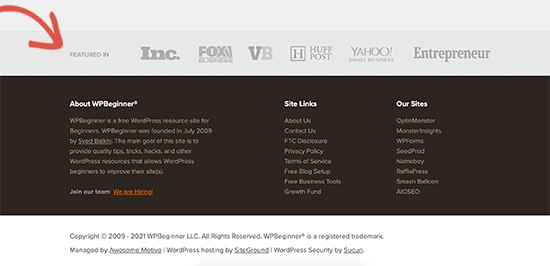
Footer is generally the area that appears below the content part of your website. It is a common website design feature used by millions of websites.

WPBeginner footer area

Footer may also refer to the footer code area. As you manage your website, third-party services like Google Analytics, Facebook Pixel, and others may ask you to add code to the footer of your website.

This footer code is not visible on the screen but is used to add code snippets needed for website functionality and features.

Many beginners often find it difficult to choose what to add to the footer of their WordPress website. This is a missed opportunity that can help improve your website.

That being said, let’s take a look at some of the things to add to the footer of your WordPress site, and how to make it more useful.

Here are the things we will add, feel free to jump to the items that interest you:

  • Adding Links to The Footer of Your WordPress Site
  • Adding Code in WordPress Footer
  • Adding Privacy Policy Link in WordPress Footer
  • Adding Copyright Date in WordPress Footer
  • Remove Powered by Links from Footer in WordPress
  • How to Add Instagram Feed in WordPress Footer
  • Add a Sticky Footer Bar in WordPress
  • Add Social Buttons in WordPress Footer
  • Add a Phone Number in WordPress Footer
  • Add a Contact Form in WordPress Footer

The first thing you would notice that most websites add links to the important pages for their website in the footer area. This usually includes links to their about, contact, team members, press, and other pages.

All popular WordPress themes come with a footer widget area. This is what we will be using to add different widgets and elements to the footer of your website.

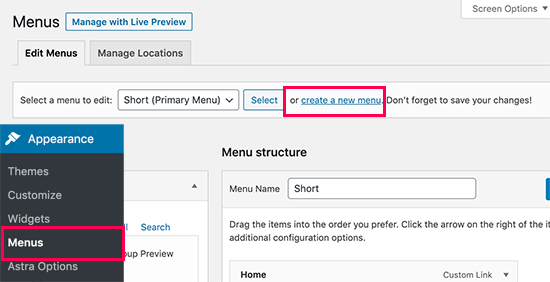
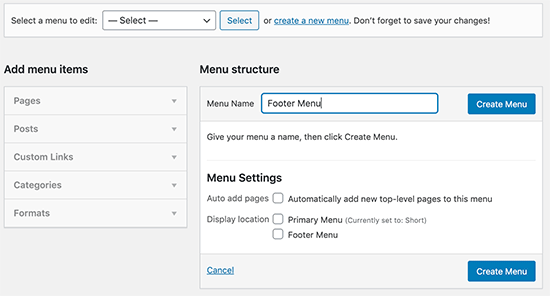
To add a set of links, you first need to go to Appearance » Menus page and click on the ‘create new menu’ link.

Create new footer links menu in WordPress

After that, enter a name for your menu and then click on the ‘Create Menu’ button.

Enter a name for your footer menu

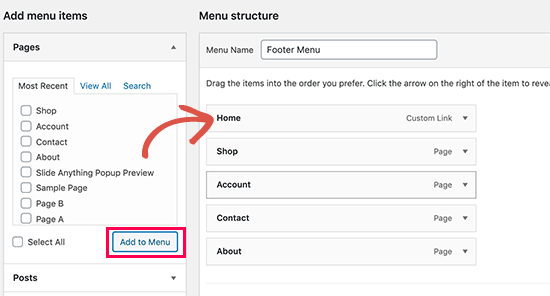
After that, select the items you want to add to the menu from the left column and click on the ‘Add to Menu’ button.

Add pages to menu

Once you are finished, click on the Save Menu button to store your changes. For more help, see our article on how to create navigation menus in WordPress.

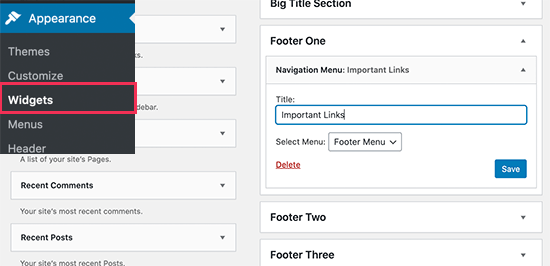
Now that you have created the menu, let’s display it in the footer area of your website. Simply go to the Appearance » Widgets page and add the Navigation Menu widget to your footer sidebar.

Add navigation menu widget to your footer widget area

After that, select the footer menu you created earlier from the drop down menu and click on the Save button.

You can now visit your website, and you will see the links displayed in the footer widget area of your website.

Footer links in WordPress

2. Adding Code in WordPress Footer

As you manage your WordPress website, you may sometime need to add some code snippet to your WordPress website’s footer area.

One way to add them is by editing your theme files directly and pasting the code in the footer.php template. However, this is a bad approach as your code will disappear when you change the theme or update it.

The best way to add code in the WordPress footer is by using a plugin.

First, you need to install and activate the Insert Headers and Footers plugin. For more details, see our step by step guide on how to install a WordPress plugin.

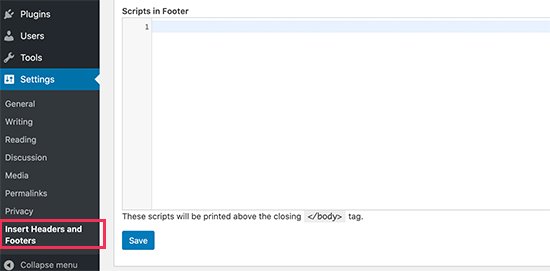
Upon activation, you need to visit Settings » Insert Headers and Footers page. From here you can paste your code snippet in the ‘Scripts in Footer’ box.

Add code to the footer area in WordPress

Don’t forget to click on the Save button to store your changes. For more details see our article on how to add header and footer code in WordPress.

In order to comply with the GDPR and privacy-related laws in different countries, website owners are required to add a privacy policy page to their website and link to it from all other pages.

WordPress makes it super easy to create a privacy policy page and then you can add a link to it in your website footer.

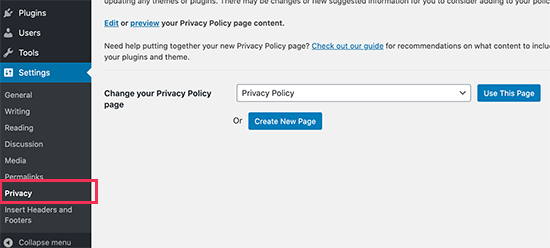
First, you need to visit Settings » Privacy page. You’ll notice that WordPress has already created a Privacy Policy page draft for you.

Add a privacy policy page

You can click on the ‘Use This Page’ button to use the default Privacy Policy template or create a new page.

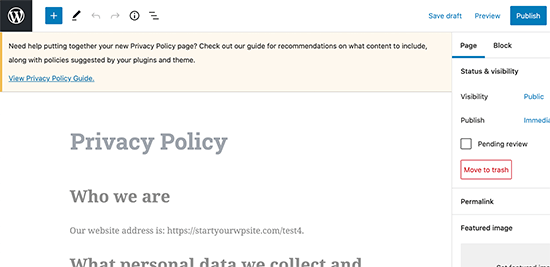
Next, you need to edit that page like you would edit any other page in WordPress. You can add more information about your privacy policy as per your own requirements and publish that page.

Editing privacy policy page

Once you are finished, you can add the privacy policy page to your footer navigation menu (see above).

For more details, see our article on how to add a privacy policy page in WordPress.

4. Adding Copyright Date in WordPress Footer

You may also want to add a copyright date in the WordPress footer area. Now one way to do this is to simply add the text in your theme settings.

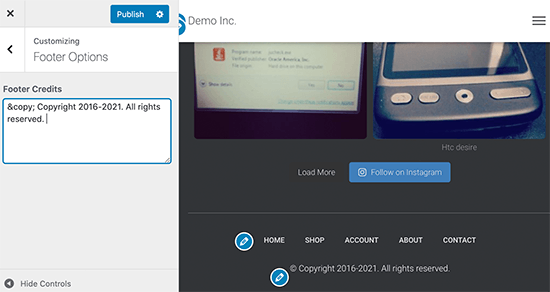
Many top WordPress themes allow you to easily add text in the footer area of your website. You can find the option by visiting Appearance » Customize page and looking for footer settings in the left panel.

Footer copyright text

You can make the copyright symbol by adding your text in this format:

&copy; Copyright 2016-2021. All rights reserved.

Don’t forget to publish your theme changes.

However, you will have to change the copyright notice each year to update the date. See our article on how to add dynamic copyright date in WordPress footer for a more elegant solution.

5. Remove Powered by Links from Footer in WordPress

Some free WordPress themes add a link back to WordPress website or their own websites in the footer area of your site.

You are not required to keep these links on your website. As they are outgoing links and affect your website’s SEO score if you have them on every page of your website.

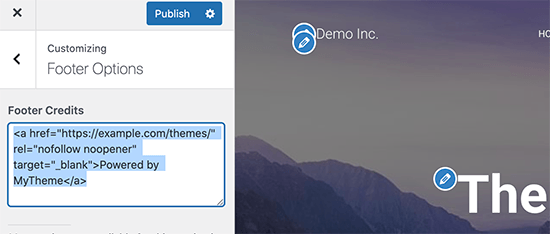
Now many WordPress themes make it super easy to remove those links. You can find the option in Appearance » Customize page. Usually, it is located under footer options panel.

Removing footer credits via customizer

However, some themes may choose to hard-code the links in the theme files with no option to remove it manually. In that case, you can edit the footer.php file in your theme to remove those links.

6. How to Add Instagram Feed in WordPress Footer

If you run a fashion blog or want to promote your Instagram content then the footer of your website could be a nice place to display your recent Instagram photos.

First, you’ll need to install and activate the Smash Balloon Instagram Feed plugin. For more details, see our step by step guide on how to install a WordPress plugin.

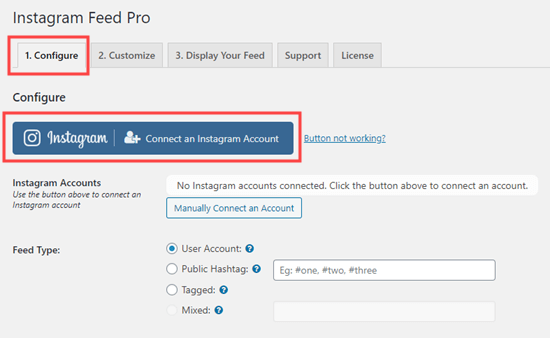
After that you need to visit Instagram Feed » Settings page and click on the ‘Connect an Instagram account’ button.

Connect Instagram account

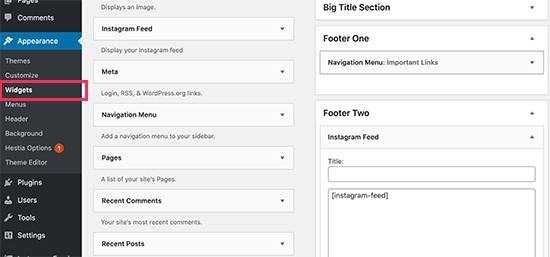
Follow the on-screen instructions to connect your Instagram account to your WordPress website. Once finished, you can go to Appearance » Widgets page and add the Instagram Feed widget to your footer sidebar.

Instagram feed widget

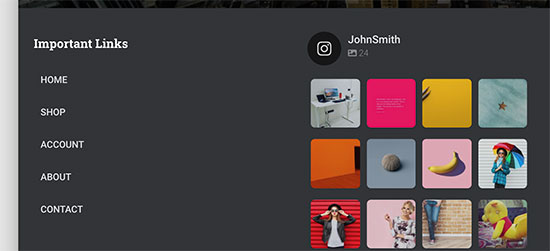
After that, you can visit your website to see your Instagram feed in the footer.

Instagram feed in the footer

Smash Ballon also has plugins to easily embed Facebook, YouTube, and Twitter feeds anywhere on your website.

7. Add a Sticky Footer Bar in WordPress

Want to display special offers or notifications in the footer area? A sticky floating footer bar allows you to display a banner that remains on the footer of the screen as users scroll your website.

For this, you’ll need OptinMonster. It is the best conversion optimization software in the market and allows you to convert abandoning website visitors into customers.

It also comes with powerful display rules which means you can show personalized custom messages to users in the footer of your website.

First, you need to sign up for an OptinMonster account.

After that, install and activate the OptinMonster plugin on your WordPress website.

Upon activation, you need to visit OptinMonster » Settings page and click on the ‘Connect existing account’ button.

Connect OptinMonster account

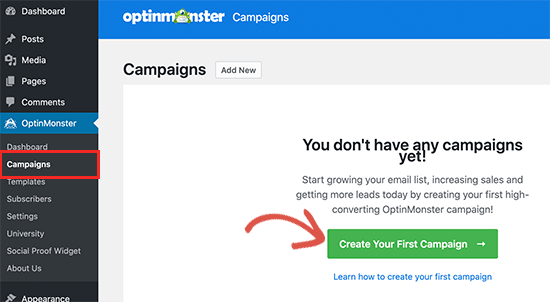
Once connected, you need to go to the OptinMonster » Campaigns page and click on the ‘Add New’ or ‘Create your first campaign’ button.

Create OM campaign

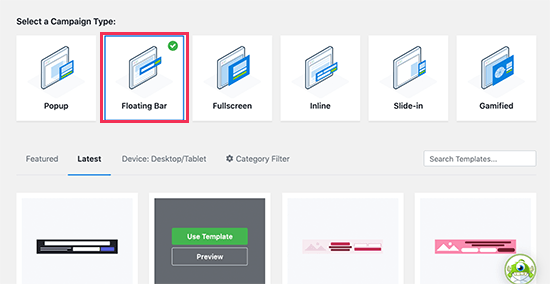
On the next screen, you need to choose ‘Floating Bar’ as your campaign type and then choose a template.

Choose floating bar campaign

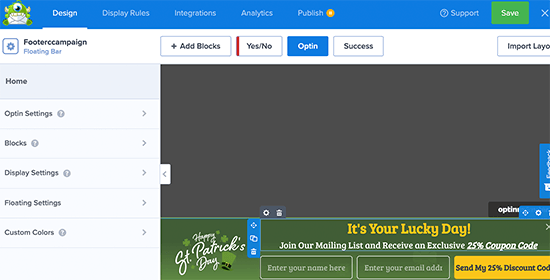
This will take you to OptinMonster’s drag and drop campaign builder. From here you can design your footer bar. Simply point and click on any element to edit it or drag and drop new blocks from the left column.

OptinMonster campaign builder

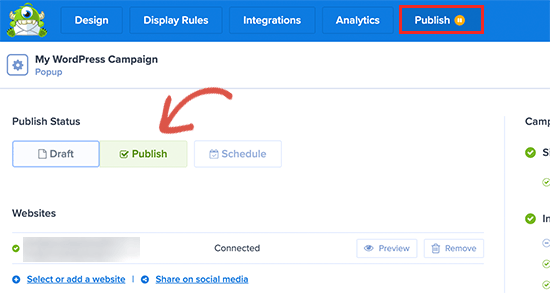
Once you are finished editing your campaign, simply switch to the Publish tab and make it live.

Publish your OptinMonster campaign

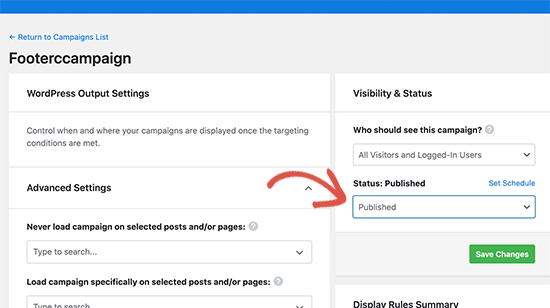
After that click on the close button to exit the campaign builder and return to your WordPress website. From here you need to set the campaign’s output status to ‘Published’.

Campaign output

You can now visit your website to see your floating footer bar campaign live in action.

Footer bar preview

OptinMonster can also be used to create a slide-in footer popup, add countdown timers, and targetted footer notifications to recover abandoned cart sales.

8. Add Social Buttons in WordPress Footer

Another good way to utilize the footer space in your WordPress theme is by adding social media icons there.

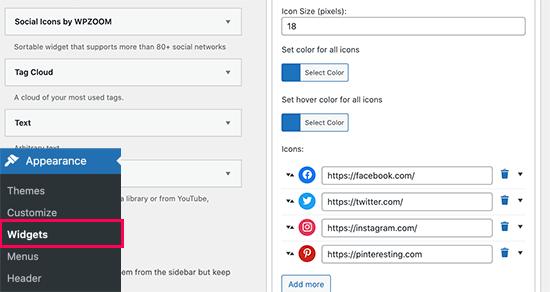
Simply, install and activate the Social Icons Widget plugin. Upon activation, go to Appearance » Widgets page and add the Social Icons widget to your footer widget area.

Social Icons widget

The plugin offers a bunch of options to choose colors, icon styles, button types, and more. You can just add the social media icons and replace the URLs with your own social media profiles.

Don’t forget to click on the save button and visit your website to see it in action.

Social icons preview

Bonus: Need more social engagement for your brand? Take a look at these best social media plugins for WordPress to grow your audience.

9. Add a Phone Number in WordPress Footer

If you offer customer support and sales via phone, then adding your phone number in the WordPress footer area would help users easily contact you.

For this you’ll need a business phone number. We recommend using Nextiva, which is the best business phone service for small businesses.

This allows you to make cheaper calls and use advanced features like call forwarding, using the same number on multiple devices and handsets, and managing calls from any device with an internet connection.

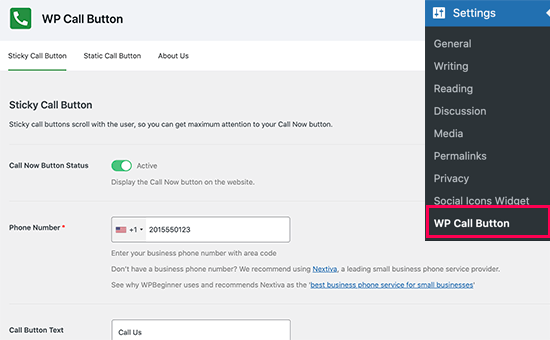
Once you got your phone number, there are multiple ways to add it to your website. The easiest one is to install and activate the WP Call Button plugin. Upon activation, go to Settings » WP Call Button page to configure plugin settings.

WP Call Button settings

First, set the ‘Call Now Button Status’ to active. After that, add your phone number and choose where you want to display the button. Once finished, don’t forget to click on the save changes button to store your settings.

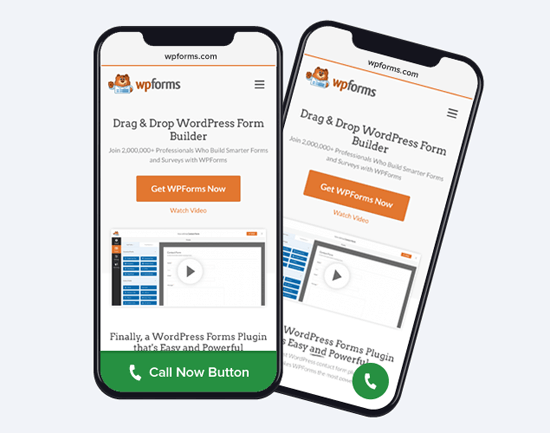
Click to call button in action

Don’t want to add the button? See our guide on how to add clickable phone numbers in WordPress for more methods.

10. Add a Contact Form in WordPress Footer

The footer of your WordPress website doesn’t have to be a dead-end. Give your customers a chance to continue the conversation by filling out a contact form.

Simply install and activate the WPForms plugin. It is the best WordPress contact form plugin and allows you to easily add contact form anywhere on your website including the footer.

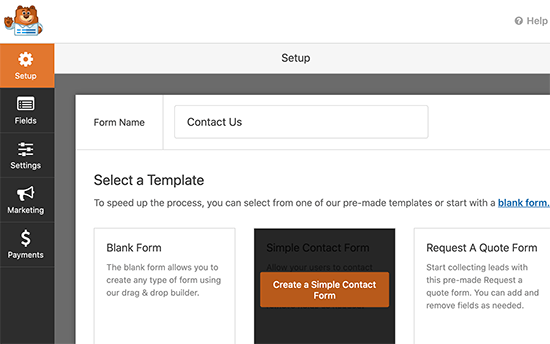
Upon activation, go to WPForms » Add New page to create your contact form. Enter a name for your form and select the Simple Contact Form template.

Add new form

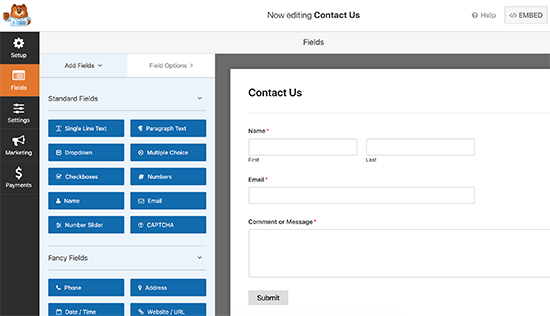
Next, WPForms will load the form builder with the usual contact form fields. You can click on any field to edit, move or delete it. You can also add new fields from the left column.

Edit form

Once you are done editing, click on the Save button to publish your form and exit the form builder.

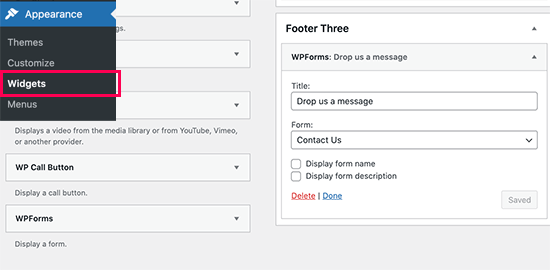
Next, you need to visit Appearance » Widgets page and add the WPForms widget to your footer area. After that, select the form you created earlier from the drop-down menu and click on the Save button.

Add form widget to footer area

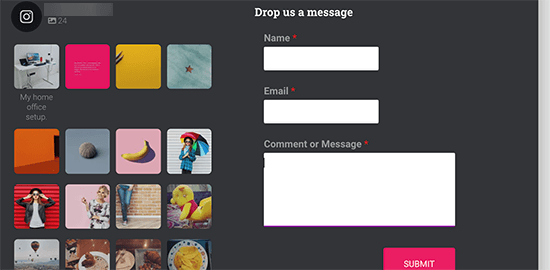
You can now visit your website and see the contact form in your website footer area.

Footer form preview

We hope this article helped you learn which things to add to your WordPress footer and make it more useful. You may also want to see our guide on how to improve your WordPress website speed and performance, and our expert pick of the best WordPress plugins to use on your site

How to Easily Find and Remove Stolen Content in WordPress (5 Ways)

How to Easily Find and Remove Stolen Content in WordPress (5 Ways)

Are you looking for a way to find and remove stolen content in WordPress?

You’ve worked hard on your website, but now your content has been stolen, published, and is taking traffic away from your brand.

In this article, we’ll show you how you can find and remove stolen content in WordPress, no matter if it’s a single post or your entire site has been copied.

5 ways to find and remove stolen content in WordPress

How and Why is Website Content Stolen?

One widespread method for stealing content is blog content scraping. This is where content is taken from your site, usually via your RSS feed, and republished on another site.

Sometimes your content will be simply copied and pasted directly to another website, including your formatting, images, videos, and more.

Other times, your content will be reposted with attribution and a link back to your website, but without your permission. Although this can help your SEO, you may want to keep your original content hosted on your site only.

Usually, the main motivation for content theft is to profit off of your hard work.

Having your content stolen is a stressful experience that a lot of WordPress site owners unfortunately experience.

Just know that you’re not alone, and it’s a problem that can be fixed.

Here are the 5 most common ways to find and remove stolen content in WordPress.

1. Set Up Automatic Content Theft Notifications

Sometimes your loyal visitors will alert you that your content has been stolen, or they saw it somewhere else on the web.

Luckily, you don’t have to wait for a helpful reader to notify you.

Google Alerts is often used for brand name notifications. You enter the name of your website and get email notifications whenever you’re mentioned online.

But, this same feature can be used to alert you of content that’s being used without your permission.

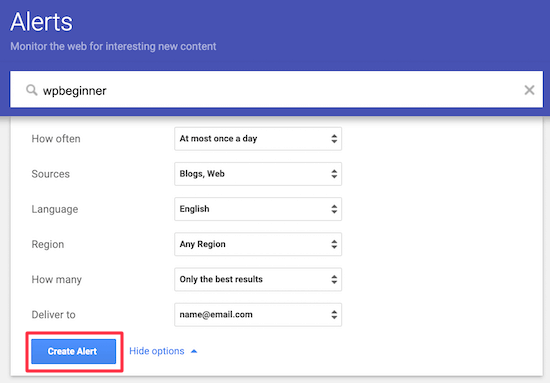
Simply navigate to Google Alerts. Next, enter the name of your website, your URL, or use a portion of your article.

For example, if you end every blog post with the same CTA, then you can get notifications whenever this appears online.

Set up Google Alerts stolen content

After that, you’ll choose the ‘Sources’. Select ‘Blogs’ and ‘Web’ from the drop-down list. Then, click ‘Create Alert’.

Now, you’ll receive an email whenever your content appears on the web or your website is mentioned.

2. Manually Search for Stolen Content

Copyscape is a plagiarism checker tool that can also be used to find stolen content published elsewhere across the web.

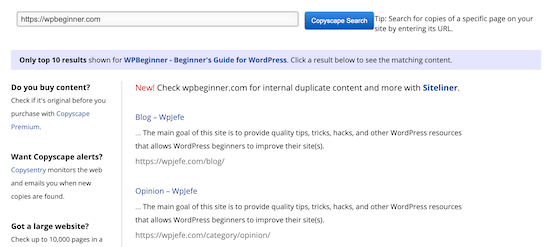
All you have to do is navigate to Copyscape and enter your website URL. You can also enter a page or post URL to see if one of your blog posts or site pages have been copied and stolen.

Copyscape stolen content results

The free version of the tool gives you the top 10 results, which should be enough for smaller WordPress blogs.

If you have a bigger website, or you want results of every single mention of your copied text, then you’ll need to upgrade to the premium version.

The paid version of the tool lets you check up to 10,000 pages with a single click. If you publish a lot of content on your WordPress website, then this could be very useful.

Another manual tool you can use is Grammarly. Grammarly is a popular online grammar checking tool.

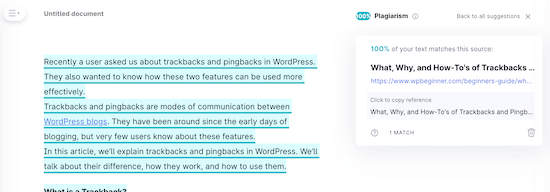
The premium version of Grammarly has a built-in plagiarism checker. You can copy and paste your content into the tool, and it’ll run a scan to see if any matches turn up online.

Grammarly plagiarism check

3. Contact the Offending Host or Registrar

So, you’ve found stolen content, now what?

The simplest way to take down stolen content is to file a DMCA complaint against the website.

Usually, if it’s a spam website, or a site that’s scraping your content from your RSS feed, then it can be difficult to find contact information.

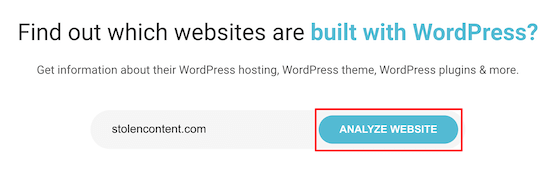
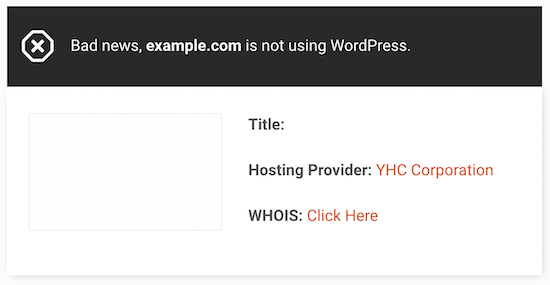
However, you can use the IsItWP lookup tool to find out where the domain and website are hosted.

IsItWP website lookup tool

Simply enter the domain that’s published your stolen content and click ‘Analyze Website’.

The tool will pull up any available information, including the web hosting company and registrar.

IsItWP website lookup results

You’ll notice that the host and registrar are shown, even if the website isn’t using WordPress. You can contact the host and registrar directly to try and get the site taken down.

Since stealing content is an illegal activity, web hosting companies don’t want to host websites that are breaking the law.

Most reputable web hosting companies take DMCA requests seriously and will work with you to resolve the situation including removing the pages in violation.

4. Submit a Takedown Notice to Google

Another way to remove stolen content is to contact Google directly.

You need to be careful using this method because it requires a lot of proof, and if you do false reports, then it can get your account in trouble.

There are a few different ways to file a DMCA complaint with Google, but we recommend using the one inside Google Search Console.

First, you’ll need to have your site linked with Google Search Console. If you haven’t done this yet, then see our guide on how to add your WordPress site to Google Search Console.

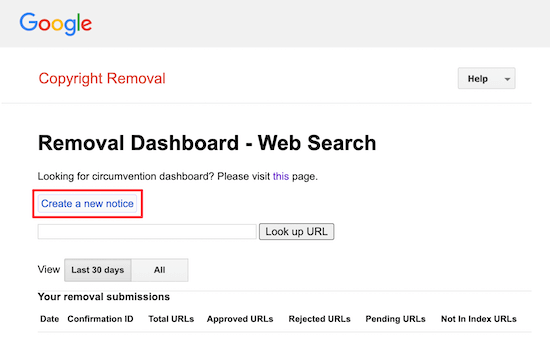
Then, you can use the Google Search Console Copyright Removal Tool.

Simply click ‘Create a new notice’.

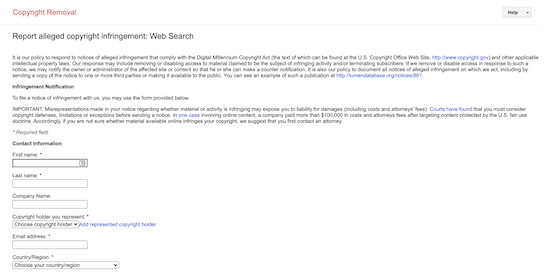
This will bring up a screen where you can enter all of the relevant information including your contact information, what posts were stolen, and the location of the stolen material.

Google Search Console stolen content report

The more detailed information you’re able to provide, the better the chances of the offending site getting taken down.

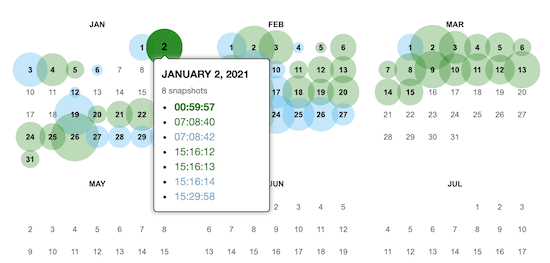
If you need to gather more information for your complaint, then you can use a tool like Wayback Machine.

Wayback Machine compare content dates

This tool takes takes snapshots of your website at different points in time.

So, you can compare the date you published the article to the offending site who later stole your content.

5. Use an All in One Scanner and Takedown Tool

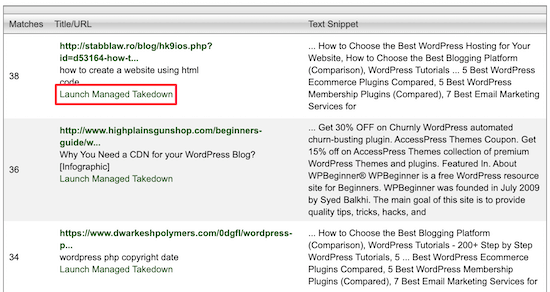
You can also use the Digital Millennium Copyright Act (DMCA) tool to help you find duplicate content across the web.

Just enter your URL into the tool and it’ll scour the web for sites that have stolen your content.

DMCA tool request takedown

Once you’ve found a site that plagiarized or stolen your content you can click ‘Launch Managed Takedown’ to start the takedown process.

Note that the results won’t always be stolen content. Sometimes it’ll be infographics, backlinks, unlinked brand mentions, and more.

The discovery and takedown process is similar to the tools above, but instead of having to use multiple tools, you can take care of everything in one place.

DMCA offers premium takedown tools and templates for $10 per month. Or, you can purchase a full service takedown for $199, where their team of experts will get your stolen content removed for you.

How to Add HTTP Security Headers in WordPress (Beginner’s Guide)

How to Add HTTP Security Headers in WordPress (Beginner’s Guide)

Do you want to add HTTP security headers in WordPress?

HTTP security headers allow you to add an extra layer of security to your WordPress website. They can help block common malicious activity from affecting your website performance.

In this beginner’s guide, we’ll show you how to easily add HTTP security headers in WordPress.

Adding HTTP security headers in WordPress

What are HTTP Security Headers?

HTTP security headers are a security measure that allows your website’s server to prevent some common security threats before it affects your website.

Basically, when a user visits your website, your web server sends an HTTP header response back to their browser. This response tells browsers about error codes, cache control, and other statuses.

The normal header response issues a status called HTTP 200. After which your website loads in the user’s browser. However, if your website is having difficulty then your web server may send a different HTTP header.

For example, it may send a 500 internal server error, or a not found 404 error code.

HTTP security headers are a subset of these headers and are used to prevent websites from common threats like click-jacking, cross-site scripting, brute force attacks, and more.

Let’s have a quick glance at what HTTP security headers look like and what they do to protect your website.

HTTP Strict Transport Security (HSTS)

HTTP Strict Transport Security (HSTS) header tells web browsers that your website uses HTTPs and should not be loaded using insecure protocol like HTTP.

If you have moved your WordPress website from HTTP to HTTPs, then this security header allows you to stop browsers from loading your website on HTTP.

X-XSS Protection

X-XSS Protection header allows you to block cross-site scripting from loading on your WordPress website.

X-Frame-Options

X-Frame-Options security header prevents cross-domain iframes or click-jacking.

X-Content-Type-Options

X-Content-Type-Options blocks content mime-type sniffing.

That being said, let’s take a look at how to easily add HTTP security headers in WordPress.

Adding HTTP Security Headers in WordPress

HTTP security headers work best when they are set at the web server level (i.e your WordPress hosting account). This allows them to be triggered early on during a typical HTTP request and provides maximum benefit.

They work even better if you are using a DNS-level website application firewall like Sucuri or Cloudflare. We’ll show you each method, and you can choose one that works best for you.

Here are quick links to different methods, you can jump to the one that suits you.

  • Adding HTTP security headers using Sucuri
  • Adding HTTP security headers using Cloudflare
  • Adding HTTP security headers using .htaccess
  • Adding HTTP security headers using WordPress Plugin
  • Testing HTTP security headers

1. Adding HTTP Security Headers in WordPress using Sucuri

Sucuri is the best WordPress security plugin on the market. If you are using their website firewall service too, then you can set HTTP security headers without writing any code.

First, you will need to sign up for a Sucuri account. It is a paid service that comes with a sever level website firewall, security plugin, CDN, and malware removal guarantee.

During sign up, you will answer simple questions, and Sucuri documentation will help you set up the website application firewall on your website.

After signing up, you need to install and activate the free Sucuri plugin. For more details, see our step by step guide on how to install a WordPress plugin.

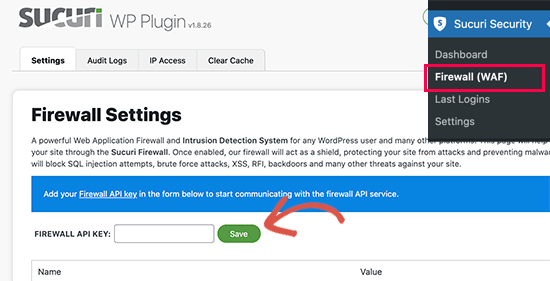
Upon activation, go to Sucuri Security » Firewall (WAF) page and enter your Firewall API key. You can find this information under your account on Sucuri website.

Sucuri WAF API key

Click on the Save button to store your changes.

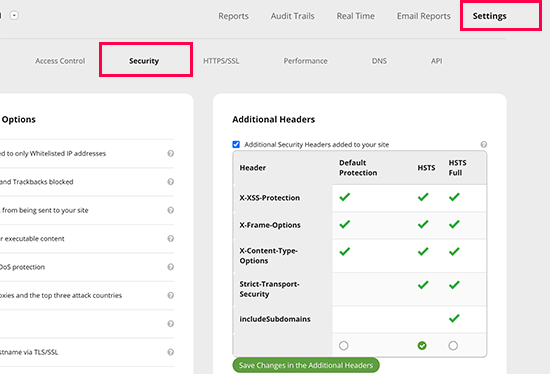
Next, you need to switch to your Sucuri account dashboard. From here, click on the Settings menu on top and then switch to the Security tab.

Setting HTTP security headers in Sucuri

From here you can choose three sets of rules. The default protection, HSTS, and HSTS Full. You will see which HTTP security headers will be applied for each set of rules.

Click on the ‘Save Changes in The Additional Headers’ button to apply your changes.

That’s all, Sucuri will now add your selected HTTP security headers in WordPress. Since it is a DNS level WAF, your website traffic is protected from hackers even before they reach your website.

2. Adding HTTP Security Headers in WordPress using Cloudflare

Cloudflare offers a basic free website firewall and CDN service. It lacks advanced security features in their free plan, so you will need to upgrade to their Pro plan which are more expensive.

To add Cloudflare on your site, see our tutorial on how to add Cloudflare free CDN in WordPress.

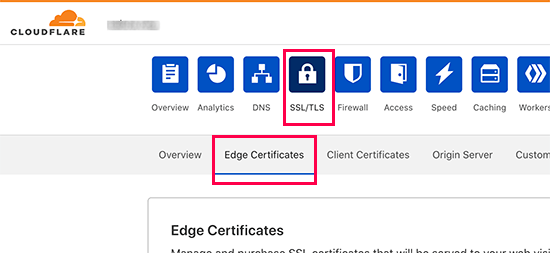
Once Cloudflare is active on your website, go to the SSL/TLS page under your Cloudflare account dashboard and then switch to the Edge Certificates tab.

Setting up HTTPS security headers in Cloudflare

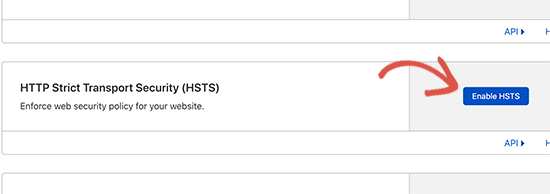
Now, scroll down to the HTTP Strict Transport Security (HSTS) section and click on the ‘Enable HSTS’ button.

Enable HSTS on Cloudflare

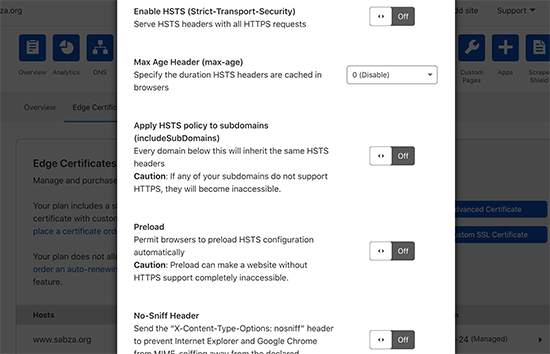
This will bring up a popup with instructions telling you that you must have HTTPS enabled on your WordPress blog before using this feature. Click on the Next button to continue, and you will see the options to add HTTP security headers.

Enable HTTPS security headers in Cloudflare

From here, you can enable HSTS, no-sniff header, apply HSTS to subdomains (if they are using HTTPS), and preload HSTS.

This method provides basic protection using HTTP security headers. However, it does not let you add X-Frame-Options and Cloudflare doesn’t have a user interface to do that.

You can still do that by creating a script using the Workers feature. However, creating an HTTPS security header script may cause unexpected issues for beginners which is why we wouldn’t recommend it.

3. Adding HTTP Security Headers in WordPress using .htaccess

This method allows you to set the HTTP security headers in WordPress at the server level.

It requires you to edit the .htaccess file on your website. It is a server configuration file used by the most commonly used Apache webserver software.

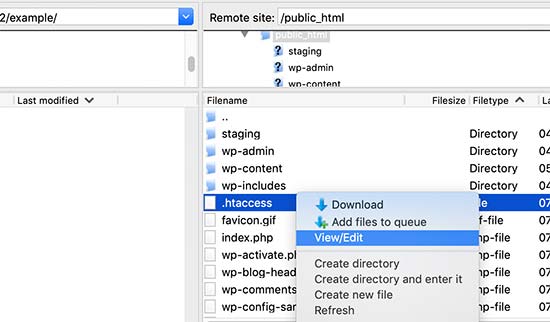
Simply connect to your website using an FTP client, or the file manager app in your hosting control panel. In the root folder of your website, you need to locate the .htaccess file and edit it.

Edit the .htaccess file in WordPress

This will open the file in a plain text editor. At the bottom of the file, you can add the code to add HTTPS security headers to your WordPress website.

You can use the following sample code as a starting point, it sets the most commonly used HTTPs security headers with optimal settings:

1
2
3
4
5
6
7
<ifModule mod_headers.c>
Header set Strict-Transport-Security "max-age=31536000" env=HTTPS
Header set X-XSS-Protection "1; mode=block"
Header set X-Content-Type-Options nosniff
Header set X-Frame-Options DENY
Header set Referrer-Policy: no-referrer-when-downgrade
</ifModule>

Don’t forget to save your changes and visit your website to make sure that everything is working as expected.

Note: Incorrect headers or conflicts in .htaccess file may trigger 500 Internal server error on most web hosts.

4. Adding HTTP Security Headers in WordPress using Plugin

This method is a little less effective as it relies on a WordPress plugin to modify the headers. However, it is also the easiest way to add HTTP security headers to your WordPress website.

First, you need to install and activate the Redirection plugin. For more details, see our step by step guide on how to install a WordPress plugin.

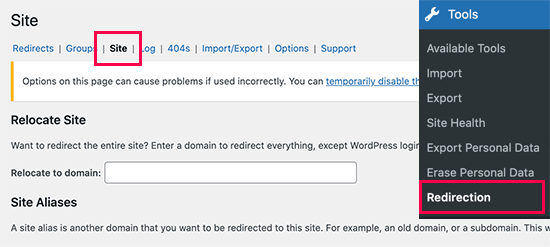
Upon activation, the plugin will show a set up wizard that you can just follow along to set up the plugin. After that, go to Tools » Redirection page and switch to the ‘Site’ tab.

Site settings in Redirection plugin

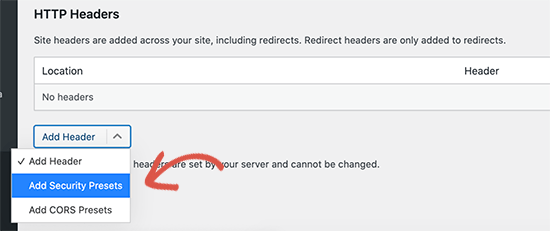
Next, you need to scroll down to the bottom of the page to the HTTP Headers section and click on the ‘Add Header’ button. From the drop-down menu, you need to select ‘Add Security Presets’ option.

Adding header presets using Redirection

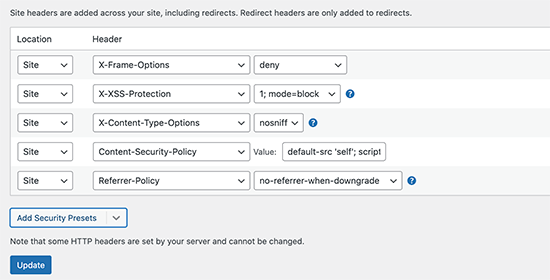
After that, you will need to click on it again to add those options. Now, you will see a preset list of HTTP security headers appear in the table.

HTTP security header presets

These headers are optimized for security, you can review them and change them if needed. Once you are done, don’t forget to click on the Update button to save your changes.

You can now visit your website to make sure that everything is working fine.

How to Check HTTP Security Headers for a Website

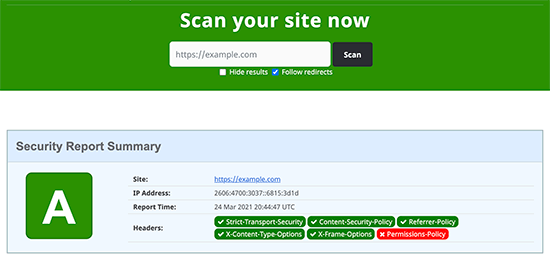
Now that, you have added HTTP Security headers to your website. You can test your configuration using the free Security Headers tool. Simply enter your website URL and click on the Scan button.

Checking your WordPress security headers

It will then check HTTP security headers for your website and will show you a report. The tool would generate a so-called grade label which you can ignore as most websites would get a B or C score at best without affecting user experience.

How to Increase Pageviews and Reduce Bounce Rate in WordPress

How to Increase Pageviews and Reduce Bounce Rate in WordPress

Do you want to increase pageviews and reduce bounce rate in WordPress?

Users who stay on your site longer and view more pages are more likely to join your email list, leave a comment, make a purchase, follow you on social media, and more.

In this article, we’ll show you how to increase your pageviews and reduce bounce rates in WordPress using proven methods.

How to increase pageviews and reduce bounce rate in WordPress

What is Bounce Rate?

Bounce rate is the percentage of visitors who land on your site and leave without continuing to a second page. A high bounce rate means that you couldn’t convince a visitor to stay on your page and take action.

A visitor can bounce from your site in a lot of ways.

  • Clicking the back button
  • Typing in a new URL
  • Closing the tab or window
  • The session times out (from hosting errors)

People leave websites all the time. It’s normal because that’s how people navigate the web. But, there is a difference between a good and bad bounce rate.

A good bounce rate means your visitors had a good user experience and found what they’re looking for on your site. A bad bounce rate means a lot of your visitors land on your site and leave quickly.

What is a Good Bounce Rate?

Good bounce rates will vary by your industry and the type of website that you have.

There are some general rules you can keep in mind when looking at your own data.

  • Over 80% is a very bad
  • Between 70 and 80% is poor
  • Between 50 to 70% is good
  • Between 30 to 50% is great
  • Under 20% is generally a tracking error

There are a lot of reasons your bounce rate could be high. Luckily, most of these reasons can be fixed.

  • Your site loads too slowly
  • Your visitors are having a hard time navigating your site
  • You have a poor design
  • There aren’t any clear calls-to-action

There’s a lot you can do to improve your bounce rates and increase the total number of pageviews your WordPress site receives.

Getting Started

Before you begin, you’ll need to know your existing bounce rate and average number of pageviews.

We recommend using Google Analytics with the MonsterInsights plugin. It’s the best analytics solution for WordPress used by over 3 million websites.

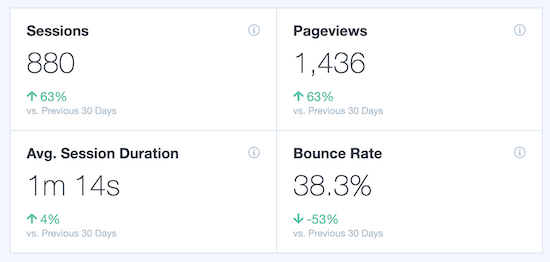
This lets you easily view your traffic and user data directly from your WordPress dashboard. As you implement the tips in this post, you’ll see your numbers improve.

MonsterInsights analytics data

For more details, see our guide on how to install Google Analytics in WordPress.

1. Speed Up Your WordPress Site

If you have a high bounce rate, then it’s easy to assume your content or website is to blame. But, your visitors could be leaving before they’ve even had a chance to see your content.

If your site doesn’t load within 2 seconds, then your visitors won’t wait around. This applies to both mobile and desktop visitors.

Speeding up your WordPress site will improve your user experience, increase your total number of pageviews, and help with your WordPress SEO rankings.

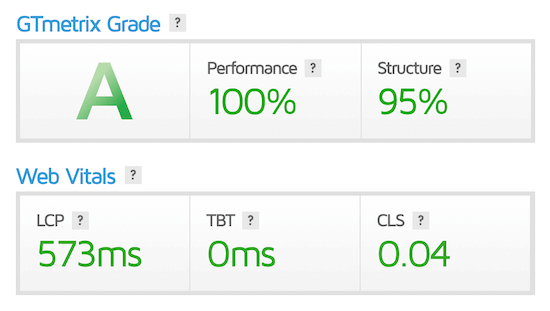
First, you’ll want to run a website speed test, so you can see how your website is currently performing. For more details, see our guide on how to properly run a website speed test.

Website speed test results

Once you know how your site is currently performing, you can start making your WordPress site faster.

Luckily, there are ton of ways you can speed up your WordPress site performance.

For most websites, the biggest things that slow down their site speed is their WordPress hosting or improper WordPress caching configurations.

To help you fix your website speed, we have created an ultimate guide on how to boost WordPress speed and performance.

2. Improve Your WordPress Navigation Menus

Your navigation menu is one of the main ways visitors will navigate around your site. Most website owners don’t think twice about their navigation menus.

But, having a navigation menu that’s too complex or confusing can lead to higher bounce rates.

You want your navigation menu to be simple and help your visitors find exactly what they’re looking for.

Navigation menu optimization

We use a drop down navigation menu to organize thousands of posts on the WPBeginner blog simply. Even when you have a content heavy site, you should still organize your menus in a logical manner.

WordPress makes it easy to create menus and sub-menus across your WordPress site. For more details, see our beginner’s guide on how to add a navigation menu in WordPress.

3. Improve Your Internal Links in WordPress

Internal linking your content together is not only great for SEO, but it’s also one of the best ways to reduce bounce rate while increasing pagviews.

Internal linking is the process of linking from one page on your site to another.

For example, we can link to our best WordPress SEO plugin guide here in this sentence as our internal link.

Internal links are relevant links that enhance your existing content.

You can easily add internal links directly from your WordPress content editor.

Add internal links in WordPress

For more details, see our beginner’s guide on how to add a link in WordPress.

Note: Some of the additional options that you see in our screenshot above are added by All in One SEO plugin for WordPress. We recommend using AIOSEO to improve your SEO rankings.

4. Add Internal Search to WordPress

Internal search lets your visitors search your site for the content they’re looking for, just like Google.

Often users will use your website search bar to find the content they’re looking for before leaving your site.

Internal search example

By default, WordPress has a built-in search widget. However, the results algorithm is pretty limited.

We recommend using a WordPress search plugin to enhance your visitor’s search experience. For more details, see our list of the best WordPress search plugins to improve your site search.

5. Open External Links in a New Tab

Linking out to other websites is also great practice. It helps you build relationships with other website owners and makes your content more valuable.

However, external links can make your visitors leave your site, which can increase your bounce rate.

The best way to fix this is by having your external links open in a new tab or window. That way, when a visitor clicks an external link, they won’t leave your website.

Open external links in new tab

WordPress has an option to make your external links open in a new tab within your post editor.

For more details, see our guide on how to open external links in a new window or tab.

6. Add Related Posts or Popular Posts

One reason your visitors are leaving after reading a post is you’re not showing them what to do next.

So, instead of sticking around to read more, they leave.

An easy way to remedy this is to add a ‘Related Posts’ or ‘Popular Posts’ section at the end of your post.

If a visitor reads to the bottom of an article, then you know they’re engaged and are enjoying your site. It’s time to encourage them to keep reading.

WordPress related posts

There are a lot of ways you can do this. We recommend using a WordPress popular posts addon from MonsterInsights. This lets you easily add popular posts to WordPress and gives you control over the layouts.

MonsterInsights Popular Post Templates

You can even use it to add inline trend posts within your blog content:

MonsterInsights Inline Popular Posts

7. Make Your Content Readable

Most websites rely heavily on written content. If your content isn’t correctly formatted for the web, then this could be turning off your visitors.

There are a few key parts to making sure your content is easy to read.

First, make sure the text on your site is readable on all devices.

If readers have to zoom in or squint to see your text on mobile, then your font size isn’t big enough. For more details, see our guide on how to easily change the font size in WordPress.

Second, you need to format your content correctly. Readers tend to skim quickly instead of reading line by line. So, your content needs to match the way people read online.

Format content properly

There are a few ways you can format your articles for the web the right way.

  • Use subheadings to break up your content
  • Make your paragraphs short
  • Use bullets and lists when possible
  • Embed videos and add images into your content
  • Write in a conversational tone

8. Optimize Your WordPress Site for Mobile

Over half of all internet traffic comes from mobile devices. If your website isn’t optimized for mobile, then you’re delivering a poor experience for many visitors.

If your bounce rate is high and you haven’t optimized for mobile, then this could be why.

The best way to see if your site is optimized for the mobile web is using Google’s Mobile-Friendly Test.

Mobile friendly test Google

All you have to do is enter your URL, and you’ll get a report that’ll show you how you can optimize your website.

The easiest way to ensure your site is optimized for mobile is by choosing a responsive WordPress theme. A responsive WordPress theme will automatically adjust itself to your visitor’s screen size.

So, your WordPress site will look good on mobile, tablet, and desktop devices.

We’ve compiled a list of the best responsive WordPress themes.

Using a responsive theme makes it easy to optimize for mobile. All you have to do is install and activate the theme, and your site will be mobile-friendly.

There are also ways you can preview and edit the mobile version of your website, so you can make sure it looks great on mobile.

For more details, see our guide on how to preview the mobile version of your WordPress site.

9. Use WordPress Popups the Right Way

Popups can be a great way to grow your email list. But, they can negatively impact the user experience if they’re not used the right way.

You’ve probably been to a website where you were bombarded with popups. When all you were trying to do was read the content.

Instead of creating a poor experience you can create popups that’ll display as visitors are leaving your site.

You can either let them go or try to convert them into a subscriber.

The easiest way to do this is using OptinMonster. It’s the best lead generation software in the market used by over 1.2 million websites. We were able to use OptinMonster to grow our email list by 600%.

Add OptinMonster popup

You can use the Exit-Intent® technology to display popups when visitors are thinking about leaving your site. There’s also advanced targeting features, so you can create and display popups that are highly relevant to your visitors.

For more details, see our guide on how to build your email list with OptinMonster in WordPress.

10. Create a Custom 404 Page in WordPress

A 404 page is what your visitors will see if they come to your site via an invalid link. The page won’t be created on your site yet, so they’ll get an error message instead.

The goal of a 404 page is to redirect visitors to the content they might find helpful, instead of hitting the back button and leaving your site.

Depending on your WordPress theme, your standard 404 page might already list your pages, categories, or posts. But, this still leaves a lot of room for improvement.

The goal of your 404 page is to give your visitors relevant information, so they can find what they’re looking for and stay on your site.

404 page example

You can get creative with your 404 page. Some websites use humor, while others provide visitors with a helpful search tool.

The easiest way to create a custom 404 page is by using the SeedProd plugin.

For more details, see our list of the best WordPress 404 error page design examples.

11. Improve Your WordPress Sidebar

If your WordPress blog has a sidebar, there’s a lot you can do to optimize this space. For example, you can add things like popular posts, email sign up forms, display ads, and even Instagram photos.

However, since your goal is to reduce bounce rate and increase your pageviews, you should include helpful resources that link to other areas within your site.

We maximize our sidebar and direct our visitors to other popular resources on our site. As you scroll down the page, you’ll find images that link to detailed tutorials, a search bar, and useful WordPress guides.

WPBeginner Sidebar

Note, if your site doesn’t use a sidebar, then use the rest of the tips in this post to optimize your website.

12. Show WordPress Post Excerpts on Your Homepage

If your homepage contains your latest blog posts, then you can turn these into excerpts instead of entire posts. This helps your website in two ways.

First, it decreases the time it takes for your page to load. Second, it helps increase your pageviews by giving your visitors more options to find the right content.

Our homepage gives readers the chance to check out our 5 latest blog posts.

Post excerpts on homepage

Our blog page lists 10 posts, along with post excerpts, and read more links.

You can add post excerpts to multiple locations across your WordPress site.

For more details, see our guide on how to customize WordPress excerpts with no coding required.

HOW TO IMPROVE ORGANIC CLICK THROUGH RATE (CTR) IN WORDPRESS – 12 PROVEN TIPS  How to Improve Organic Click Through Rate (CTR) in WordPress – 12 Proven Tips

HOW TO IMPROVE ORGANIC CLICK THROUGH RATE (CTR) IN WORDPRESS – 12 PROVEN TIPS How to Improve Organic Click Through Rate (CTR) in WordPress – 12 Proven Tips

Do you want to improve the organic click through rate (CTR) for your WordPress website?

Organic click-through rate is the average clicks a page gets when displayed in search results. Improving your CTR can help improve your SEO rankings and get more traffic to your website from search engines.

In this article, we’ll share our proven tips on how to easily improve organic click through rate (CTR) in WordPress like a total SEO pro.
Improving organic click through rate CTR in WordPress

Here is a quick overview of the topics we’ll cover in this guide.

  • What is Organic Click Through Rate?
  • How to Find Out Organic Click Through Rate?
  • Improving your Organic Click Through Rate in WordPress
  • Write Powerful Headlines and SEO Titles
  • Use Dynamic SEO Titles for Better Headlines
  • Write Helpful Meta Descriptions
  • Use Meaningful URL Slugs
  • Aim to Appear in Rich Snippets or Answer Box
  • Use Rich Snippets Schema Markup to Standout
  • Improve Local SEO for Higher Click-Through Rates
  • Improve Older Articles for Better Click-Through Rates
  • Fix Keyword Cannibalization Issues
  • Improve Page Load Times for Better User Experience
  • Keep Users Engaged on Your Site
  • Bonus Tip: Convert Users Into Subscribers and Customers

What is Organic Click Through Rate?

Organic Click Through Rate is the percentage of users who click on an item in the search results.

Let’s suppose, one of your articles appeared 100 times in search results for a particular keyword. Out of those, 3 users clicked to view your article, which gives you a click-through rate of 3%.

Search engine algorithms use organic CTR to analyze the performance of your website in search results. The pages that have a higher click through rate tend to rank higher in search results.

Many SEO experts have found that improving your CTR is the fastest way to improve your SEO rankings.

As a website owner, you can see which pages on your website are getting more clicks, so you can replicate those techniques on other pages.

You can also find out which pages are not getting any clicks and then work to improve them, so they can get higher click through rate.

How to Find Out Organic Click Through Rate?

The easiest way to find out your organic click-through rate is by using Google Search Console.

Google Search Console is the free tool offered by Google to help website owners see how their website is doing in search results.

If you haven’t already done so, then follow our guide to learn how to add your website to Google Search Console.

After that, you can login to your Google Search Console dashboard and switch to the Performance tab. At the top, you’ll see your website’s average click-through rate.
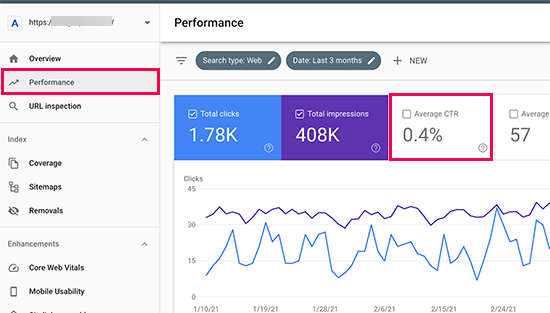
Average click through rate

Click on the average click through rate to add it as a metric to your report. Next to it, you’ll also see the average position box, go ahead and click to select it as well.
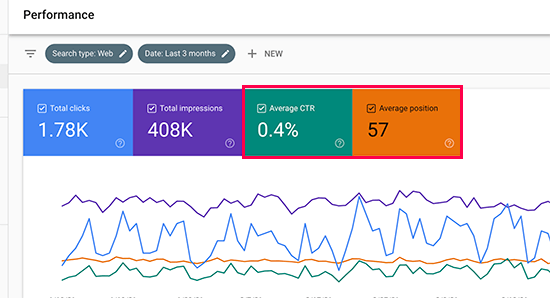
Add CTR and Average Position to your performance report

Now you need to scroll down to the detailed report section. Under the Queries tab, you’ll see keywords you rank for with average clicks, impressions, CTR, and position.
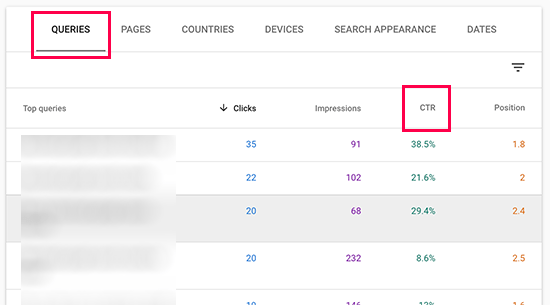
CTR details for keywords

You can click on any column to sort the results by position or by CTR.

Similarly, you can switch to the Pages tab to view the results for individual pages on your website instead of keywords.

Improving your Organic Click Through Rate in WordPress

Now that you know how to view your website’s average CTR scores, the next step is to improve your organic click through rate of your WordPress blog posts.

Ideally, you would want to start with pages that already rank higher, have good search impressions, with an average position of 1-10, but very low CTR.

After that, you would gradually move on to low-hanging fruits. These are the pages that rank on page 2 or 3 of the search results. You may want to improve their CTR, so you can rank higher and get more traffic.

That being said, let’s take a look at some of the proven tips that you can use to improve your click-through rates across the board.

1. Write Powerful Headlines and SEO Titles

Your blog post’s title or the headline is the most noticeable thing in search results.

Title in search results

It has to be relevant, catchy, and engaging to compel user’s attention and get them to click.

But how do you figure out which headline will help you get better click through rates in search results?

Luckily, there are several headline analyzer tools that will analyze your headlines and make suggestions for improvements.

We’ll be using the MonsterInsights plugin since it has a built-in headline analyzer. It is the best Google Analytics plugin for WordPress and helps you see where your visitors are coming from and what they do on your website.

First, you need to install and activate the MonsterInsights plugin. For more details, see our step by step guide on how to install a WordPress plugin.

Note: The free version of MonsterInsights also has the headline analyzer built-in.

Next, you’ll need to connect the plugin to your Google Analytics account. It will automatically you walk through it, but if you need help then see our tutorial on how to install Google Analytics in WordPress.

Once it is set up, you can simply edit any post or page where you want to optimize the headline. On the post edit screen, click on the Headline Analyzer button at the top right corner of the screen.
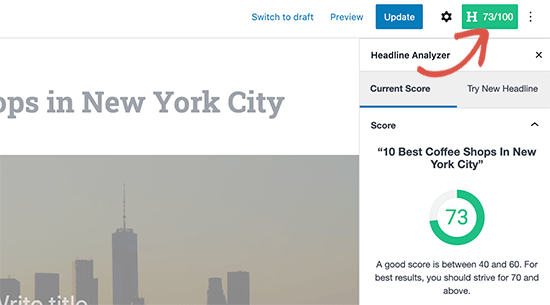
Headline analyzer

This will open the Headline Analyzer tool with a score and some practical tips to improve your post or page title. You can switch to the ‘Try New Headline’ tab and try new headlines without saving them.
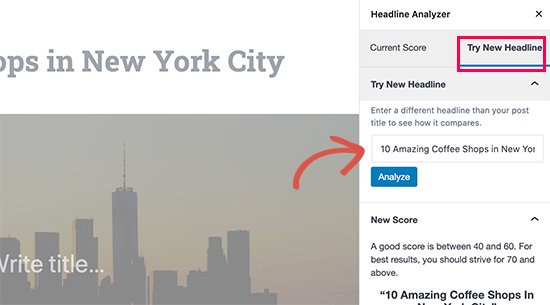
Try a new headline

Alternative: You can also try the web version of MonsterInsights headline analyzer tool, or the IsItWP’s Headline Analyzer tool both of which allows you to test headlines outside your WordPress admin area.

2. Use Dynamic SEO Titles for Better Headlines

By default, WordPress automatically uses your page or post title as the <title> tag in the HTML. This title tag is used by search engines to display your website listing.

You can use All in One SEO plugin to automatically generate better SEO titles for your older blog posts and pages.

It is the best WordPress SEO plugin on the market used by over 2 million website owners to improve search rankings and click through rates.

First, you need to install and activate the All in One SEO plugin. There’s also a free version of AIOSEO available.

Upon activation, the plugin will walk you through a guided a set up wizard. You can follow along the instructions and if you need help then see our tutorial on how to properly set up All in One SEO for WordPress.

Once finished, you need to visit All in One SEO » Search Appearance page and switch to the Content Types tab.
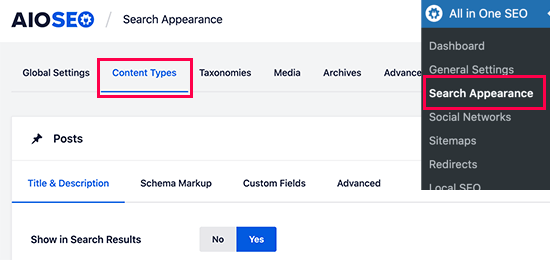
Setting post types in All in One SEO

From here, you can set up dynamic SEO titles and descriptions for all your posts, pages, products, or any other post types. This title will be used when a post or page doesn’t have its own SEO title or description.
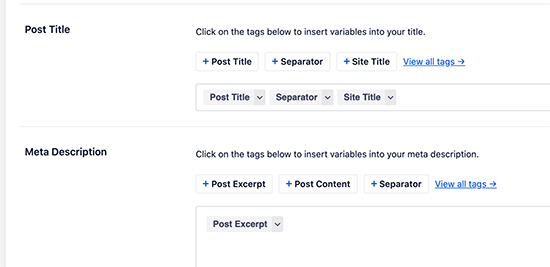
Dynamic post title and descriptions

You can also edit any post or page on your WordPress site to edit its SEO title and description. Simply edit the post and scroll down to the ‘AIOSEO Settings’ section below the post editor.
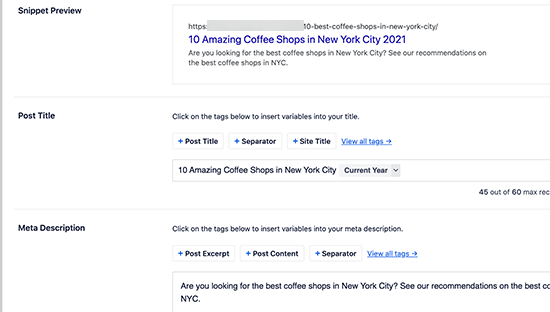
Adding an SEO post title and description in All in One SEO

From here you can add a custom SEO title for your post and page. You’ll see a live snippet preview of how it will look in search results.

You can also use Dynamic tags like Current Month or Year in your post titles, so you don’t have to manually update them each year.

Don’t forget to Save and update your post once you’re done editing it.

3. Write Helpful Meta Descriptions

Most search engines automatically generate the description part when showing search results, so the most relevant content appears in the snippet.

Custom excerpt in Google search result

However, for some results, they would just show the description provided by the website owner. This is why it is important to add an SEO description for all your posts and pages.

If you are using All in One SEO for WordPress, then you can edit each post and page and simply provide your own SEO-friendly description.
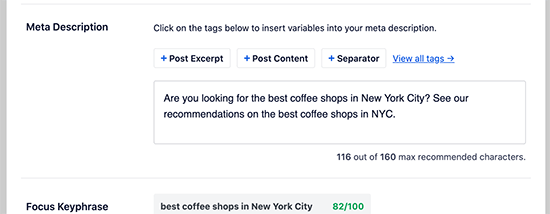
Meta description

Make sure that your SEO description includes your target keywords and explains what users will see when they visit your website. This helps users understand your content better and encourages them to click more often.

4. Use Meaningful URL Slugs

WordPress uses SEO-friendly URL structure. This allows you to create meaningful URLs for your content like this:

https://example.com/best-coffee-shops-in-new-york-city/

The last part of these URLs is called the URL slug, and WordPress automatically generates it based on your post / page title.

However, if your post title contains numbers, years, or is too lengthy, then it could become less user-friendly.

To remedy that, make sure that you manually correct the URL slug before publishing any post or page. You can do that by clicking on the Gear icon at the top right corner of the content editor screen.
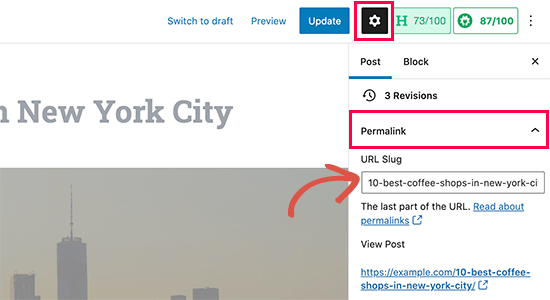
Change URL slug for your post or page

Switch to the Post tab and then expand the Permalink option. Here you can replace the default URL slug with your own. Make sure that your URL slug is not using any capital letters, and words are separated by dashes.

Don’t forget to save or update your post / page to store your settings.

5. Aim to Appear in Rich Snippets or Answer Box

What’s better than ranking #1 for a search query?

Ranking as the Answer box or Rich Results. The answer box is Google’s attempt to answer user’s search queries right on the search page with more detailed results.
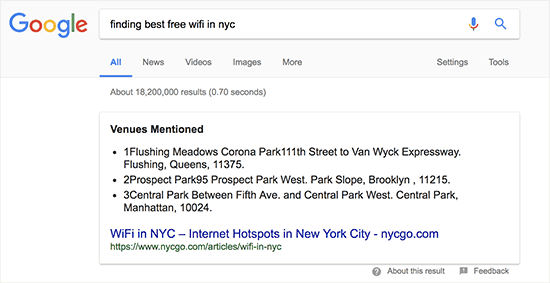
A rich snippet result in Google Search

According to research conducted by Advanced Web Ranking, Answer boxes secure a whopping 32.3% CTR on average.

However, there is no easy shortcut to rank as a rich snippet for a search term. The most common strategy that has worked for most websites is simply improving the content.

For details, check out our complete guide on how to appear in Google Answer box / Rich snippets with real examples and practical tips.

6. Use Rich Snippets Schema Markup to Standout

Rich snippets schema markup allows you to provide structured data along with your content. This structured data is written in a special format called Schema.org markup.

Search engines use this markup to show your content with additional information in search results. This makes your page stand out among other results and improves CTR.
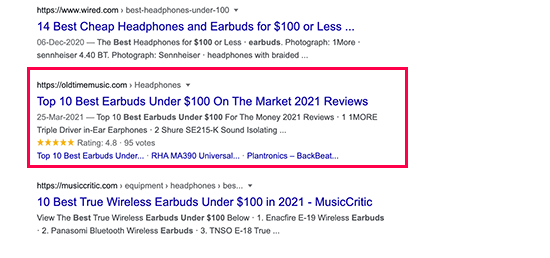
Rich snippets in search results

The easiest way to add rich snippets schema markup to your WordPress website is by using All in One SEO plugin. It comes with built-in support for schema markup, allowing you to set it up for each post type like posts, products, reviews, and more.
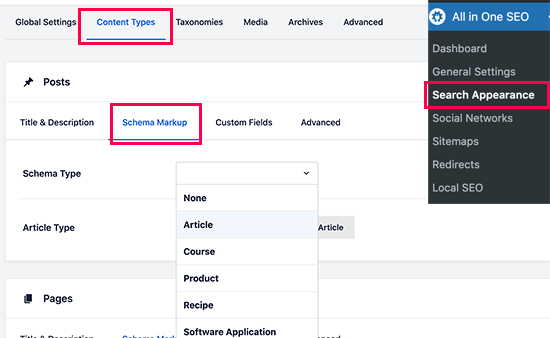
Setting schema type markup

You can also change schema type markup for individual posts and pages. Allowing you to use your blog posts as recipes, reviews, articles, with additional structured data for search engines to use.
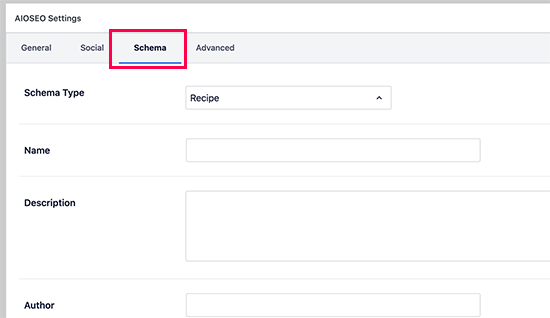
Schema markup for individual posts

7. Improve Local SEO for Higher Click-Through Rates

Making your content appear for relevant terms but for the wrong audience can cause lower CTR. Local SEO helps you remedy that by allowing you to target regional audiences.
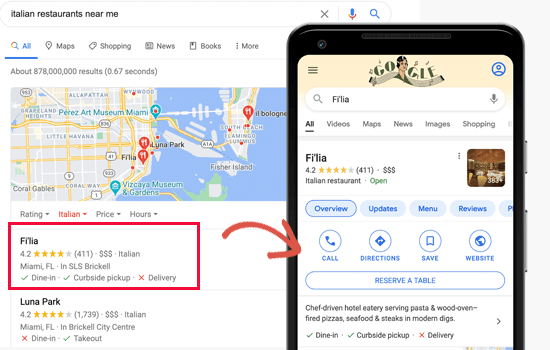
Local SEO search result example

This allows you to rank for a targetted audience which makes your result more relevant and boosts CTR.

First, you may want to create a Google My Business account. This allows you to add your business listing, prove that you own the business, and manage your business information using Google’s My Business dashboard.
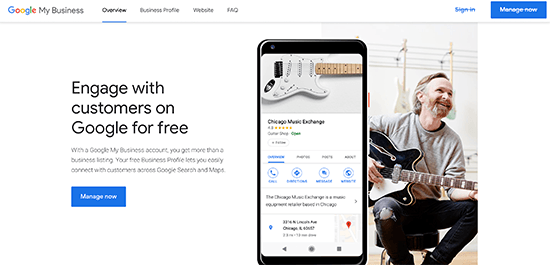
Google My Business

Next, you will need All in One SEO for WordPress plugin which has a Local SEO add-on. This addon allows you to add your local business information as Schema markup to your website.
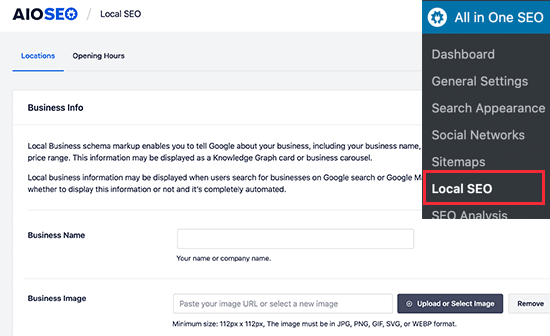
Local SEO in AIOSEO for WordPress

You can provide your business information and opening hours by simply out the forms and AIOSEO adds the schema markup for search engines to use in their results.

8. Improve Older Articles for Better Click-Through Rates

You may have older articles on your website that have become outdated and dropped in ranking. Many WordPress blogs have several articles just ranking somewhere on page 2 of search results.

You can find them by simply sorting the Google Search Console’s Performance report by position.
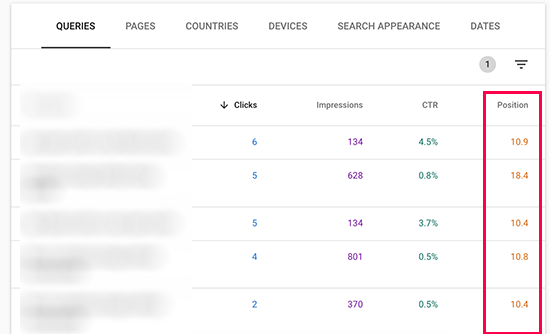
Low performing search results

It would be quite easy to improve these pages with additional updated content. Making this optimization a part of your regular content review routine is a quick and easy way boost search rankings.

9. Fix Keyword Cannibalization Issues

If your targeted keywords are in a very niche category, and your website has multiple resources on them, then it is likely that some of them will cannibalize others.

This may create a confusing situation for search engines. For instance, they may ignore your most important page for something that is less important or even less relevant.

Contradictory results

You may be able to rank two pages for the same keyword, but they will give a contradictory impression. This can even create confusion for users as well.

We recommend keep an eye on your top keywords and consider merging similar keywords into one comprehensive resource when needed. After that, you can set up 301 redirects to point search engines to the main resource.

Related: See our guide on the best SEO keyword tracking tools.

10. Improve Page Load Times for Better User Experience

As of 2021, Google will be rolling out page experience algorithm updates. These updates will be focused on user experience and website speed.

Speed is already an important factor in SEO. Faster page loads affect your search rankings.

Here are some quick tips that you can apply right away.

  • Use a better WordPress hosting service.
  • Install and activate a WordPress caching plugin
  • Optimize images for faster page loads
  • Use Web Application firewall or a CDN service

We have a complete WordPress performance and speed guide with step by step instructions to optimize your website perfo

11. Keep Users Engaged on Your Site

Some of your pages may already have a very good organic CTR but very high bounce rate. This means users are coming to those pages but leaving without visiting any other pages.

Keeping users engaged allows you to show them other content and lead through your sales funnel to become a customer or a subscriber.

In our experience, nothing works better than internal linking to keep user engaged. Make sure that your top articles are linking to your other articles and giving users plenty of opportunities to click.

You can also add related posts or popular posts widgets to your site to add some more content discovery options for new users.

When users spend more time on a website, they’re more likely to visit more pages, join your email list, and buy your products.

For more details, see our detailed guide on how to reduce bounce rate and increase pageviews in WordPress.

12. Convert Users Into Subscribers and Customers

It is important to keep in mind that bringing traffic to your website is often not enough to grow your online business. Relying heavily on search traffic alone can hit your business hard when the algorithm update.

The ultimate goal for any business is to take advantage of higher CTR and convert those users into customers and subscribers.

This is where you’ll need OptinMonster. They have a free WordPress plugin that you can use.

It is the world’s best conversion optimization software. With OptinMonster, you can easily boost conversion rates, make more sales, and grow your email list.

It comes with beautifully designed lightbox popups, countdown timers, notification bars, slide-in pops, spin the wheel popups, and more.
OptinMonster popup preview

All these tools help you nudge customers to spend more time on your website, buy products / services, follow you on social media or join your email list.
Spin the wheel popup

With powerful display rules, it allows you to show personalized campaigns at just the precise time. For instance, you can geo-target users in particular region with free delivery or give users a discount coupon just when they are about to leave your site.
GeoTargetted Popups in WooCommerce

With dozens of templates, you can easily convert traffic coming from your CTR into sales and returning visitors.