13 Crucial WordPress Maintenance Tasks to Perform Regularly

13 Crucial WordPress Maintenance Tasks to Perform Regularly

Ever wondered which important maintenance tasks you should perform regularly on your WordPress site?

Routine WordPress maintenance tasks take very little time, but they ensure that your site is secure, safe, and running at peak performance.

In this article, we will share the most crucial WordPress maintenance tasks to perform regularly, and how to do each one of them.
Crucial maintenance tasks to perform on your WordPress site regularly

Why and When to Perform WordPress Maintenance Tasks

Your WordPress site is a powerful system made of several parts. This includes your WordPress hosting, the WordPress software itself, plugins, and themes.

On top of that, you add your own content with text and images. Together, all of these make a website that is loved by your visitors and customers.

After starting a blog or website, many website owners do not perform maintenance checks unless something breaks.

However, if you want optimal performance, then you need to perform simple maintenance tasks on a regular basis. These maintenance tasks ensure that your website is always in the best shape.

How often should you perform WordPress maintenance tasks?

If you run a busy website with a lot of traffic, then you should go through this maintenance checklist every three months. For smaller websites with low traffic and content, you need to do these maintenance tasks every six months.

Let’s take a look at the essential WordPress maintenance tasks you need to perform and how to do them. You can use these quick links to jump straight to each task.

  1. Change All Your WordPress Passwords
  2. Create a Complete Backup of Your Website
  3. Check and Update All WordPress Files
  4. Check and Delete Spam Comments
  5. Test All Your WordPress Forms
  6. Optimize Your WordPress Database
  7. Run Performance Tests
  8. Find and Fix 404 Errors
  9. Find and Fix Broken Links
  10. Perform a Thorough Content and SEO Audit
  11. Optimize Images on Your WordPress Site
  12. Review WordPress Security Logs
  13. Troubleshoot Maintenance Tasks

1. Change All Your WordPress Passwords

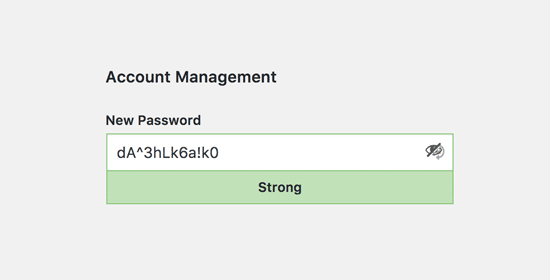
Change all your passwords regularly

Passwords are your first defense against unauthorized access to your website. You should always use strong unique passwords for all your online accounts. These include your WordPress website, FTP accounts, and database.

However, even if you are using strong passwords, they could be compromised without you even knowing.

That’s why WordPress security experts recommend changing your WordPress passwords regularly. This includes passwords for your WordPress admin area, FTP or SSH accounts, and your WordPress database password.

For more help, check out out our beginner’s guide to changing your password in WordPress.

The problem with strong passwords is that they are harder to remember. This is why we recommend using password manager apps like LastPass to securely store and easily fill passwords without having to type them.

For details, see our guide on the best ways to manage WordPress passwords.

2. Create a Complete Backup of Your Website

Create manual backup

Backups are one of the most important WordPress plugins in your arsenal.

There are plenty of great WordPress backup plugins like UpdraftPlus or BackupBuddy. These can help you completely automate the WordPress backup process.

However, sometimes your backup solution may suddenly stop working without you even noticing.

Once in a while, you need to manually run your backup plugin to create a complete backup of your website. After running the backup, check that your backup files are properly stored at the remote location of your choice (Dropbox, Google Drive, etc).

3. Check and Update All WordPress Files

Check and update all WordPress files

WordPress comes with a built-in system to manage updates for WordPress core, plugins, and themes. You should always update WordPress to use the latest version as well as keeping all your plugins and themes updated.

With that said, there are some situations when you may miss an update. For example, when a premium plugin or theme’s license expires, it may fail to check for an update.

Go to the WordPress Updates page to manually check for updates. Review all your installed plugins and themes to make sure that they are running the latest version. If they’re not, then make sure to document a reason why you’re choosing not to update.

4. Check and Delete Spam Comments

Review spam comments

Many website owners use Akismet to combat comment spam in WordPress. It automatically keeps spam away from your comment moderation queue.

However, sometimes Akismet may end up marking a legitimate comment as spam. Once in a while, you need to take a quick look at the spam comments to ensure that there are no real comments incorrectly marked as spam.

Once you are done, you can safely delete all spam comments from your website. If you have thousands of spam comments, then you should batch delete all spam comments in WordPress.

It will not necessarily improve performance, but it will ensure that you don’t miss genuine comments.

5. Test All Your WordPress Forms

Test all your WordPress forms

WordPress form builder plugins like WPForms make it super easy to create beautiful forms on your website.

However due to misconfiguration on your WordPress hosting server or your email service provider, sometimes these forms may suddenly stop sending emails.

You need to check all forms on your website to make sure that they are working properly. If a form is not working, then see our guide on fixing the WordPress not sending email issue.

As a best practice, we recommend using WP Mail SMTP plugin because it has email logging, and it will alert you when an email fails to send.

6. Optimize Your WordPress Database
Optimize your WordPress database

WordPress stores most data in your WordPress database. It contains all your content, comments, users, and settings.

Over time, your database may gather a lot of unnecessary data. This increases your WordPress backup sizes which may affect uploading, downloading, and restoring backups.

Optimizing your WordPress database allows you to clean up clutter, defragment tables, and improve database performance.

For step by step instructions, see our guide on how to optimize your WordPress database with one click.

7. Run Performance Tests

Run performance tests

Many users optimize their WordPress performance when they first start their website, and then forget about it.

As time goes by, you add new content, install new plugins, or may even change the theme. All of these items may affect the performance of your WordPress site.

Faster websites are not just good for user experience, but they also improve your SEO rankings. This is why you need to regularly do a thorough performance review of your website.

When reviewing your site’s performance, don’t just limit it to improving your homepage. Also test your most popular content and all your important pages.

For best results, follow our step by step guide to boost WordPress speed and performance.

8. Find and Fix 404 Errors

Fix 404 errors

When a user requests a page that doesn’t exist on your website, then WordPress will show them a 404 error page.

404 errors that occur because a user mistyped an address are normal and nothing to be worried about. However, 404 errors that occur because a page is no longer available are frustrating for users and create a bad user experience.

If you are not already tracking 404 error pages, then see our guide on how to easily track 404 error pages in WordPress and redirect them.

Find and fix broken links in WordPress

As your website grows, you will realize that some external websites that you linked to in your older articles do not exist anymore. Some may have moved to new locations, while others may just disappear.

The broken links issue is not just limited to external links. You might accidentally add broken images, poorly formatted links, or misspell your own links. This can be frustrating for your visitors and harms your site’s user engagement.

You need to check your website for broken links as part of your WordPress maintenance routine. For instructions, see our guide on how to find and fix broken links in WordPress.

10. Perform a Thorough Content and SEO Audit

SEO Audit

The next thing you need to include in your regular maintenance tasks is a thorough in-depth review of your content. This is where the data from Google Search Console and Google Analytics comes in.

Google Analytics shows you where your visitors are coming from and what they are doing on your website. This data allows you to discover content on your website where you have lots of traffic but your conversion rate is low.

Google Search Console’s Search Performance page can help you find search keywords where your site appears in the results. You can sort it to show you keywords where your site can easily rank higher by updating those articles.
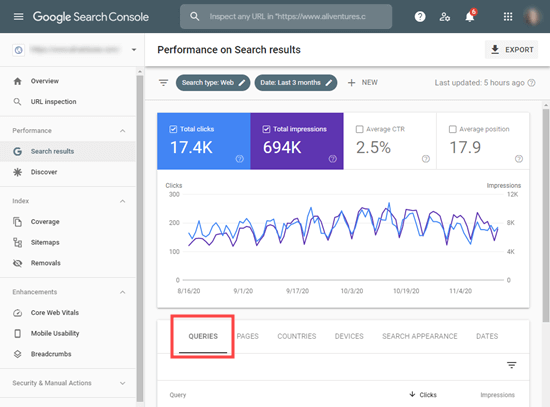
The Queries tab in Google Search Console

If you are using All in One SEO, then you can set a particular keyword as your focus keyphrase. All in One SEO will give you a True SEO Score plus specific optimization tips.
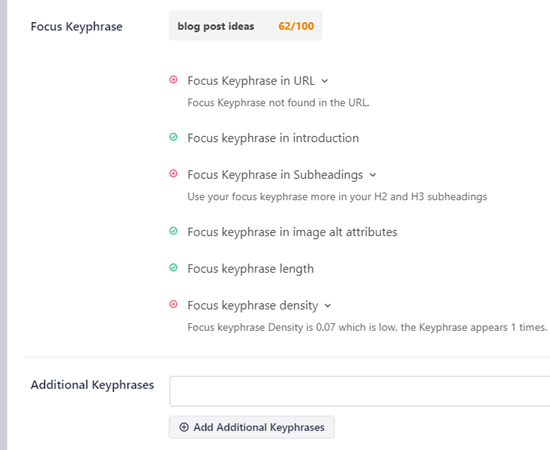
The Focus Keyphrase score in All in One SEO

Even with an excellent SEO score, you can still further improve your content. Try adding new information, adding images, and linking to it from other pages on your website.

For more SEO tips, follow our ultimate step by step WordPress SEO guide for beginners.

Pro Tip: You can use a tool like SEMRush to run automatic website audits. This is what we use on WPBeginner.

11. Optimize Images on Your WordPress Site

Optimize images and media library

Images take longer to load than text. This means they decrease your page load speed. You will discover some overly large images during the performance checkup of your site.

However, you will likely miss those in your less popular articles. If you run a multi-author WordPress site, then some of your authors may not be as careful about image sizes as you are.

Reviewing your images and media library allows you to stay on top of the issue. You can perform this check to find images that can be reduced in size or images that are just too large.

For more information, see our guide on how to save images optimized for the Web.

12. Review WordPress Security Logs
WordPress security review

Some WordPress users don’t realize that their site is under attack until it slows down or their search rankings drop.

We have already mentioned some security precautions like changing passwords, and creating manual backups as proactive measures. You also need to review your site’s access and error logs to see if there is any unusual activity on your site.

Another good option is to add a security audit plugin to your site.

We also recommend using Sucuri. It is a website security company that offers a website firewall to protect your website against common threats.

For a complete security audit of your WordPress site, follow the instructions in our step by step ultimate WordPress security guide.

13. Troubleshoot Maintenance Tasks

Troubleshooting issues caused by maintenance tasks themselves

Most WordPress website maintenance tasks are quite harmless and will not affect your website’s normal functioning. However, some may slow down your site, like checking for broken links or running an image optimizer plugin.

How to Submit Your Website to Search Engines (Beginner’s Guide)

How to Submit Your Website to Search Engines (Beginner’s Guide)

Recently, one of our readers asked us how to submit their WordPress site to search engines like Google?

Search engines are the largest source of traffic for most websites. That’s why it is important to ensure that they can easily find and rank your website pages.

In this article, we’ll show you how to easily submit your website to search engines and start getting traffic to your site.

Submitting your website to search engines

Since this is a comprehensive guide, please feel free to use the quick links below to jump straight to different sections in this article.

  • Do You Need to Submit Your Website to Search Engines?
  • How to Submit Your Website to Google
  • Creating a WordPress Sitemap with All in One SEO
  • How to Submit Your Website to Bing, Yahoo, and DuckDuckGo
  • How to Check if Your Website Has Been Indexed
  • Should You Use a Website Submission Service?
  • Troubleshooting and FAQs about Submitting Your Website to Search Engines

Do You Need to Submit Your Website to Search Engines?

No, you do not have to submit your website to search engines. Most search engine bots can automatically find your website if it has been mentioned on other sites.

However for WordPress websites, we recommend submitting it manually because it will help you get discovered faster.

Why you should submit your website to search engines?

If you are just starting a new business or a blog, then search engines are the most important source of free website traffic. This means you can grow your business online without a lot of money.

Unlike paid traffic from ads, organic search traffic is free, and you don’t need to pay search engines for that.

More importantly, the submission process is quite simple, free, and gives you access to several tools that will help you grow your business later on.

That being said, let’s take a look at how to submit your WordPress website to search engines.

Submitting Your Website to Google

Google is the largest and most popular search engine on the planet. For most websites, Google is often the biggest source of their traffic.

To submit your website to Google, you need to sign up for Google Search Console. It is a free tool offered by Google to help website owners see how their website is performing in search results.

Signing up is free and easy. Simply go to the Google Search Console website and click on the ‘Start now’ button.

You can use your existing Google account to sign in or create a new account.

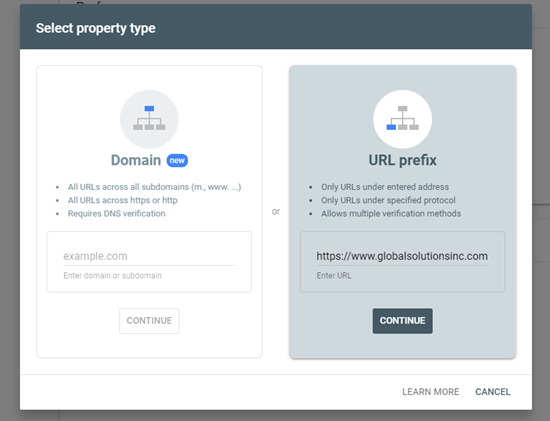
Next, Google will prompt you to enter your website domain name. We recommend using the URL prefix option here as it’s easier to verify.

Using the URL prefix method to add your site to Google Search Console

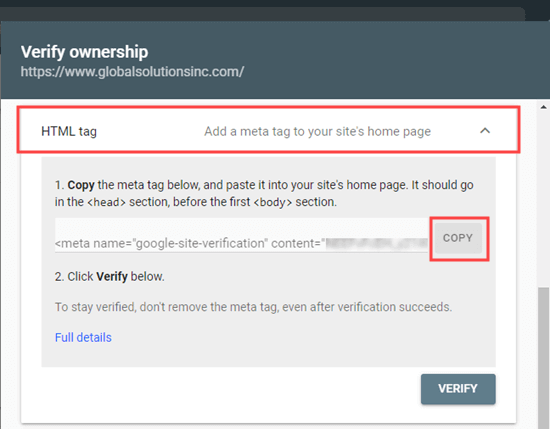
After choosing this option, use the HTML tag method to verify your website and submit it to Google. You simply need to click on the HTML tag option to expand it, and then copy the code by clicking the ‘Copy’ button.

Copying the HTML meta tag from Google Search Console

Now there are multiple ways to do add this code to your website. We will show you the two easiest methods, and you can choose one that best suits you.

1. Adding Verification Code in WordPress using All in One SEO

The easiest way to do this is using All in One SEO, which is the best WordPress SEO plugin on the market. It allows you to optimize your website for search engines without learning any SEO jargon.

First, you need to install and activate the All in One SEO plugin. For more details, see our step by step guide on how to install a WordPress plugin.

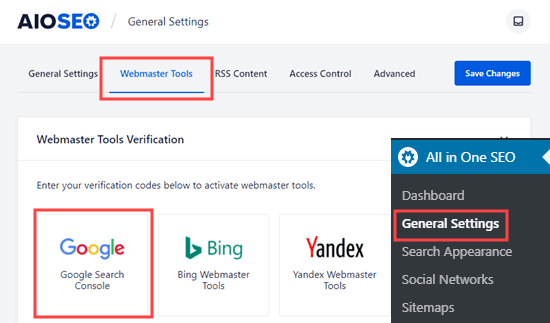
Next, you need to visit the All in One SEO » General Settings » Webmaster Tools page and click on the Google Search Console option.

The Webmaster Tools page in All in One SEO, to select Google Search Console

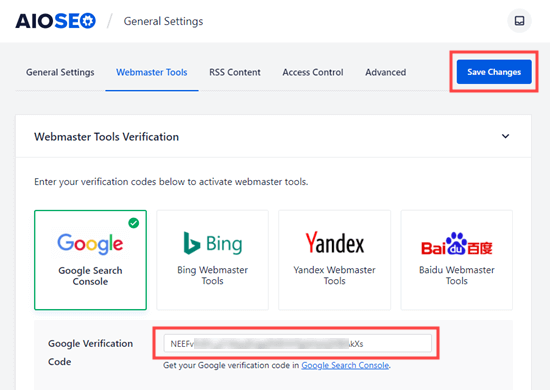
After that, you need to paste the content value from your HTML meta tag into the ‘Google Verification Code’ box. The part you want is the long string of numbers and letters.

Don’t forget to click the ‘Save Changes’ button at the top of the screen.

Entering your Google verification code (from the HTML meta tag) into All in One SEO

2. Adding Verification Code in WordPress using Insert Headers and Footers

If you are not using the All in One SEO plugin, then you can use this method to add Google Search Console verification code to your WordPress site.

First, you need to install and activate the Insert Header and Footers plugin. For more details, see our step by step guide on how to install a WordPress plugin.

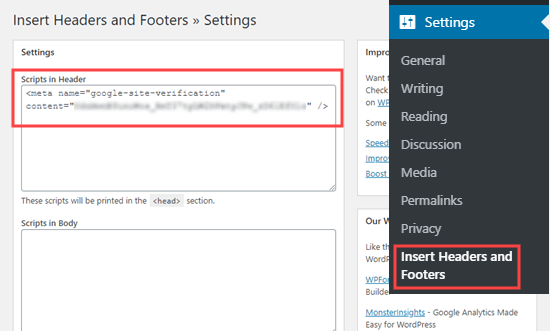
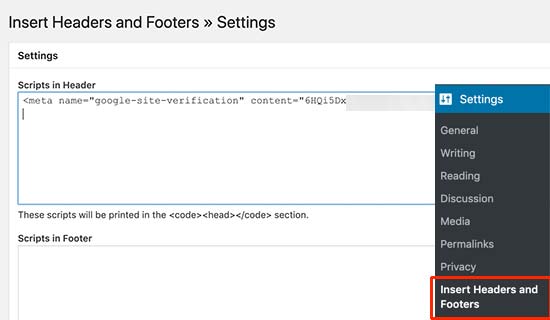
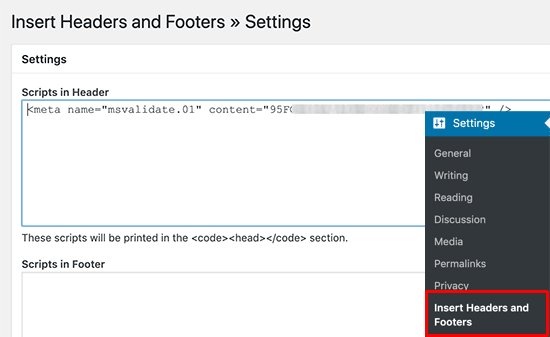
Upon activation, go to the Settings » Insert Headers and Footers page in your WordPress admin. Then, simply paste the whole HTML meta tag into the ‘Scripts in Header’ box.

Pasting the Google meta tag into the Insert Headers and Footers header box

Then, make sure you click the Save button at the bottom of the page.

After adding the meta tag to your site through either method, go back to Google Search Console and click the ‘Verify’ button for the HTML tag method.

You should now see a success message in Google Search Console to let you know that your site has been verified.

If you need more help, check out our step by step guide on adding your WordPress site to Google Search Console.

Creating an XML Sitemap with All in One SEO

An XML sitemap in WordPress is a list of all the content on your website, including all your posts and pages. It helps search engine bots discover your content faster and start showing it in search results.

In the WordPress 5.5 update, XML sitemaps were added as a built-in feature. However, these sitemaps are very basic and can’t be easily customized.

We recommend using All in One SEO to create your sitemap.

All in One SEO is the complete WordPress SEO toolkit and includes a comprehensive sitemaps generator.

It allows you to customize your XML sitemaps by excluding unnecessary or duplicate content. They also have powerful custom sitemap for WooCommerce, news sitemap, and video sitemaps. This gives you a bonus advantage in SEO as your business grows.

First, you need to install and activate the All in One SEO plugin. For more details, see our step by step guide on how to install a WordPress plugin.

Upon activation, All in One SEO will automatically create your sitemap.

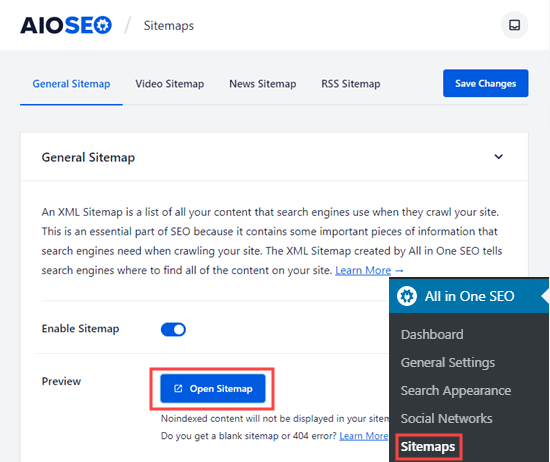
To view it, simply go to the All in One SEO » Sitemaps page in your WordPress admin. Then, click the ‘Open Sitemap’ button.

Click the button to open your sitemap, which has been automatically generated by All in One SEO

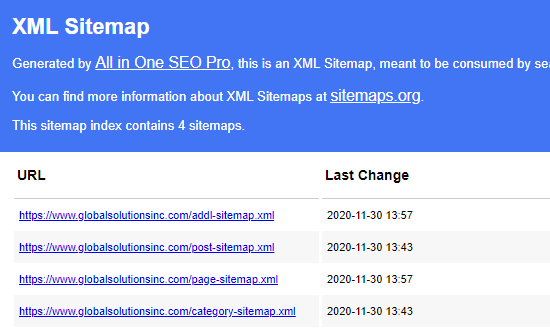
You will then see the sitemap index for your site. This links to all the sitemaps that All in One SEO has created.

The index of sitemaps in All in One SEO

Note: All in One SEO creates multiple sitemaps because it is best practice to split up large sitemaps. By using different sitemaps for different types of content, your sitemaps will load quickly and be a manageable size even as your website grows.

Please keep this page open or save the page URL as you will need it later in the tutorial.

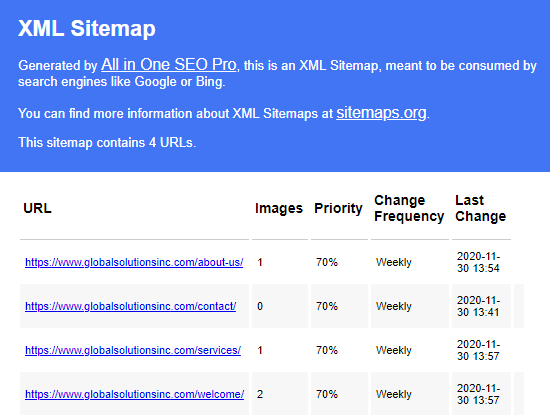
If you want, you can click on any of the links to see the content listed in each individual sitemap. Here is the sitemap for the pages on our demo website.

The list of pages in the All in One SEO pages sitemap

Add your XML Sitemap to Google Search Console

Now that you have generated your XML sitemap, the next step is to help Google discover it quickly.

The easiest way to do that is by using the Google Search Console.

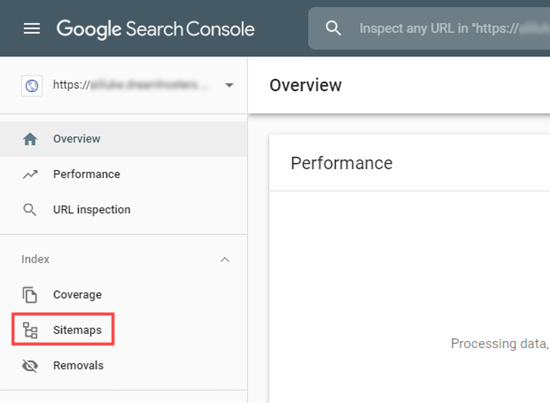
Simply login to your Google Search Console account, and then click on the Sitemaps link in the left-hand toolbar:

The Sitemaps tab in Google Search Console

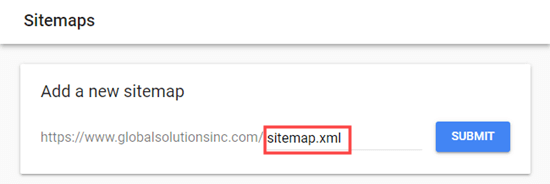
Google Search Console has already put your website domain here. All you need to do is to type sitemap.xml into the box and click the Submit button.

Entering your sitemap URL into Google Search Console

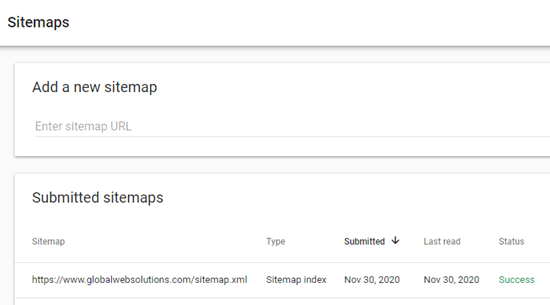
Search Console should show you a message to let you know the sitemap has been successfully submitted. You will also see your website sitemap in the ‘Submitted sitemaps’ list.

Your sitemap should appear in the table after you submit it to Google Search Console

How to Submit Your Website to Bing, Yahoo, and DuckDuckGo

Google totally dominates the search engine market with a whopping 92% market share. However, other search engines like Bing, Yahoo, and DuckDuckGo can still be a significant source of traffic for your website.

Submitting Your Website to Bing, Yahoo, and DuckDuckGo

To submit your website to Bing, you need to sign up for Bing Webmaster Tools.

Just click the Sign In button to get started. Then, sign in using your Microsoft, Google, or Facebook account.

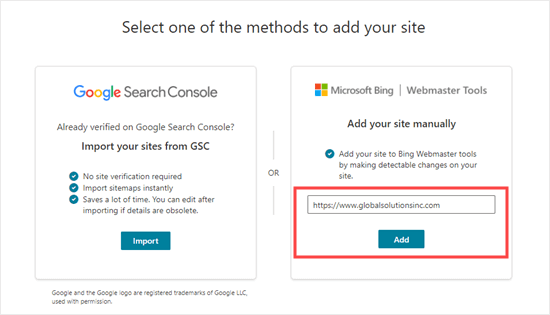
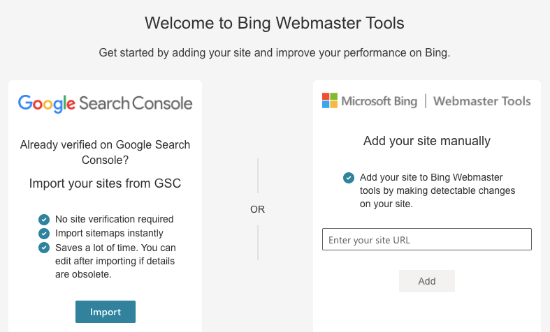
Next, Bing will prompt you to add your site. We recommend using the ‘Add your site manually’ option. It works reliably and doesn’t require you to have verified your site with Google Search Console.

After that, simply enter your website’s domain name (URL) then click the ‘Add’ button.

Adding your site manually to Bing Webmaster Tools

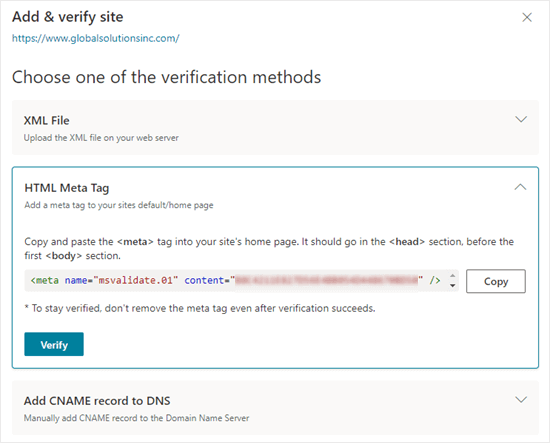
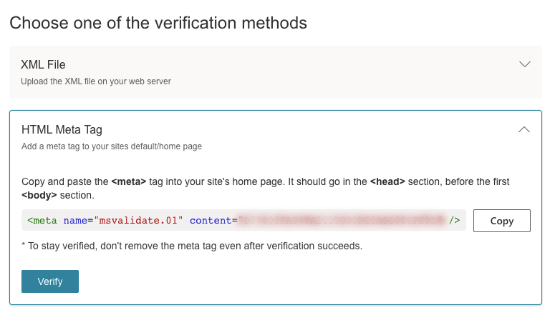
Next, you will see some verification method options. First, click on the HTML Meta Tag method. This will open up the details. Then, click the ‘Copy’ button to copy the meta tag.

Getting the HTML meta tag from Bing Search Console

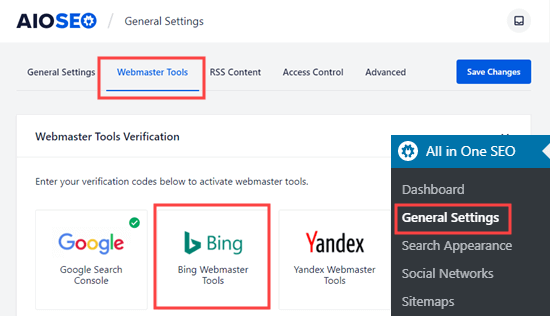
The easiest way to add the meta tag to your site is to use All in One SEO. In your WordPress dashboard, go to All in One SEO » General Settings » Webmaster Tools page.

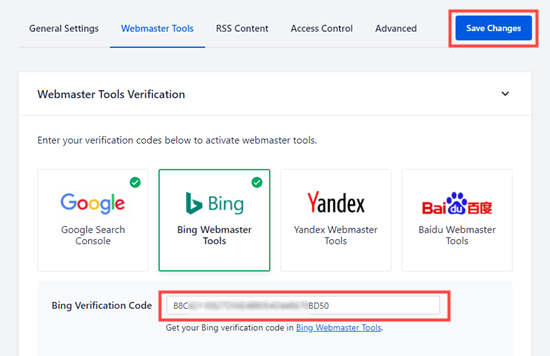
Then, click on the Bing Webmaster Tools option.

Selecting the Bing Webmaster Tools option on the All in One SEO Webmaster Tools page

This will open up the box where you can enter the Bing verification code. This is the long string of numbers and letters that forms the content value in the Bing meta tag.

Entering the Bing verification code from your Bing HTML meta tag

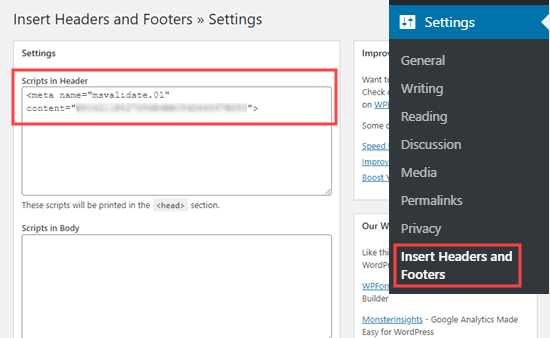
Alternatively, you can install the free Insert Header and Footers plugin for WordPress.

Upon activation, go to the Settings » Insert Headers and Footers page in your WordPress admin. Then, simply paste the whole HTML meta tag into the ‘Scripts in Header’ box.

Copying the Bing meta tag into the Header section of the Insert Headers and Footers plugin

Don’t forget to click the ‘Save’ button further down the page.

After that, you need to return to Bing Webmaster Tools and click the Verify button. You should see a success message to let you know your site has been added.

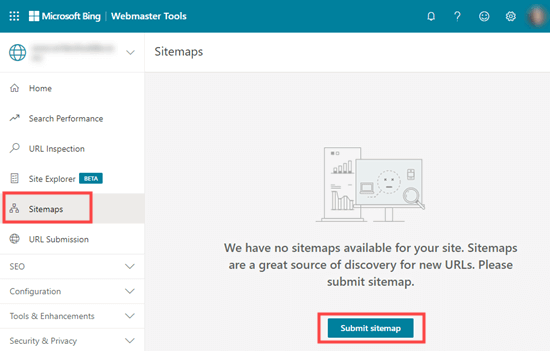
Next, click on the Sitemaps tab on the left-hand sidebar. Then, click the ‘Submit sitemap’ button.

Submitting your sitemap to Bing Search Console

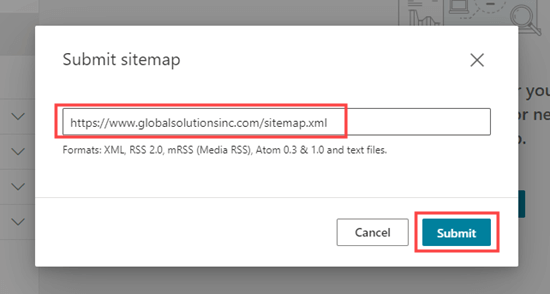
You need to paste in the URL of the sitemap index that All in One SEO created for you. This should be your domain name with sitemap.xml at the end.

After that, just click the ‘Submit’ button.

Entering your sitemap URL for Bing

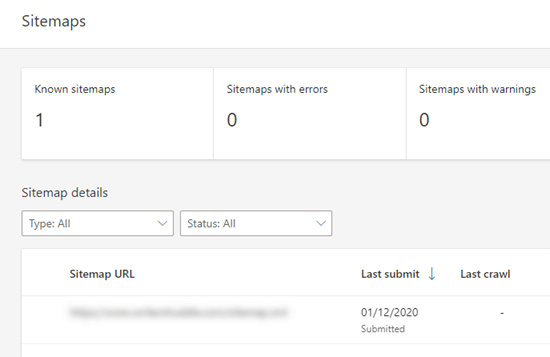
You will now see your sitemap in the sitemap table in Bing Webmaster Tools.

The table of sitemaps in Bing

Your Site Will Also Appear in Yahoo and DuckDuckGo’s Search Results

Now that you have submitted your website to Bing, it has also been automatically submitted to Yahoo.

DuckDuckGo also uses Bing’s search results. This means that by submitting your website to Bing, you will also get it indexed on DuckDuckGo as well.

How to Check if Your Website Has Been Indexed

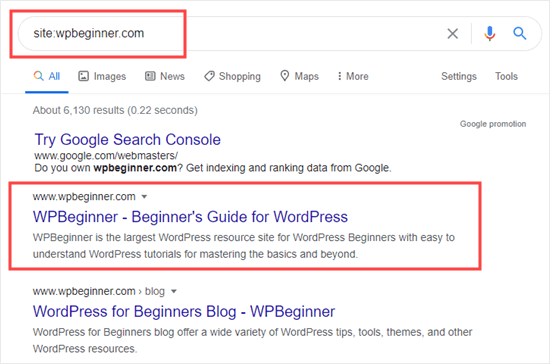
The easiest way to check whether your website has been indexed is to simply go to your chosen search engine’s homepage and type in site:yoursitename.com as the search term.

For WPBeginner website, we would type site:wpbeginner.com into the search engine.

If your site has been indexed, then you should see a list of your content. Your homepage will normally be at the top.

Google results showing that the WPBeginner site has been indexed

This works for all popular search engines, including Google, Yahoo, Bing, and DuckDuckGo.

Should You Use a Website Submission Service?

No, you should not use a website submission service to submit your WordPress blog or website to search engines.

There is no additional benefit to using a website submission or search engine submission services. They charge you a premium fee to do something that is free, and you can do it yourself.

More importantly, these submission services may submit your website to spammy sources which may harm your website’s SEO.

Troubleshooting and FAQs about Submitting Your Website to Search Engines

Since WPBeginner is the largest free WordPress resource site, we have heard just about every question related to this topic. Here are some common problems and FAQs we hear about submitting your site to search engines.

1. How long will it take for my site to appear in search engines?

It could take several days or several weeks for your website to appear in search engines.

It is up to search engines to index your site. You cannot force Google or any search engine to index your site faster.

However, you should follow our instructions above to help search engines find your site as easily as possible. Getting plenty of backlinks to your site can also help speed up the process.

2. I submitted my website but it isn’t showing up in search engines?

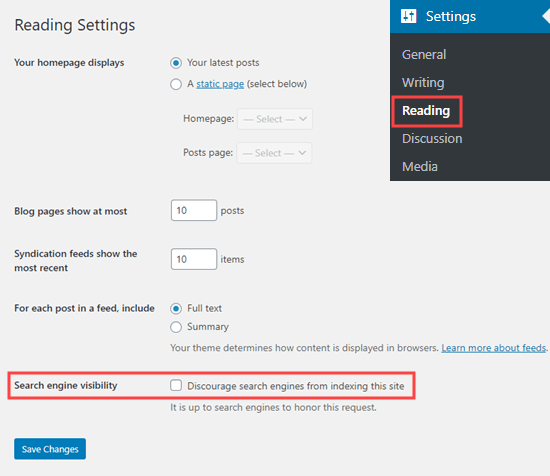
First, check that your site is visible to search engines. In your WordPress admin, go to the Settings » Reading page and make sure that the box ‘Discourage search engines from indexing this site’ is not checked.

Make sure the box to discourage search engines is not checked in the Reading settings

If the box is checked, then it is stopping search engines from crawling your WordPress site. Simply uncheck it then click the ‘Save Changes’ button.

Beginner’s Guide: What is VoIP and How Does it Work? (Explained)

Beginner’s Guide: What is VoIP and How Does it Work? (Explained)

We are often asked by beginners: what is VoIP and how does VoIP work? If you are a non-techy user, then you may have heard that you could use VoIP to add a business phone number for your website.

VoIP is a more cost-effective way to get a business phone number for your website when compared to a traditional phone line. However before making any decision, you need to fully understand what the technology is all about.

In this beginner’s guide, we will answer what is VoIP, and how does VoIP work behind the scenes. The goal is to help you understand how VoIP can save you money and help you grow your business.

What is VoIP and How it Works (Behind the Scenes)

Here is an overview of what we’re going to cover in this guide. You can click on these links to jump straight to different sections.

  • What is VoIP?
  • How does VoIP work? (Behind the scenes)
  • What are the advantages and disadvantages of VoIP?
  • Which is the best VoIP phone service?
  • How to make a call using VoIP?
  • Frequently asked questions about VoIP (FAQs)

What is VoIP?

VoIP (Voice Over Internet Protocol) is a phone technology that allows you to make and receive phone calls using the internet instead of traditional phone lines.

Unlike landline phone systems that are limited to a single desk phone in your office, VoIP lets you make and receive business phone calls from your laptop, tablet, regular smart phone (using an App), and even VoIP compatible office phone sets.

Since all calls are made over the internet, it’s extremely cost-efficient for both domestic and long distance (international) calls. Most business VoIP providers offer unlimited minutes without any extra cost.

Aside from the cost savings, you also get all the advanced phone features like call waiting, call routing, caller tones, auto-attendant, multiple phone numbers, and more.

This is why most small businesses and even enterprise companies are all switching away from traditional phone providers to a business VoIP provider.

At WPBeginner, we use Nextiva, a leading VoIP based business phone system.

How VoIP Actually Works? (Behind the Scenes Look)

To understand how VoIP actually works, we will take a look at what happens when you make or receive a phone call on VoIP phone.

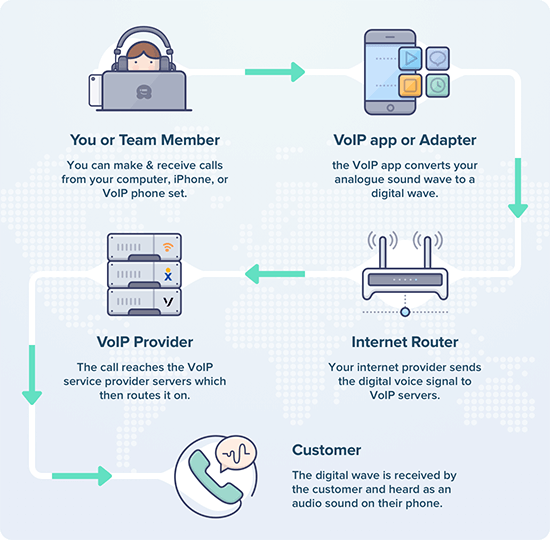
How VoIP works Behind the Scenes

When you make a phone call using VoIP, their business phone number app or VoIP adapter takes the analog audio signal and turn it into digital signal.

This digital voice data is then sent to the business phone service provider using your internet, and then finally the message is routed to your customer’s phone.

This process happens nearly instantly which is why sometimes VoIP sound quality is even better than regular phone calls.

How is VoIP different than Traditional Phone System?

VoIP works differently behind the scenes from a regular landline phone system.

Traditional telephony systems use the circuit switching method for connecting calls. When you make a call through the Public Switched Telephone Network (PSTN), you’re connected to the person on the other end, and they’re connected to you in a circuit.

The ‘Circuit switching’ technology is used for more than a 100 years now. It is reliable and still works, but is not the most efficient or cost-effective.

VoIP uses the ‘packet switching’ method instead. This means that data is only sent when needed. A brief, instant connection is created each time you speak. The connection doesn’t need to go both ways all the time. You and the person you’re talking to will not normally be both speaking at the same time.

Plus, packets of data are sent efficiently. They can use many different paths through the internet. The packages are then put back together when they reach their destination.

The data packets can also be compressed to save space. This lets them travel even more quickly through the internet.

All of this happens very fast. Unless there’s a problem with your internet connection, you will not notice any delay during the call.

Two women talking on the phone

While VoIP may sound quite technical and complicated, the main thing to understand is that VoIP is a more efficient method of transferring data during phone calls.

You probably have already used VoIP before without knowing it, through an app like Skype or Google Voice.

VoIP Pros and Cons Compared

Since we’ve been using a VoIP business phone service in our company for years, it’s fair to say that we know a thing or two about the pros and cons.

Here’s our detailed analysis of the pros and cons of VoIP.

VoIP Advantages – Benefits of Using VoIP

Switching from a traditional telephone company’s service to a cloud based VoIP phone system has many benefits.

Lower Monthly Cost

One of the biggest advantage of VoIP is that you have lower monthly cost on both domestic and international calls.

Most VoIP phone providers will often include unlimited domestic calls for free. International calls are normally very cheap, too.

Aside from that, you’ll also save money on repair and maintenance service expenses that you currently pay your landline phone provider.

Take calls from anywhere – Completely Portable

With VoIP, you don’t need to be in an office, on-premise, sitting by your desk phone to take phone calls. You can take incoming calls from wherever you are using an app on your phone, tablet, or laptop computer.

This is a big advantage for teams that are working remotely or out on the field. It is also great if you’re traveling.

Advanced business phone features

VoIP solutions normally include lots of extra business phone features. For instance, you can set up conference calls easily with VoIP.

Plus, most VoIP service providers offer a virtual receptionist, hold music, call waiting, voicemail to email or text, and much more. You can even get advanced telecommunications functionality like video conferencing.

This may also get you additional cost savings because often traditional telephone service providers charge recurring fees for these add-ons.

Improved Scalability and Flexibility

Another advantage of VoIP is higher scalability. Whether you’re hiring more staff or opening a new branch office in a new city, VoIP makes it easy to grow.

Unlike a traditional phone service that would require to spend money on expensive hardware on dedicated line, VoIP lets you add your team members with just a few clicks inside your account dashboard.

Since VoIP works on all smart phones, you can even cut additional equipment cost and free up desk space by having your team members install the app on their personal phone.

VoIP Disadvantages – Drawbacks of Using VoIP

While VoIP is an amazing technology, it may not be perfect for everyone. There are a couple of VoIP disadvantages that you should be aware of.

You need a good internet connection to make telephone calls

As we explained in the how VoIP works section, you need to have an internet connection to make phone calls.

If your internet is slow, then your call quality may be impacted.

The good thing is that VoIP technology doesn’t use as much bandwidth as you might think. A good connection with less than 70ms ping and at least 500 kbps of upload speed is good enough for VoIP calls.

However if you have a lot of team members in your office, then you may need to look at your bandwidth needs for the number of concurrent calls your business will be making at the same time.

You need to account for power outages

Regular phone service works during power outages. But you cannot make VoIP calls if you don’t have power or access to the internet.

Typically, most offices have wireless internet powered by WiFi routers. These routers need electricity, so if your building experiences power outage, then your internet can also go down which will impact your VoIP service.

The way we mitigate this in our office is by using a battery backup system for our internet router. Since our internet is provided by a different company than our electricity, we never have both outages at the same time.

Furthermore, since our team members use the VoIP app on their phone, they can always use their mobile data to make business phone calls.

You will need to retrain your staff on the new system

Switching to a new telephone system means you need to train your staff on how to use it.

Luckily, most VoIP services are designed to be as straightforward and intuitive as possible. This means it should be easy to train team members on how to use the cloud phone systems, even if your employees are working remotely.

Which is the Best VoIP Phone Service?

Here at WPBeginner, we use and recommend Nextiva as the best VoIP phone service. They offer a free local or toll-free number with all of their plans.

Nextiva

Nextiva comes with all the essential features you need including call routing, unlimited domestic voice calls, unlimited business SMS messaging, voicemail to email/text, number porting, caller ID, caller forwarding, custom greetings, auto attendant, hold music, online VoIP fax, phone extension for team members, and more.

How to Export a WordPress Site (Beginner’s Guide)

How to Export a WordPress Site (Beginner’s Guide)

Do you want to export your WordPress website to a different hosting company or just create a copy of your website?

Exporting your WordPress site is easier than you might think. There are plenty of tools that you can use to safely export a WordPress website.

In this step by step guide, we’ll share everything you need to know on how to easily export a WordPress site.

Exporting a WordPress site for beginners

Why Export Your WordPress Site?

There are a number of reasons to export a WordPress site. For instance, you might be moving your site to a new domain or web host, or you may simply want to save your blog posts to your computer.

You could also be moving from WordPress.com to WordPress.org. If you’re not sure what the difference between those is, check out our guide on WordPress.com vs WordPress.org.

There are a lot of WordPress exporter tools that let you completely export your website files, WordPress database, themes, plugins, and media.

Since it’s a very common use case, many top WordPress hosting companies have built their own WordPress exporter tools as well.

Whether you want to export a WooCommerce store, a WordPress membership site, or a simple WordPress blog, here are the best ways. Simply click on the quick links to go straight to a specific method.

  • How to Export a WordPress Site Using the Built-in Export Tool
  • How to Export a WordPress Site Using Bluehost Site Migrator
  • How to Export a WordPress Site Using SiteGround Migrator
  • How to Export a WordPress Site Using UpdraftPlus
  • How to Export a WordPress Site From WordPress.com
  • How to Export a WordPress Site Manually Using SFTP + phpMyAdmin
  • Options for Exporting a Non-WordPress Site

How to Export a WordPress Site Using the Built-in Export Tool

WordPress has a built-in export tool that lets you export your website. To use this, simply go to Tools » Export in your WordPress admin.

Next, you need to select the ‘All Content’ option. This will export all your posts, pages, comments, custom fields, categories, tags, navigation menus, and custom posts.

Note: This method only exports the WordPress database options for you. It will not include your plugins or themes files.

Go ahead and click the ‘Download Export File’ option. This will not affect your website. It simply creates a copy of your site.

The built-in WordPress export tool

You will need to download the .xml file to your computer.

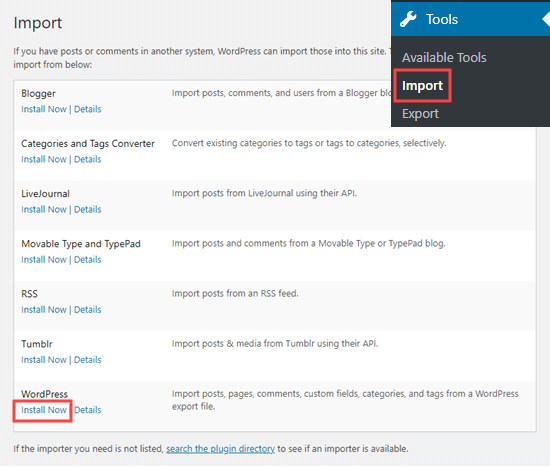
If you want to upload this export to a new site, go ahead and login to your new website’s WordPress admin. After that, go to Tools » Import.

First, you need to install the WordPress importer.

Installing the WordPress import tool on your site

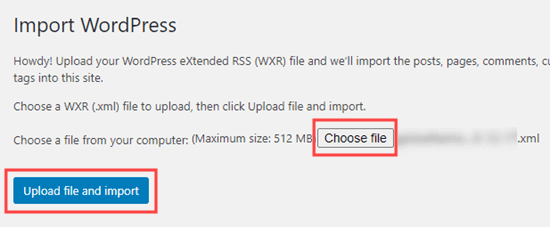
Then, simply click the ‘Run Importer’ link. This will take you to a page where you need to select your exported file, then click the ‘Upload file and import’.

Choosing a file to import to your website

As long as the original website stays online, WordPress will be able to import your media files such as blog post images.

Tip: We also have guides on how to export navigation menus in WordPress and how to export users in WordPress.

The downside of the default export tool is that it requires users to jump through many steps.

For example, you manually have to backup your plugin files, theme files, and in some cases media files too.

This is why all the best WordPress hosting companies have started to build out full WordPress site migration tools. There are also WordPress backup plugins that have built-in site export and import features.

Let’s take a look at them next.

How to Export a WordPress Site Using Bluehost Site Migrator

This method only works if you’re using Bluehost for your website hosting.

The easiest way to move your WordPress site from your existing web hosting company to Bluehost is to use the Bluehost Site Migrator plugin.

Before you begin, you would need to sign up for Bluehost’s web hosting. They’re offering WPBeginner readers a great deal with 69% off hosting, plus a free domain name and SSL certificate.

The special offer on Bluehost hosting for WPBeginner readers

For help creating your Bluehost account, check out our step by step instructions on our Bluehost coupon page.

After signing up for hosting, Bluehost will automatically install WordPress for you. You can login to the new site from your hosting dashboard.

Next, you need to install and activate the Bluehost Site Migrator plugin. For more details, see our step by step guide on how to install a WordPress plugin.
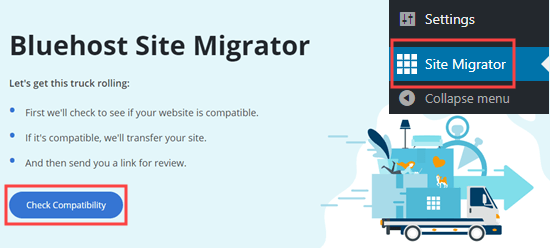
Upon activation, click the Site Migrator link in your WordPress admin. Then, click the ‘Check Compatibility’ button.

Click the Check Compatibility button to make sure your site is compatible with the Bluehost Site Migrator

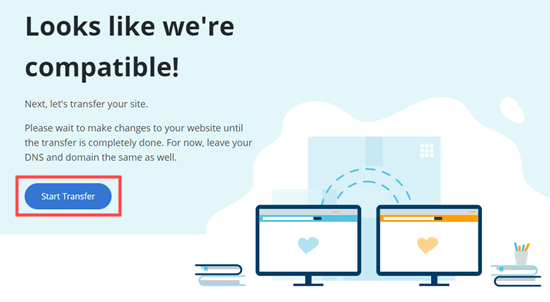
It will take a few moments for Bluehost to check if your site is compatible. If it is, you will see the message ‘Looks like we’re compatible!’ Simply click the ‘Start Transfer’ button on this screen.

Click the Start Transfer button to begin exporting your website

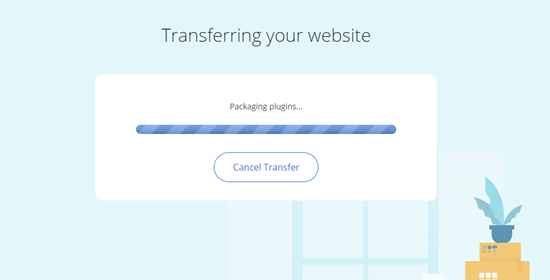
Your website will now be packaged up for migration. Don’t worry, nothing about your site itself will change yet. All your content will still be there.

The screen shown while the Bluehost transfer is in progress

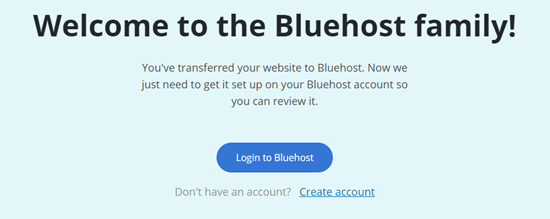
It may take a few minutes for your site to be exported. After this, you will see a ‘Welcome to the Bluehost family’ screen.

The welcome message after using the Bluehost Site Migrator

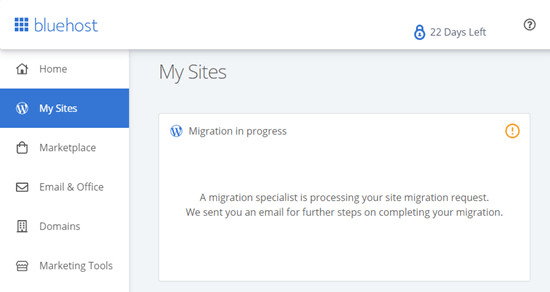
Now, click the ‘Login to Bluehost’ button to sign in to your Bluehost account. You will see a note that the migration is in progress.

The Bluehost migration in progress message

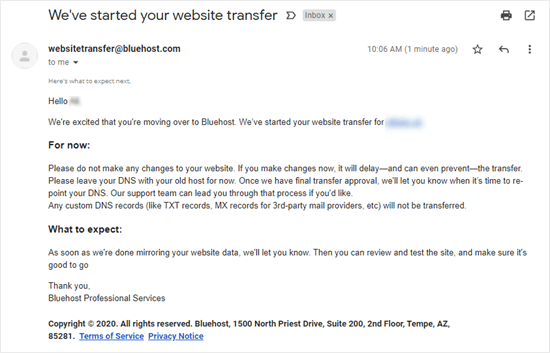
Logging into your Bluehost account will link your website to it. You will get an email from Bluehost to let you know that they have started your transfer.

The email from Bluehost telling you about the next steps

Simply wait until you hear from Bluehost again. Then, you will be able to follow their instructions to finish setting up your site.

Tip: Depending on the size of your website, the migration can take several hours. You should avoid making any changes to your site until you hear from them, as this can delay the export process.

If you want to move your site in a hurry, then we recommend using one of the other methods like Updraft and manual FTP process below.

How to Export a WordPress Site Using SiteGround Migrator

The best way to move your WordPress site from another host to SiteGround is to use the SiteGround Migrator plugin.

First, you need to sign up for a SiteGround hosting account. For help creating your account, check out the step by step instructions on our SiteGround coupon page.

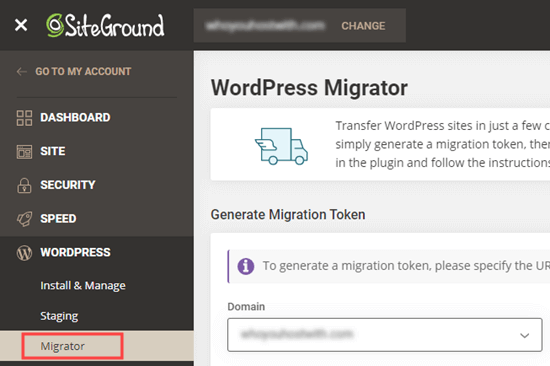
In your SiteGround dashboard, you need to go to the WordPress » Migrator page.

The Siteground WordPress migrator tool

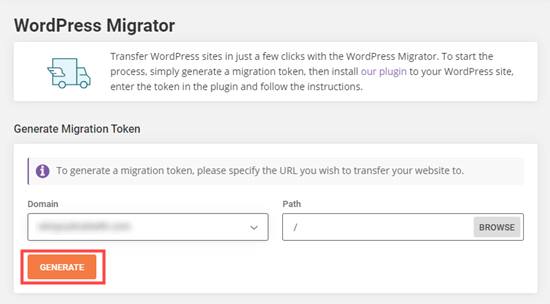
Then, go ahead and select your domain from the dropdown list. If you want to create your WordPress website in a subfolder on your domain, then you can add this as the Path.

Once you’ve selected your domain, click the Generate button.

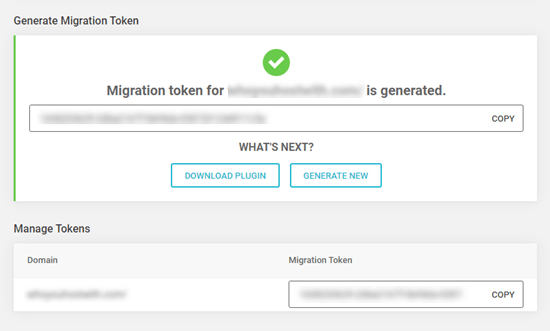
Generating the migration token in SiteGround

You will then see your token on the screen. Simply leave this tab open or copy it into a safe place as you will need it in the next step.

The migration token that you need to copy

Next, go ahead and install and activate the SiteGround Migrator plugin on your website. For more details, see our step by step guide on how to install a WordPress plugin.
Upon activation, click on the SG Migrator link in your WordPress admin. On this page, enter your migration token and click the Initiate Transfer button.

You can also enter your email address if you want to receive an email when the transfer is complete.

Initiate the SiteGround transfer

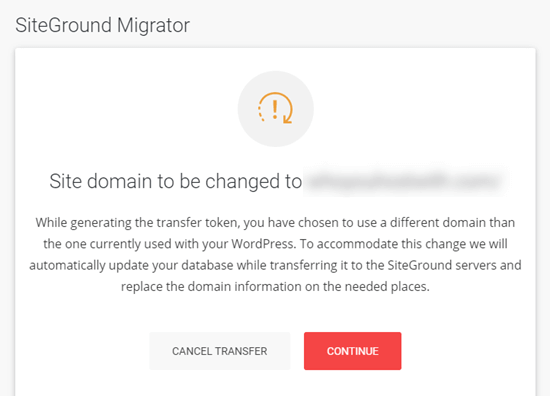
If you are moving your site to a new domain, then SiteGround will show a warning message.

SiteGround's warning if you're moving your site to a new domain

You need to click continue, so the transfer process can keep going on. You will see the progress on the screen as well.

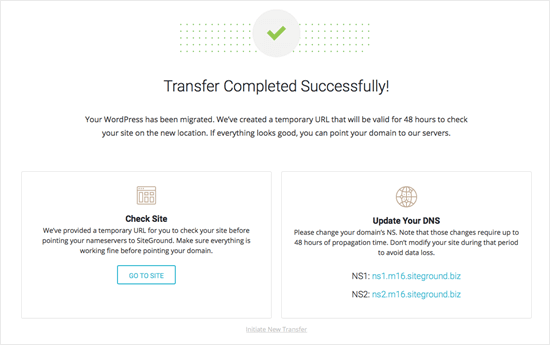
Once it’s done, you should see a message to let you know that the transfer has been completed successfully. Then, you can go ahead and check your site before changing your domain’s nameservers to SiteGround.

The success message to show that the SiteGround transfer has worked

How to Export a WordPress Site Using UpdraftPlus

UpdraftPlus is one of the best WordPress backup plugins on the market.

It’s easy to use UpdraftPlus to export and import your WordPress sites.

First, you need to install and activate the UpdraftPlus plugin. For more details, see our step by step guide on how to install a WordPress plugin.
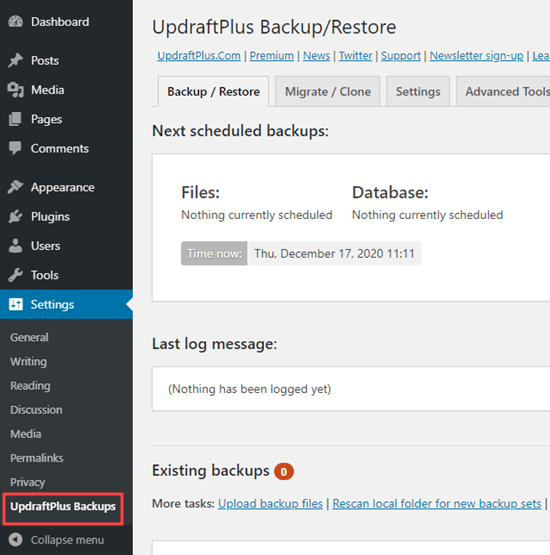
Upon activation, go to the Settings » UpdraftPlus Backups page in your WordPress admin.
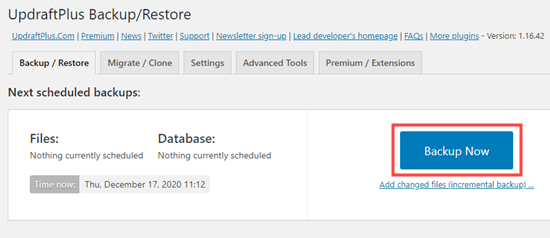
The UpdraftPlus page in your WordPress admin

Next, you need to click the ‘Backup Now’ button.
Creating your website export using UpdraftPlus

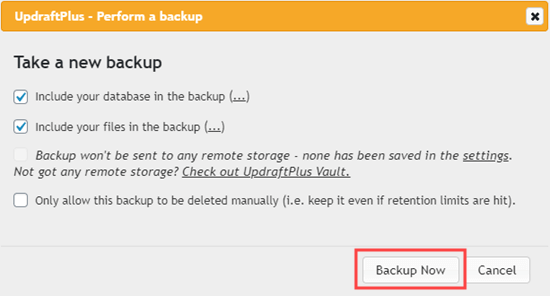
You will then see a popup message with various options. You can leave the default options checked, and click the ‘Backup Now’ button.

Confirm that you want to run a backup using UpdraftPlus

UpdraftPlus will then create a copy of your website.

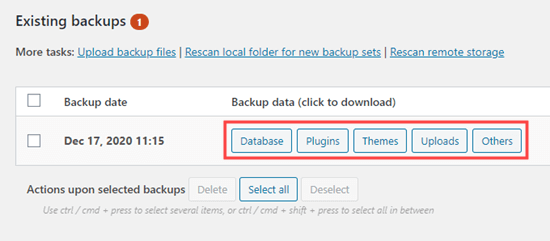
Once the backup is done, you can download it in your computer by simply clicking the individual buttons in the backup table at the bottom of the page.

Downloading your WordPress export from UpdraftPlus

After that you can easily restore this backup in your new WordPress site by following our detailed guide on how to backup and restore sites with UpdraftPlus.

How to Export a WordPress Site From WordPress.com

A lot of our readers are often looking to switch from WordPress.com to WordPress.org to unlock more features and have full control over their site.

If you’re using WordPress.com, then it’s quite easy to export your site.

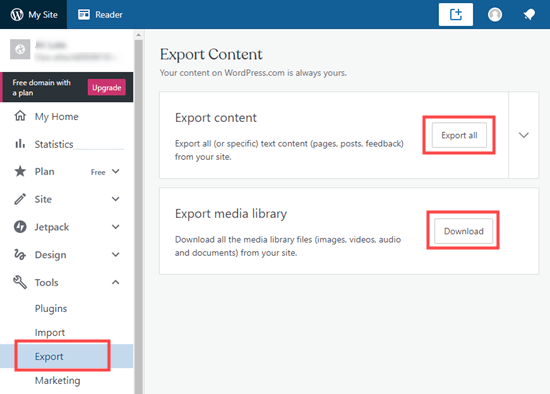
First, you need to login to your WordPress.com account and go to the Tools » Export page in your admin area.

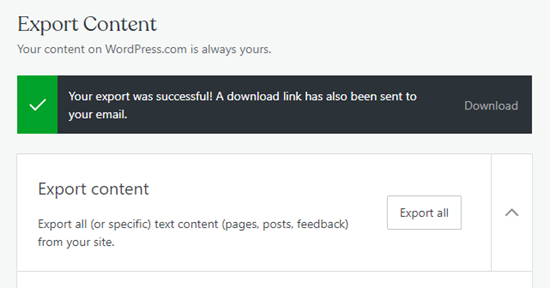
Here, you need to click the ‘Export all’ button to export your text content. This includes pages, posts, and feedback (such as survey results).

You can also download all your media files, such as images that you have included in your posts.

Exporting your website from WordPress dot com

WordPress will show a download link for your export. Simply click this to download the exported files to your computer.

The success message letting you know that your WordPress dot com export has been completed

You can then upload this file to another WordPress.com site that you own, using the Tools » Import feature for that site.

Tip: If you are moving your site to WordPress.org, then you will need to create a website and install the WordPress.org software.

Our can also help you move your site from WordPress.com to WordPress.org with our free blog setup service. Follow the instructions on that page, and our friendly team will take care of everything for you.

How to Export a WordPress Site Manually Using SFTP + phpMyAdmin

The final option for exporting your WordPress site is to do it manually. We only recommend this for tech savvy users. If you’re a beginner, then you should try one of the above methods instead.

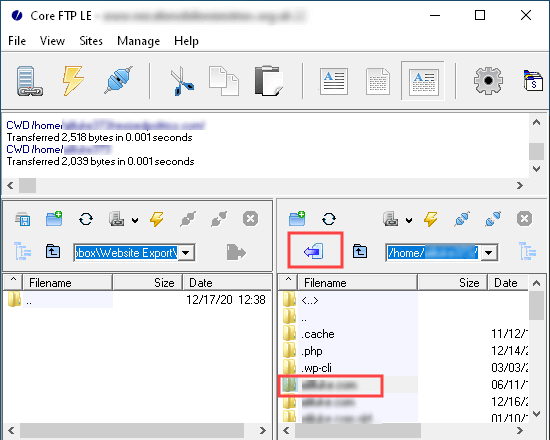
First, you need to connect to your existing website hosting account using SFTP (secure FTP). For help on this, check out our guide on using FTP to upload files to WordPress.

Next, locate the root folder of your website and download it to your computer. This may take a long time if you have a large WordPress website.

Exporting all your website files to your computer

Doing this exports all your website files, such as media uploads, plugins, and themes. However, it does not export content that is stored in your WordPress database, such as posts and pages, comments, and contact form entries.

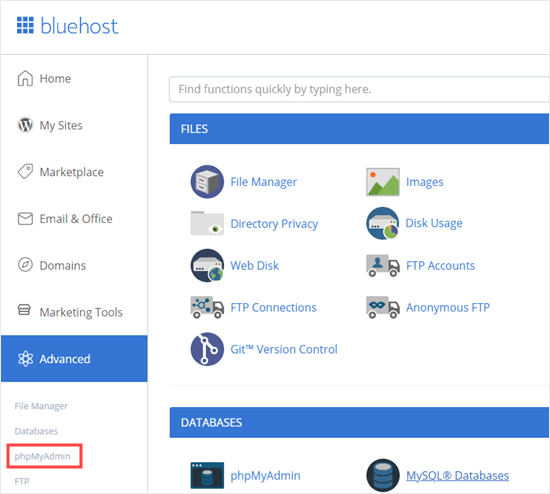
To export your WordPress database, you need to login to your web hosting’s control panel and look for phpMyAdmin. In Bluehost, you can find it by going to Advanced » phpMyAdmin.

Selecting the phpMyAdmin option in Bluehost

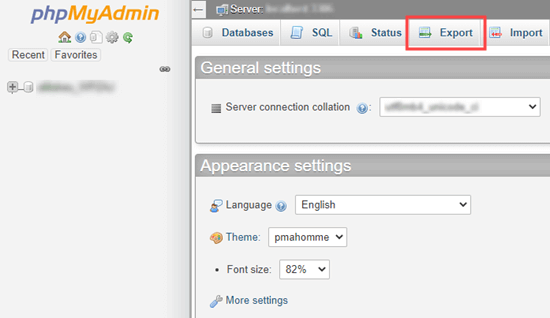
Once you’re inside phpMyAdmin, you need to click the Export button at the top of your screen.

Click the Export button at the top of the screen

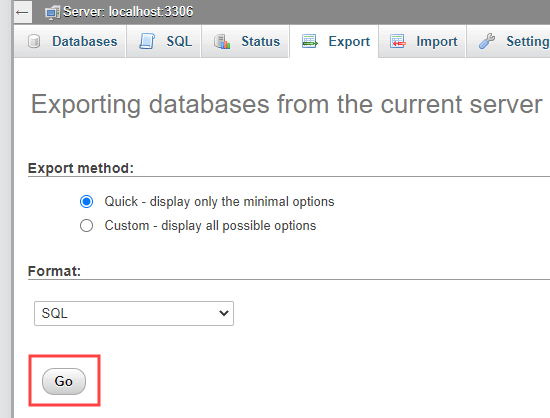
If you just want to export all your database tables, then simply click the Go button on the next screen. This will download an .sql file to your computer.

Running a quick database export from phpMyAdmin

You can upload this file to a fresh installation of WordPress.

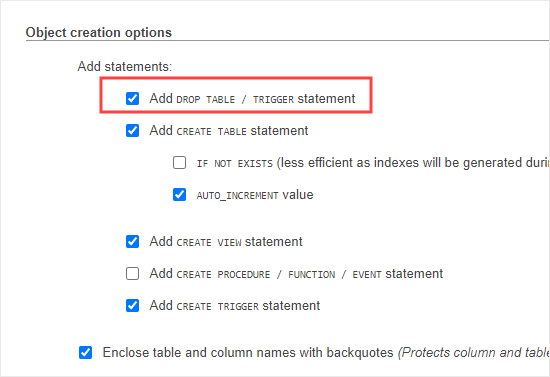
If you’re trying to export your database to a pre-existing WordPress site, then you need to select the Custom option and then scroll down to check the box for ‘Add DROP TABLE / TRIGGER statement’.

When the database file is imported, the pre-existing databases with the same name will be deleted and overwritten with the new data. You can leave all the other settings as their default, then click the Go button.

Adding the Drop Table statement

Options for Exporting a Non-WordPress Site

If you’re moving your site from a different website builder platform to WordPress, then you cannot export it using the above methods.

How to Add Keywords and Meta Descriptions in WordPress

How to Add Keywords and Meta Descriptions in WordPress

Do you want to properly add keywords and meta descriptions in WordPress?

Meta keywords and descriptions allow you to improve your website’s SEO ranking. This means more traffic, leads, and sales for your business.

In this article, we will show you how to easily add keywords and meta descriptions in WordPress.

Adding meta keywords and meta descriptions in WordPress

Why Add Keywords and Meta Descriptions in WordPress?

Keywords and descriptions allow you to tell search engines more about the content of your posts and pages.

Keywords are important words or phrases that people are likely to search to find your content. A meta description is a brief description of what your page or post is about.

It’s your meta title, description, and keywords that shows up in Google search results:

Google Search Listing

Meta keywords and meta description are HTML meta tags. They form part of your website’s header code. They don’t appear on your page or post for visitors to see. However, search engines and browsers can use them.

WordPress SEO plugins make it super easy for you to add them from your WordPress admin area for each post and page on your website.

How Important are Meta Keywords and Meta Descriptions for SEO?

Like most WordPress users, you are probably wondering will adding meta keywords and meta descriptions will improve my WordPress SEO rankings.

While search engines don’t exactly share how much weight they assign to keywords or description, SEO experts always recommend adding proper meta description and keywords for on-page SEO optimization.

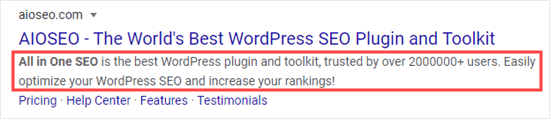
Meta descriptions are widely used by search engines. In Google’s search results, they appear below your content’s title, with the search term shown in bold.

An example meta description, for the All in One SEO plugin homepage

An effective meta description will encourage users to click through and read your content. And what we do know is that a good click through rate means Google will likely rank your content higher.

Now when it comes to meta keywords, most modern search engines either assign very little importance or don’t use them at all. The main exception is the Russian search engine Yandex.

Instead search engines prefer that you add your focused keywords in your title, description, and through out your content. This is why SEO plugins like AIOSEO comes with a TruSEO score that helps you optimize your content for focused keywords and keyphrases.

Our Recommendations for Meta Keywords and Meta Descriptions

We recommend adding a meta description for all the posts and pages on your site, including your homepage, category pages, and tag pages.

Note: Google customizes the description based on the search query, so it will only use your meta description some of the time. However, it’s still worth creating a meta description. It will appear for around 30% of users, and it can help your SEO.

When it comes to meta keywords, it’s up to you whether or not to use them. They will not harm your site, but they may not have much benefit either.

Having said that, let’s take a look at how to easily add keywords and meta descriptions in WordPress.

How to Add Meta Description and Keywords in WordPress (Video Tutorial)

Subscribe to WPBeginner

If you prefer the written tutorial, then please continue reading.

Installing and Activating All in One SEO for WordPress

For this tutorial, we will be using All in One SEO (AIOSEO) which is the best WordPress SEO plugin on the market. It allows you to easily optimize your entire WordPress site for better SEO and comes with comprehensive set of tools to grow your business.

First, you’ll need to install and activate the All in One SEO plugin. For more details, see our step by step guide on how to install a WordPress plugin.
Upon activation, All in One SEO will take you through a simple setup wizard. Just follow the step by step instructions to get everything set up for your site.

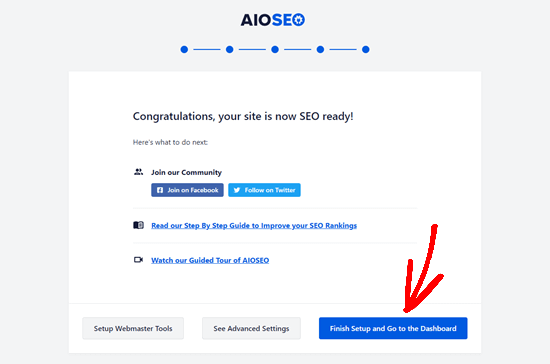
After completing the setup, simply click the ‘Finish Setup and Go to the Dashboard’ button.

Click the Finish Setup button to go to your dashboard

Enable Meta Keywords Support in All in One SEO

All in One SEO comes with built-in support for meta description and keywords. However, the meta keywords feature is turned off by default. This is because many search engines give little or no importance to keywords in their rankings.

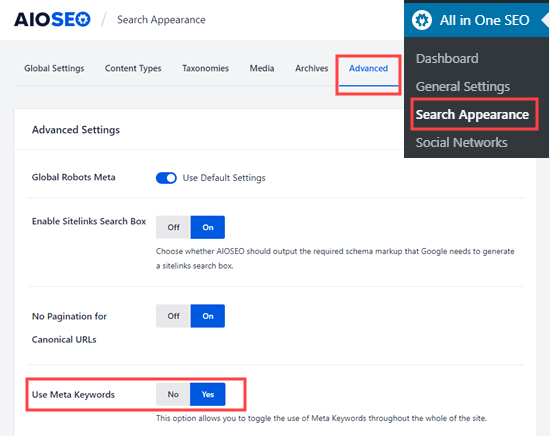
To enable it, go to All in One SEO » Search Appearance » Advanced in your WordPress dashboard. Then, switch the meta keywords toggle from No to Yes.

Turning on the meta keywords option in All in One SEO

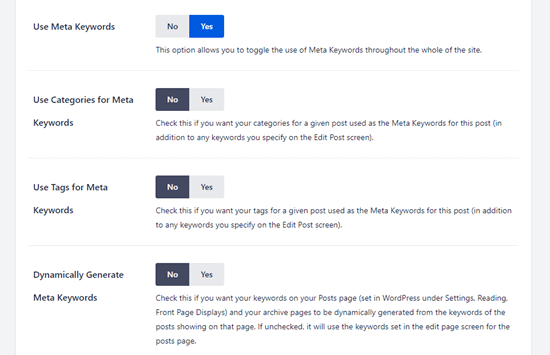
After enabling meta keywords in WordPress, you will see some additional options. You can generate a post’s keywords from its categories and/or tags. Also, you can dynamically generate keywords on your blog posts and archive pages.

It’s up to you whether you want to use these automated options or not. Regardless, you will always be able manually define keywords for each post and page.

The meta keyword options that are available in All in One SEO

Don’t forget to click the ‘Save Changes’ button at the bottom of the page after making changes.

Adding Meta Descriptions and Meta Keywords to Your WordPress Posts and Pages

First, you need to edit a post or page where you want to add your meta keywords and meta description.

AIOSEO works on both WordPress block editor (Gutenberg) and WordPress classic editor.

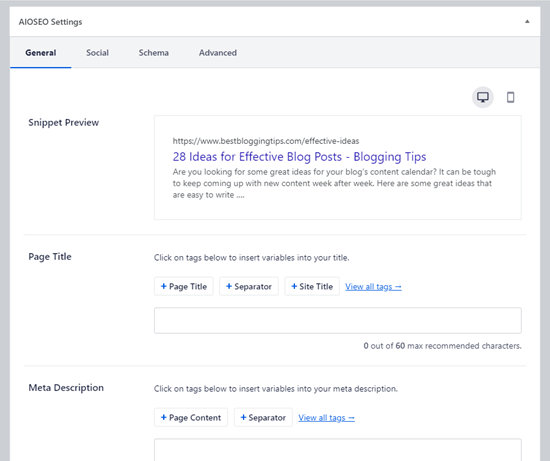
Once on the content editor screen, scroll down to the ‘AIOSEO Settings’ box below the content area.

Adding a Meta Description to Your Post or Page Using AIOSEO

You will see your site’s title and an automatically generated description as the snippet. Below that, you’ll see the Meta Description field.

The automatically generated snippet in All in One SEO

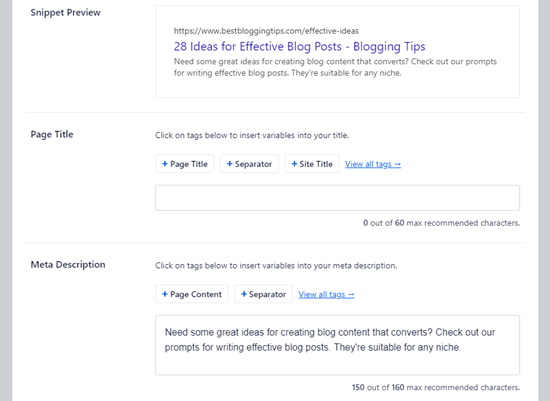
Go ahead and enter a description into your Meta Description field. All in One SEO will let you know how many characters you’ve used. This is important because Google will only show 160 characters in the search results.

You’ll see that your snippet preview automatically updates as you type your meta description.

Entering your meta description in All in One SEO

Once you’ve finished, simply save or publish your post to save the changes to your meta description.

Using All in One SEO’s Dynamic Tags in Your Meta Descriptions

Optionally, you can add tags to your meta description. The ones that All in One SEO offers by default are Page Content and Separator, but you can add other dynamic tags as well.

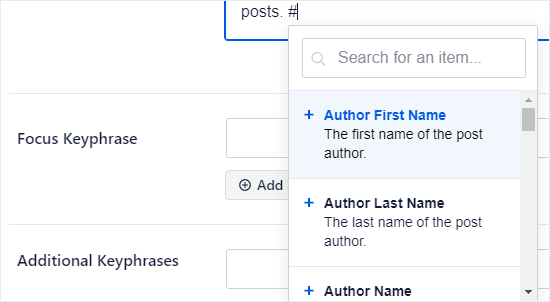
For example, we’ve added the author’s name to our meta description here.

A meta description with the tags Author First Name and Author Last Name at the start

To add a tag, simply type the # character into the meta description box. You’ll then see a dropdown menu of available tags.

Adding tags to your meta description in All in One SEO

Adding Meta Keywords to Your Post or Page Using AIOSEO

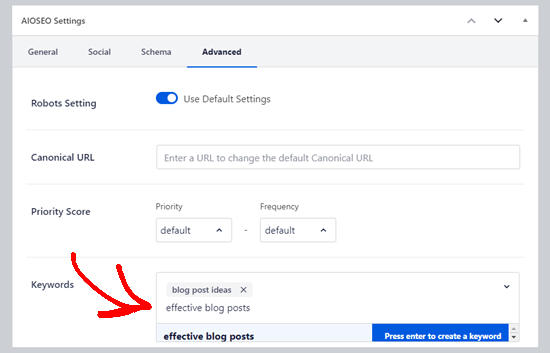
To add your meta keywords, you need to click the Advanced tab for your AIOSEO settings.

Simply type in your keywords, and press Enter after each one. It’s important to only use keywords that are relevant to your content. Adding irrelevant keywords will not give you any SEO benefits.

Adding meta keywords for your post or page using All in One SEO

Tip: Meta keywords are completely separate from your Focus Keyword. You can set a Focus Keyword under the General tab. This is for All in One SEO to give you recommendations about improving your content. The Focus Keyword doesn’t automatically become a meta keyword for your post or page.

Adding Meta Keywords and Meta Description for Your Homepage

You can also add meta keywords and a meta description for your website’s homepage in WordPress. Here is how to do that using All in One SEO.

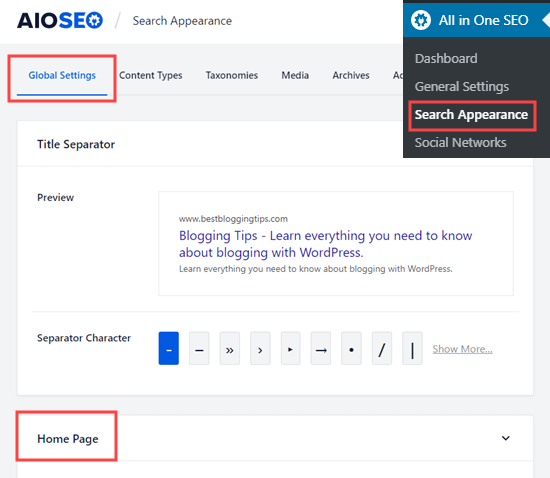
First, go to Search Appearance » Global Settings in your WordPress admin. Then, scroll down to the Home Page section.

The Home Page section in your Search Appearance settings for All in One SEO

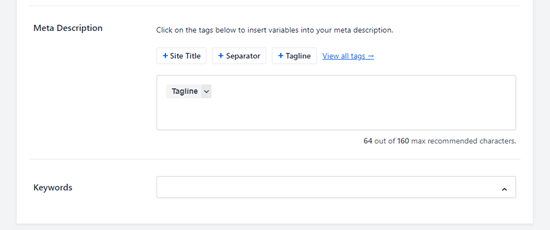
On this screen, you can easily enter a meta description and keywords, just like you would for a post or page.

All in One SEO will use your tagline as your meta description by default. You can leave that in there or you can customize it.

Entering a meta description and keywords for your homepage

You can also click on the other options to add those tags into your meta description. Alternatively, you can add different tags by typing the # character in your meta description, as described above.

Tip: It’s better to use these tags rather than manually typing your site title, tagline, or separator character. This is because your meta description will automatically be updated if you later make changes to any of those.

Make sure you click the Save Changes button at the bottom of the page after adding your meta description and keywords.

Meta Keywords and Description for WordPress Category Archives

You can also add keywords and description to your category and tag archive pages.

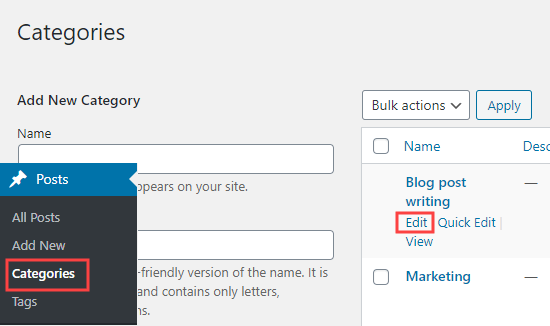
First, you need to visit the Posts » Categories page. Take your mouse over to the category you want to edit and then click on the ‘Edit’ link.

Editing a category in WordPress

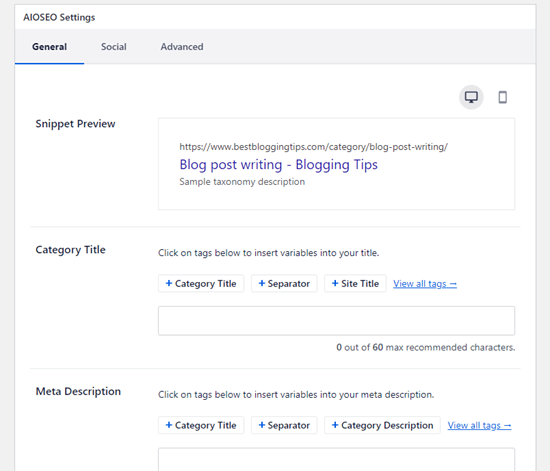
Scroll down on the category’s page to the AIOSEO Settings box. Here, you just need to enter a meta description for your category. Again, you can use All in One SEO’s tags within this if you want to.

Adding a meta description for your category in All in One SEO

To add keywords, simply click on the Advanced tab like you would for any post or page.

How to Recover and Restore Deleted Pages in WordPress

How to Recover and Restore Deleted Pages in WordPress

Are you trying to recover deleted pages in WordPress?

If you accidentally deleted a WordPress page, then it is possible to recover it from Trash.

In this beginner’s guide, we’ll show you how to easily recover deleted pages in WordPress and WooCommerce.

Recovering deleted pages in WordPress

How WordPress Handles Deleted Pages?

Just like your computer, WordPress moves deleted items into a ‘Trash’ folder. Doing that removes those items from your website and admin screens, but they’re not deleted permanently right away.

After 30 days, WordPress automatically deletes the item permanently from the trash, and your WordPress database.

If the page you deleted is still in the trash, then you can go ahead and restore it. We’ll show you how in a minute.

However, if it has been deleted from trash too, then you will need to try other ways to restore the deleted page in WordPress.

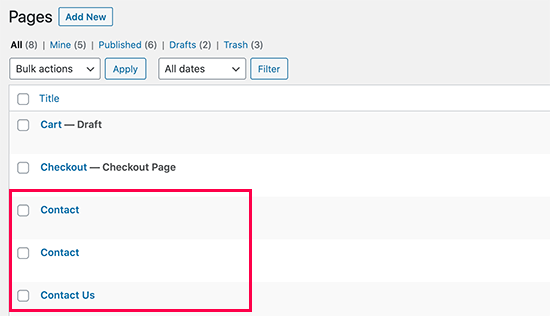
Sometimes you may accidentally delete a page and not notice it for a while. For instance, if you have multiple pages with the same name, and you end up deleting one that you actually needed.

Accidentally deleting similarly named pages in WordPress

Another common scenario that we have seen is users accidentally deleting pages needed by WooCommerce or their WordPress membership plugin.
That being said, let’s take a look at how to easily restore deleted pages in WordPress and WooCommerce. Here is quick table of content, so you can jump to the section that best fit your needs.

  • Recover Deleted Pages from Trash in WordPress
  • Recover Deleted Pages in WordPress Using a Backup Plugin
  • Recover Deleted WooCommerce Pages
  • Recover Selected Pages from a WordPress Backup (Advanced)

Method 1. Recover Deleted Pages from Trash in WordPress

This method is the easiest, and you should try it first before doing anything else.

Normally, when you delete an item in WordPress, it is sent to the trash folder, and you can recover it for the next 30 days. After that, it will be automatically deleted forever.

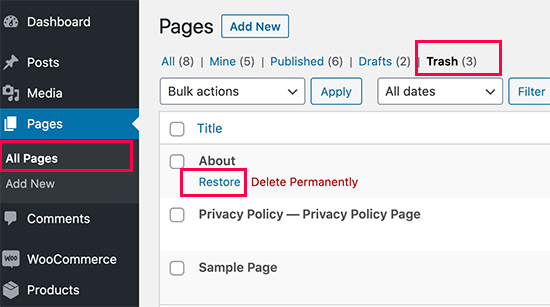
Simply go to Pages » All Pages inside your WordPress admin area. From here, you need to switch to the ‘Trash’ tab to view all the pages that have been deleted during last 30 days.

Restore deleted pages

If the page(s) you want to recover is listed there, then simply take your mouse over the page title, and you’ll see the option to ‘Restore’ it.

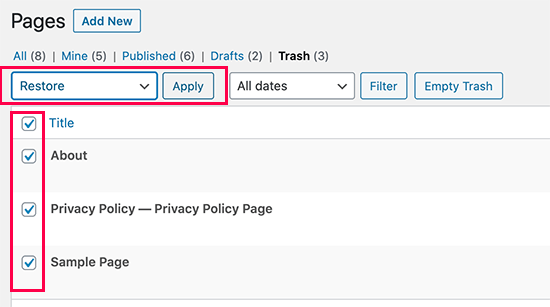
You can also restore multiple pages at once by selecting them and then choosing ‘Restore’ from the Bulk Actions drop-down menu at the top.

Restoring multiple pages in WordPress

You can now go to Pages » All Pages and locate the restored page there.

That was quick and easy, but what if the page you deleted is not listed under Trash?

Don’t worry, there are other ways to restore deleted pages in WordPress.

Method 2. Restore Deleted Pages in WordPress Using a Backup Plugin

Backups are one of the best WordPress security and productivity tools. All WordPress websites must set up a proper WordPress backup plugin.
These WordPress backup plugins not just help you recover a hacked WordPress site, but they can also help you recover deleted content including pages.

Note: WordPress backup plugins allow you to restore your entire website to an earlier point. This means any other changes you made to your website after that time can be lost.

If you know when you deleted a page, then you can access the last back up before that time to restore your website.

If you don’t have a WordPress backup plugin installed, then there is still a fairly good chance that your WordPress hosting company does, and you can still restore it via cPanel.

For step by step instructions you can follow our guide on how to restore WordPress from a backup. It shows how to restore WordPress from a backup using UpdraftPlus, BackupBuddy, phpMyAdmin, cPanel, and more.

Method 3. Recover Deleted WooCommerce Pages

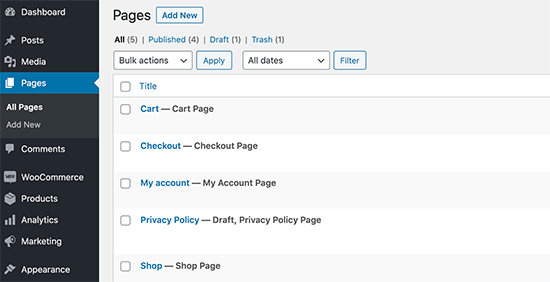
By default, WooCommerce creates pages for the checkout, cart, shop, and account management. These are important pages for your WooCommerce store to function properly.

WooCommerce default pages

If you accidentally delete a WooCommerce page, then you can first try restoring it by looking into the Trash (see Method 1 above).

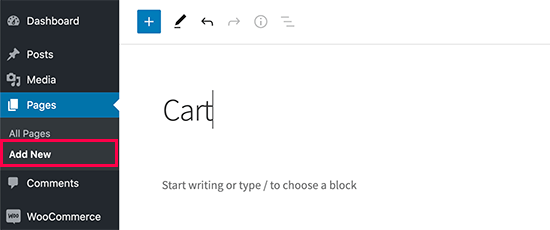
If you cannot find the page in trash, then you can simply create a new one. For instance, you can go to Pages » Add New and then create a blank page titled ‘Cart’.

Create new cart page in WooCommerce

Similarly, you can create other WooCommerce pages as well for shop, checkout, and account.

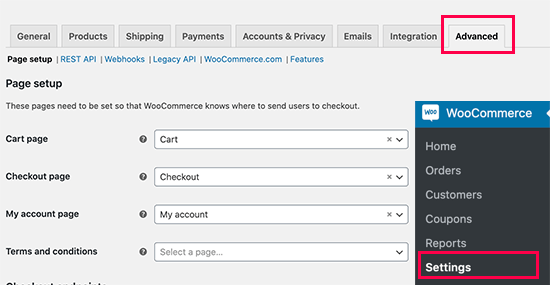
After you have created new pages, you can tell WooCommerce to use these new pages instead. Simply go to WooCommerce » Settings page and switch to the ‘Advanced’ tab.

Select WooCommerce default pages

From here, you can select pages you created earlier under the Page Setup section.

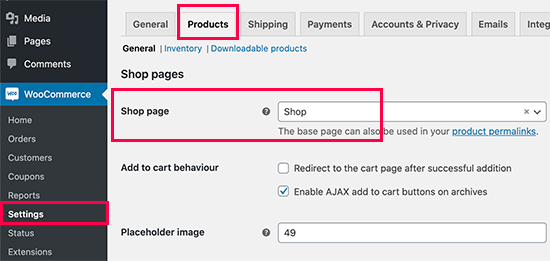
For the shop page, you’ll need to switch to the ‘Products’ tab and then select the page you want to use as your Shop page.

Shop page

Don’t forget to click on the ‘Save changes’ button to store your settings.

Method 4. Restore Selected Pages from a WordPress Backup (Advanced)

This method is a bit complicated, unreliable, and is not recommended for beginners. However, it would be useful if you don’t want to restore a complete a website and lose any changes you made after that backup.

You can simply restore your WordPress back up to a local server installation and then copy and paste the page contents that you wish to restore.

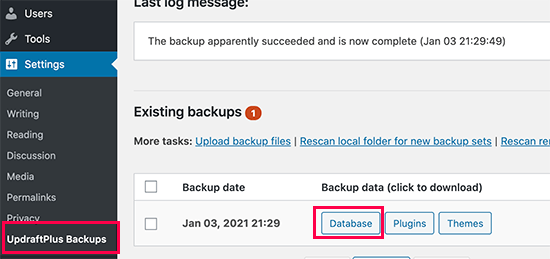
First, you’ll need to download your WordPress backup files to your computer. Simply go to your WordPress database backup plugin page and you will be able to see recent backups.

For instance, here is how you’ll see your recent backups listed in the UpdraftPlus.

Download WordPress database backup

Simply click on the database backup to download it to your computer.

Next, you will need to restore your WordPress site to a local server. You can install WordPress on your computer using WAMP (or MAMP for Mac).

After that, you can use can install your WordPress backup plugin on local server installation and restore using the backup files.

Optionally, if you have only the database backup, then you can restore that using phpMyAdmin as well.

Once you have restored the WordPress database, you will need to update WordPress Site and Home URLs in the database. To do that, simply open phpMyAdmin on your local server by typing the following URL:

http://localhost/phpmyadmin/

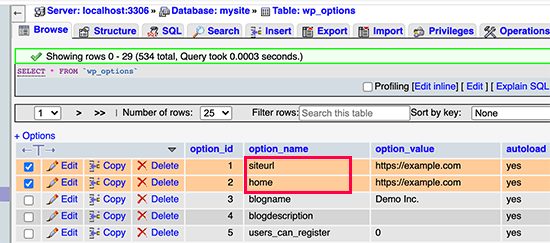
After that, you need to select your WordPress database from the left column and then click on the wp_options table. Switch to the browse tab and locate the rows containing ‘siteurl’ and ‘home’ under the option_name column.

Change site URLs

You’ll notice that the option_value column contains the URL of your live website. You need to edit both of these rows and replace your option_value to match your local server WordPress site.

After that click on the ‘Go’ button to save your changes.

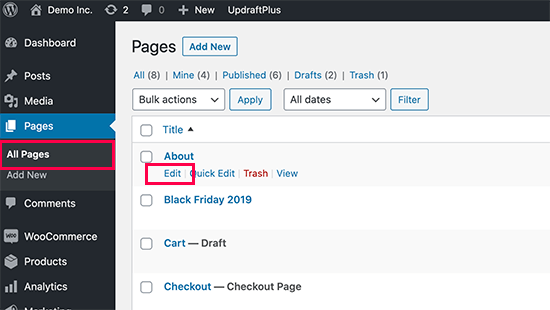
You can now login to your localhost installation, and you’ll see all your old pages listed under Pages » All Pages.

Editing a WordPress page

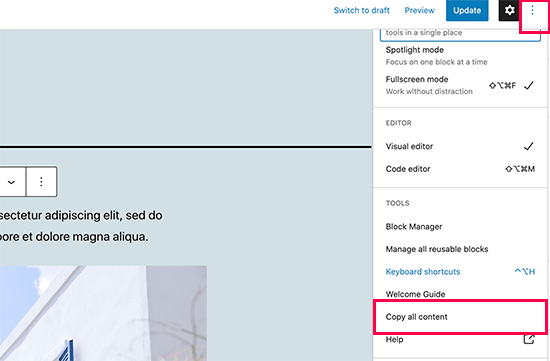
Go a head and edit the page you want to restore. All you need to do is copy the content and paste it to your live WordPress website as a new page.

Copy page content

Don’t forget to update or publish changes on your live website.

What is an XML Sitemap? How to Create a Sitemap in WordPress?

What is an XML Sitemap? How to Create a Sitemap in WordPress?

Are you wondering what is an XML sitemap, and how to add it to your WordPress website?

An XML sitemap helps search engines easily navigate through your website content. It gives them a list of all your content in a machine-readable format.

In this article, we will explain what is an XML sitemap, and how to easily create a sitemap in WordPress.

What is an XML Sitemap and how to create one for your WordPress site

What is an XML Sitemap?

An XML sitemap is a file that lists all your website content in an XML format, so search engines like Google can easily discover and index your content.

Back in the early 2000s, government websites used to have a link on their main pages, titled “Sitemap”. This page usually contained a list of all the pages on that website.

While some websites still have HTML sitemaps today, the overall usage of sitemaps have evolved.

Today sitemaps are published in an XML format instead of HTML, and their target audience is search engines and not people.

Basically, an XML sitemap is a way for website owners to tell search engines about all the pages that exist on their website.

It also tells search engines which links on your website are more important than others, and how frequently you update your website.

While XML sitemaps will not boost your search engine rankings, they allow search engines to better crawl your website. This means they can find more content and start showing it in search results thus resulting in more search traffic, and improved SEO rankings.

Why You Need an XML Sitemap?

Sitemaps are extremely important from a search engine optimization (SEO) point of view.

Simply adding a sitemap does not affect search rankings. However, if there is a page on your site that is not indexed, then sitemap provides you a way to let search engines know about that page.

Sitemaps are extremely useful for when you first start a blog or create a new website because most new websites don’t have any backlinks. This makes it harder for search engines to discover all of their content.

This is why search engines like Google and Bing allow new website owners to submit a sitemap in their webmaster tools. This allows their search engine bots to easily discover and index your content (more on this later).

Sitemaps are equally as important for established popular websites as well. They allow you to highlight which part of your websites are more important, which parts are more frequently updated, etc, so search engines can visit and index your content accordingly.

That being said, let’s take a look at how to create XML sitemap in WordPress.

Video Tutorial

Subscribe to WPBeginner

If you’d prefer written instructions, just keep reading.

How to create a Sitemap in WordPress?

There are several ways to create an XML sitemap in WordPress. We will show you three popular methods to create an XML sitemap in WordPress, and you can choose one that works best for you.

  • How to create an XML sitemap in WordPress without a plugin
  • Creating an XML sitemap in WordPress using All in One SEO
  • Creating an XML sitemap in WordPress using Yoast SEO
  • Submit your XML sitemap to search engines
  • How to utilize XML sitemaps to grow your website

Method 1. How to Create an XML Sitemap in WordPress without a Plugin

This method is very basic and limited in terms of features.

Until August 2020, WordPress didn’t have built-in sitemaps. However in WordPress 5.5, they released a basic XML sitemap feature.

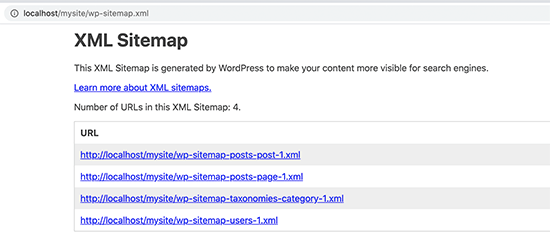
This allows you to automatically create an XML sitemap in WordPress without using a plugin. You can simply add wp-sitemap.xml at the end of your domain name, and WordPress will show you the default XML sitemap.
Default WordPress XML sitemap

This XML sitemap feature was added to WordPress to make sure that any new WordPress website does not miss out on the SEO benefits of an XML sitemap.

However, it is not very flexible, and you cannot easily control what to add or remove from your XML sitemaps.

Luckily, almost all top WordPress SEO plugins come with their own sitemap functionality. These sitemaps are better, and you can control which content to remove or exclude from your WordPress XML sitemaps.

Method 2. Creating an XML Sitemap in WordPress using All in One SEO

The easiest way to create an XML sitemap in WordPress is by using the All in One SEO plugin for WordPress.

It is the best WordPress SEO plugin on the market offering you a comprehensive set of tools to optimize your blog posts for SEO.

First, you need to install and activate the All in One SEO plugin. For more details, see our step by step guide on how to install a WordPress plugin.
Note: Sitemap feature is also available in AIOSEO Free version. However to get advanced news sitemap and video sitemaps, you’ll need the Pro version.
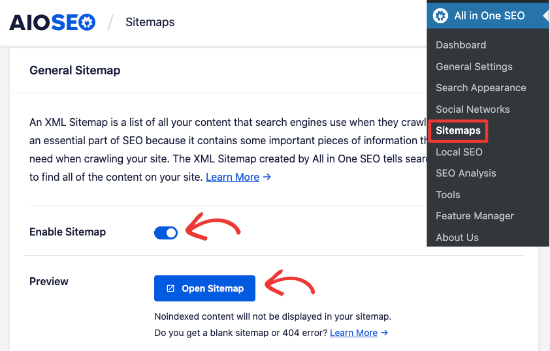
Upon activation, go to the All in One SEO » Sitemaps page to review sitemap settings.

Enable sitemap in All in One SEO

By default, All in One SEO will enable the Sitemap feature for you and replace the basic WordPress sitemaps.

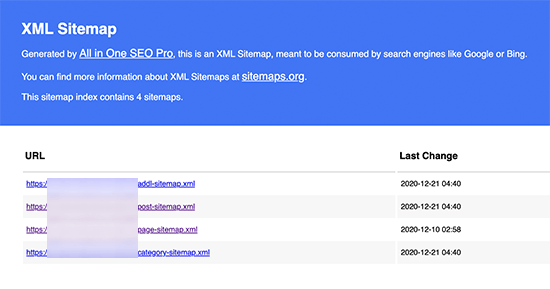
You can click on the ‘Open Sitemap’ button to preview it to see what it looks like. You can also view your sitemap by adding ‘sitemap.xml’ to the URL such as www.example.com/sitemap.xml.

All in One SEO XML sitemap preview

As a beginner, you don’t need to do anything as the default settings would work for all kinds of websites, blogs, and online stores.

However, you can customize the sitemap settings to control what you want to include in your XML sitemap.

Simply scroll down to the Sitemap settings section.

AIOSEO Sitemap settings

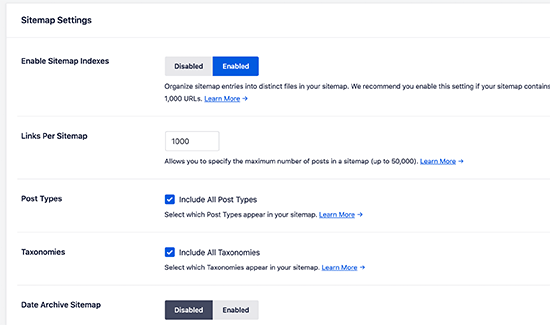
This section gives you options to manage sitemap indexes, include or exclude post types, taxonomies (categories and tags). You can also enable XML sitemaps for date-based archives and author archives.

All in One SEO automatically includes all your WordPress content in XML sitemaps. However, what if you have stand-alone pages like a contact form, a landing page, or Shopify store pages that are not part of WordPress?

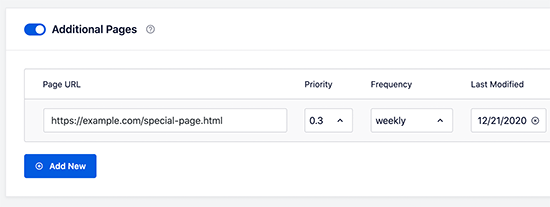
Well, AIOSEO is the only plugin that lets you add external pages in your WordPress sitemap. Simply scroll to the Additional Pages section and turn it on. This will show you a form where you can add any custom pages that you want to include.

Adding additional pages to your WordPress XML sitemap

You simply need to add the URL of the page that you want to include and then set a priority where 0.0 is the lowest and 1.0 is the highest, if you are unsure then we recommend using 0.3.

Next, choose the frequency of updates and the last modified date for the page.

You can click on the ‘Add New’ button if you need to add more pages.

Don’t forget to click on the ‘Save Changes’ button to store your settings.

Excluding Specific Posts / Pages from your XML Sitemap

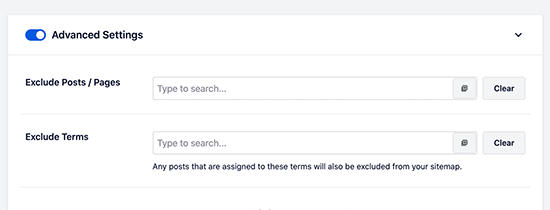
All in One SEO allows you to exclude any post or page from your XML Sitemaps. You can do this by clicking on the Advanced Settings section under the All in One SEO » Sitemaps page.

Excluding items from your WordPress XML sitemap

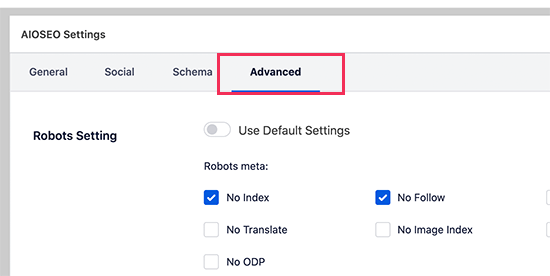
You can also remove a post or page from your XML sitemaps by making it no-index and no-follow. This will block search engines from showing that content in search results.

Simply edit the post or page that you want to exclude and scroll down to the AIOSEO Settings box below the editor.

Removing a post or page from XML sitemap using robots.txt

From here you need to switch to the Advanced tab and check the boxes next to ‘No Index’ and ‘No Follow’ options.

Creating Additional Sitemaps

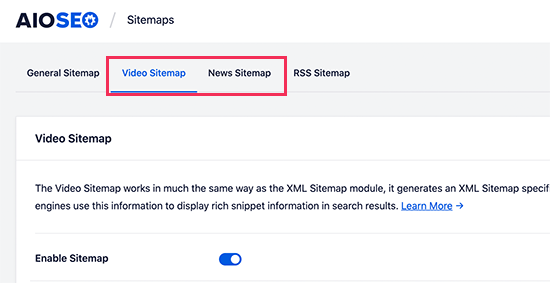
All in One SEO allows you to create additional sitemaps like a video sitemap or a news sitemap.

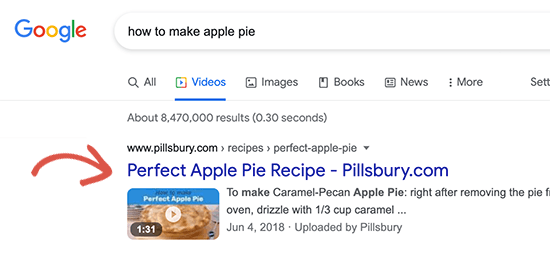
You can create a video sitemap if you regularly embed videos in your blog posts or pages. It allows search engines to display posts in search and video search results along with a video thumbnail.

Video search results showing video thumbnail

You can also create a News sitemap if you run a news website and want to appear in Google News search results.

Simply go to All in One SEO » Sitemaps and switch to the Video Sitemap or News Sitemap tabs to generate these sitemaps.

Generating video and news sitemaps in All in One SEO

Overall, AIOSEO is the best WordPress plugin because it gives you all the flexibility and powerful features at a very affordable price.

Method 3. Creating an XML Sitemap in WordPress using Yoast SEO

If you are using Yoast SEO as your WordPress SEO plugin, then it also automatically turns on XML sitemaps for you.

First, you need to install and activate the Yoast SEO plugin. For more details, see our step by step guide on how to install a WordPress plugin.

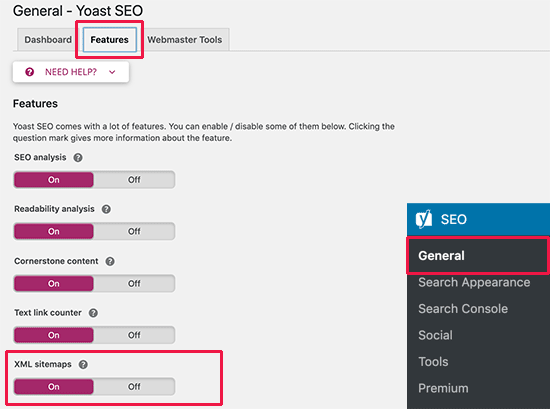
Upon activation, go to SEO » General page and switch to the ‘Features’ tab. From here, you need to scroll down to the ‘XML Sitemap’ option and make sure that it is turned on.

Yoast SEO XML Sitemap option

Next, click on the save changes button to store your changes.

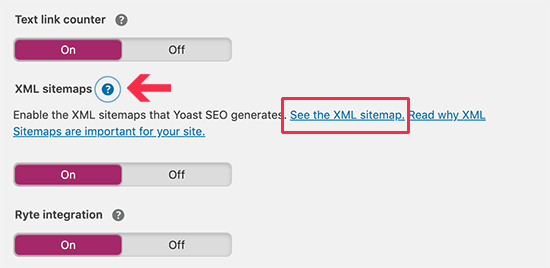
To verify that Yoast SEO has created an XML Sitemap, you can click on the question mark icon next to the XML Sitemap option on the page.

View XML Sitemap created by Yoast SEO plugin

After that, click on the ‘See the XML Sitemap’ link to view your live XML sitemap generated by Yoast SEO.

You can also find your XML sitemap by simply adding sitemap_index.xml at the end of your website address. For example:

https://www.example.com/sitemap_index.xml

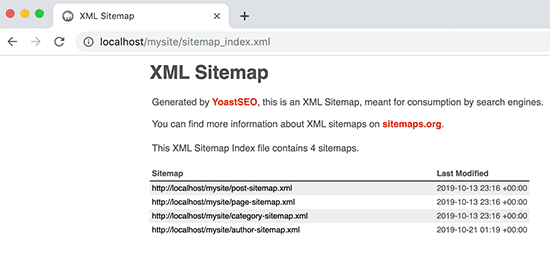
Yoast SEO sitemap

Yoast SEO creates multiple sitemaps for different types of content. By default, it will generate sitemaps for posts, pages, author, and categories.

How to Submit Your XML Sitemap to Search Engines

Search engines are quite smart in finding a sitemap. Whenever you publish new content, a ping is sent to Google and Bing to inform them about changes in your sitemap.

However, we recommend that you submit the sitemap manually to ensure that search engines can find it.

Submitting Your XML Sitemap to Google

Google Search Console is a free tool offered by Google to help website owners monitor and maintain their site’s presence in Google search results.

Adding your sitemap to Google Search Console helps it quickly discover your content even if your website is brand new.

First, you need to visit the Google Search Console website and sign up for an account.

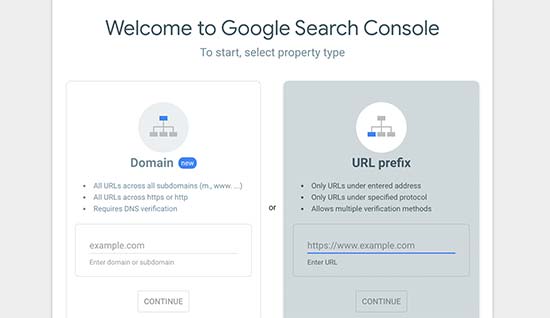
After that, you will be asked to select a property type. You can choose a domain or a URL prefix. We recommend choosing URL prefix as it is easier to setup.

Select property type

Enter your website’s URL and then click on the continue button.

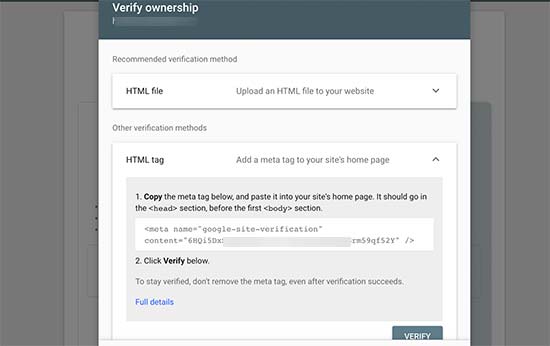
Next, you will be asked to verify ownership of the website. You will see multiple methods to do that, we recommend using the HTML tag method.

Google Search Console verify site ownership

Simply copy the code on the screen and then go to the admin area of your WordPress website.

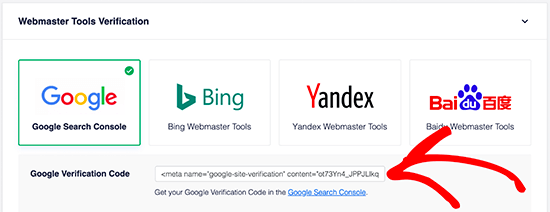
If you’re using AIOSEO, then it comes with easy webmaster tools verification. Simply go to All in One SEO » General Settings and then click the Webmaster Tools tab. After that, you can enter the code from Google there.

AIOSEO Site Verification

If you’re not using AIOSEO, then you need to install and activate the Insert Headers and Footers plugin. For more details, see our step by step guide on how to install a WordPress plugin.

Upon activation, you need to visit Settings » Insert Headers and Footers page and add the code you copied earlier in the ‘Scripts in Header’ box.

Add your verification code in the header section

Don’t forget to click on the save button to store your changes.

Now, switch back to the Google Search Console tab and click on the ‘Verify’ button.

Google will check for verification code on your site and then add it to your Google Search Console account.

Note: If the verification is unsuccessful, then please make sure to clear your cache and then try again.

Now that you have added your website, let’s add your XML sitemap as well.

From your account dashboard, you need to click on ‘Sitemaps’ from the left column.

Add sitemap to Google Search Console

After that, you need to add the last part of your sitemap URL under the ‘Add new sitemap’ section and click the Submit button.

Google will now add your sitemap URL to your Google Search Console.

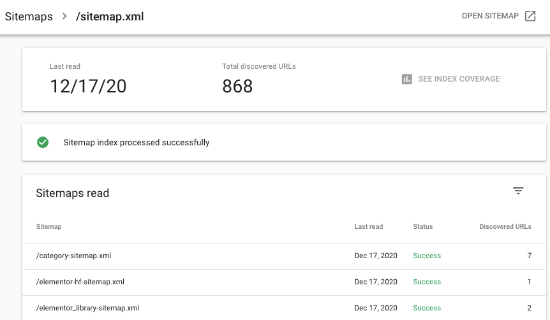
It will take Google some time to crawl your website. After a while, you would be able to see basic sitemap stats.

This information includes the number of links Google found in your sitemap, how many of them got indexed, a ratio of images to web pages, and more.

Sitemap stats in Google Search Console

Submitting Your XML Sitemap to Bing

Similar to Google Search Console, Bing also offers Bing Webmaster Tools to help website owners monitor their website in the Bing search engine.

To add your sitemap to Bing, you need to visit the Bing Webmaster Tools website. Here, you’ll see two options to add your site. You can either import your site from Google Search Console or add it manually.

Create account in Bing Webmaster Tools

If you’ve already added your site to Google Search Console, we suggest importing your site. It saves time as your sitemap will automatically be imported for you.

If you choose to add your site manually, you need to enter your site’s URL and then verify the site.

Bing will now ask you to verify the ownership of your website and will show you several methods to do that.

We recommend using the Meta tag method. Simply copy the meta tag line from the page and head over to your WordPress admin area.

Copy meta tag to verify site in Bing Webmasters Tool

Now, install and activate the Insert Headers and Footers plugin on your website.

Upon activation, you need to visit Settings » Insert Headers and Footers page and add the code you copied earlier in the ‘Scripts in header’ box.

Add Bing verification code

Don’t forget to click on the Save button to store your changes.

How to Utilize XML Sitemaps to Grow Your Website?

Now that you have submitted the XML sitemap to Google, let’s take a look at how to utilize it for your website.

First, you need to keep in mind that the XML sitemap does not improve your search rankings. However, it does help search engines find content, adjust crawl rate, and improve your website’s visibility in search engines.

You need to keep an eye on your sitemap stats in Google Search Console. It can show you crawl errors and the pages excluded from search coverage.

Sitemap coverage

Below the charts, you can click on the tables to view actual URLs excluded or not indexed by Google.

Sitemap URLs reports

Normally, Google may decide to skip duplicate content, pages with no content or very little content, and pages excluded by your website’s robots.txt file or meta tags.

21 Best Website Ideas to Launch an Online Side Business in 2021

21 Best Website Ideas to Launch an Online Side Business in 2021

Are you looking for website ideas to launch a side business in the new year?

There are tons of opportunities online with profitable website ideas that you can easily transform into a sustainable side income.

In this article, we’ll share the best website ideas to launch this year. We’ll also show you how to easily get started without a big investment.

Website ideas that you can launch this year

What You Need to Put Website Ideas into Action

It is a common myth that you need to be tech-savvy or a programmer to start a website. This was probably true in the 90s, but these days you don’t need any special skills to build a website.

Here is what you actually need to make a website:

  • A domain name. This will be your website’s address on the internet, e.g. wpbeginner.com).
  • Web hosting account. This will be your website’s home and where you’ll store all your website files
  • A website builder. We recommend using WordPress.org which is the best website builder powering more than 39% of all websites on the internet.

We recommend using Bluehost to make your website. They are one of the biggest hosting companies in the world and are officially recommended by WordPress.

They are offering WPBeginner users a generous 60% off discount on hosting with a free domain name and free SSL certificate. Basically, you can launch a website for $2.75 per month.

→ Click Here to Claim This Exclusive Bluehost Offer ←

They automatically install WordPress for you, and you can quickly start working on your website idea with in minutes. If you need more help, then follow the steps in our WordPress installation guide to set up your website.

That being said, let’s take a look at some of the most profitable website ideas to launch this year and turn them into a viable business.

Here is a quick list of website ideas that we’ll talk about. You can jump to the one that you find interesting or read as you scroll along.

  • Start a Personal Blog Website
  • Build an Online Store
  • Make a Membership Website
  • Sell Online Courses
  • Create a Dropshipping Website
  • Make an Affiliate Website
  • Launch a Fashion Blog
  • Start a Travel Website
  • Make a Food / Recipes Website
  • Start a Podcast Website
  • Start a Job Hunt Website
  • Make a Coupons Website
  • Create an Online Marketplace
  • Start a Restaurant Website
  • Build a Reviews Website
  • Make a Photography Website
  • Launch a Portfolio Website
  • Start an Online Food Delivery Website
  • Sell Handicrafts Online
  • Start a Pet Owners Community
  • Start a News Website

1. Start a Personal Website / Blog

Start a personal website / blog

Blogs are a popular website idea that has been around for some time and still going strong. Entrepreneurs like Darren Rowse, John Lee Dumas, and Pat Flynn all started as bloggers and are now making six-figure incomes.

Our company’s CEO, Syed Balkhi, started this blog that led him to build an eight-figure business (see: WPBeginner income).

Launching a blog is pretty easy, and it can be on any topic that you are passionate about. The benefit of starting a blog is that you can later use it as a platform to launch many other website ideas.

There are also a ton of monetization options that make blogging a profitable website idea. You can use programs like Google AdSense to display ads, promote affiliate products, sell direct advertisements, or you can even sell your own products to your readers such as online courses, eBooks, etc.

Need help? See our step by step how to start a blog tutorial where we walk you through every step of the way.

If you need expert help, then we also offer a free WordPress website setup service where one of our WordPress experts will set up your blog for you.

2. Build an Online Store

Start an eCommerce store

Another booming website idea is to build an eCommerce store. A lot of folks think that it is probably too technical to get started, which is not exactly true.

You can easily start an eCommerce website with WooCommerce. It is the world’s most popular eCommerce platform that runs on top of WordPress.

It is super easy to use and allows you to sell any type of digital, virtual, or physical products that need shipping. You can easily accept online payments using PayPal, Stripe, or many other payment services.

For step by step instructions, you can follow our beginner’s guide on how to start an online store.

Need ideas on what to sell on your store? See our tutorial on how to source products to sell online.

3. Make a Membership Website

Membership website

Another popular website idea that is getting a lot of momentum is to create a membership-based website.

Basically, you restrict access to some content on your website that is only available for paid members. This could be an online course, members-only forums, audio or video content, or anything else.

The easiest way to do this is by using MemberPress. It is a WordPress membership plugin that helps you create subscriptions, restrict access, and sell membership plans on your website.

For details, follow our tutorial on how to make a membership website with step by step instructions.

4. Sell Online Courses

Sell online course website

Creating and selling online courses is another popular website idea that is growing really fast.

This growing website niche is fueled by the modern gig economy where people need to learn new skills to find new jobs, improve existing skillsets, or just learn something new as a hobby.

MemberPress is the best WordPress LMS plugin that allows you to easily create and sell online courses on your website.

5. Create a Dropshipping Website

Dropshipping

Dropshipping is another growing website idea that you can launch without much investment. A dropshipping store is an online store where you sell products, but they are shipped directly by the vendor.

This saves you from the hassle of managing and storing stuff, keeping up inventory, and shipping things. It also allows you to sell a wide-variety of products.

For more details, see our step by step guide on how to create a dropshipping business for beginners.

6. Make an Affiliate Website

Affiliate website

One of the most popular website ideas is to start an affiliate website.

Affiliate marketing is a referral arrangement in which an online retailer (advertiser) pays you a commission when users purchase their product from your referral link.

This is a massive industry which means you can make a niche affiliate website and start building upon it. You can find affiliate programs in nearly every industry, especially if you sign up for an affiliate program like Amazon Associates or ShareASale.

For example: you can create a website that’s focused entirely on reviewing all the newest women’s handbags, new internet routers, new smartphones, etc.

When users make a purchase based on your recommendation, you get a referral fee.

For a more in-depth discussion, see our beginner’s guide to affiliate marketing which has step by step instructions for new affiliate marketers.

7. Launch a Fashion Blog

Fashion blog

Fashion and lifestyle is another profitable website idea that has a ton of potential. There are a lot of fashion bloggers and influencers making six-figure incomes.

It’s better to have your own website instead of just being on social media, because there are more opportunities for monetization.

You can make money through display ads, affiliate marketing, Instagram partnerships with brands, and more.

With WordPress, you can add all the tools you need to grow your brand. You can connect your Instagram feed and other social media, Youtube videos, find fashion website themes, use advertising plugins, and more.

For details, see our tutorial on how to start a fashion blog and promote it the right way.

8. Start a Travel Website

Travel blog

Making a travel blog is another great website idea that is easy to implement and build upon.

You can be an experienced traveler, vlogger, or marketer promoting different tourist destinations. You can monetize using display ads, travel partnerships, earning perks, and more.

Influential travel bloggers are using their travel blogs to launch different products and making significant passive income.

For more on this, don’t forget to check out our article on how to make a travel website using WordPress.

9. Make a Food / Recipes Website

Food blog

Food and recipe websites are already a popular website idea with plenty of room for new websites.

You can easily start a blog or website, share recipes, discuss food, weight loss, health, or other related topics. Most recipe websites make money through ads, affiliate marketing, and by selling membership subscriptions.

WordPress comes with plugins that allow you to easily write recipes in SEO friendly format. For details, you can follow our tutorial on how to create a food website and make money online.

10. Start a Podcast Website

Podcast website

Podcasting is another popular website idea that you can launch. It is a fast-growing niche with tons of monetization options.

A podcast is an episodic series of audio files that users can subscribe to download and listen to.

Successful podcasters are making significant money online through sponsorships, advertisements, selling products, and more. It does require a little bit of hardware and some practice with recording and uploading files.

We have a comprehensive guide on starting a podcast website with step by step instructions.

We also have a list of the best podcast hosting platforms to help you succeed.

11. Start a Job Hunt Website

Job board

Another popular website idea is to create a job hunt website. It is easy to monetize, and you make money based on user-generated content.

Basically, a job board website allows companies to post job listings and facilitate job seekers by browsing and searching for jobs.

There are WordPress plugins that help you quickly create a job search engine. You can even accept online payments from employers to post listings.

For details, see our guide on how to create a job board in WordPress.

12. Make a Coupons Website

Coupons website

A coupons website helps customers find coupons and deals for their favorite products.

It connects businesses to the customers and provides them tools to locate deals and discounts. It is monetized by affiliate links, partnerships, and display ads.

You can totally automate your website and allow businesses to submit deals directly. This allows you to make money online with user-generated content.

For more details, see our guide on how to create a coupon site in WordPress.

13. Create an Online Marketplace

Marketplace website

Many successful marketers use ideas that involve user-generated content to make money. Creating an online marketplace website is one such website idea that you can easily replicate.

A marketplace website is where you provide an eCommerce platform for others to sell their products. You get a cut on each transaction made on your website while the sellers manage the shipping and fulfillment.

For more details, see our article on creating an online marketplace website with detailed instructions.

14. Start a Restaurant Website

Restaurant website

Making a restaurant website is an idea specific to people in the restaurant and food industry. Making a restaurant website allows you to accept table reservations and even accept online orders for food delivery.

With WordPress, you can use tools like WPForms to accept bookings and food delivery orders. It also gives you access to many professionally designed restaurant templates that you can customize to your own needs.

Making a restaurant website also helps you easily promote your business, reach new customers, and strengthen your brand image.

15. Build a Reviews Website

Reviews website

Most users look at online reviews before making a buying decision. This makes a reviews website a really lucrative website idea.

Your review website can be on any specific niche or topic you’re interested in, from digital cameras to video games or other products.

A reviews website could rely on both user-generated and original content. You can make money using display ads, affiliate marketing, sponsorships, and more.

We have an article on how to create a niche reviews website with step by step instructions.

16. Make a Photography Website

photography website

Another exciting website idea is to launch a photography website. This could be a blog about photography itself, or it could be a place to showcase and sell your own photos.

You can also create a marketplace like Shutterstock where users can sell or buy photographs, illustrations, and other graphic design items.

For more information, take a look at our article on how to make a photography website in WordPress.

17. Launch a Portfolio Website

Portfolio website

A great website idea is to make a portfolio website. If you are an artist, photographer, musician, or videographer, then a portfolio website helps you showcase your work and find new opportunities.

However, you don’t need to be an artist to make a portfolio website. The same idea can be used by any kind of professional like writers, web designers, developers, fashion models, and more.

You can use portfolio plugins to showcase your work or choose from these beautiful portfolio themes to get started.

18. Start an Online Food Delivery Website

Food delivery website

The online food delivery business is booming and it could be a profitable website idea with a little bit of investment.

You can find local restaurants and create a website that showcases these restaurants and allows customers to order food online. You can then pass the order to the restaurant and they deliver the food.

You can use WPForms to collect food delivery orders. Upon form submission, you can show users a page with estimated delivery time and a phone number to the restaurant.

19. Sell Handicrafts Online

Sell handicrafts online

Want to sell your homemade items on the internet? It is really easy to do and could be the beginning of a successful business idea.

You can start an online store using WooCommerce, which is super-easy to set up. Unlike other platforms, WooCommerce doesn’t take a cut out of each transaction you make which is really important for home-based business.

For details, see our guide on how to make an Etsy like store in WordPress.

20. Start a Pets Store / Community

Pet shop website

Making an online pets store is another easy to start website idea. It is such a massive industry that you can find many untapped niche ideas catering to specific customers.

You can sell anything on your pet store using WooCommerce. You can also use MemberPress to build a members-only community that generates even more revenue for your business.

21. Start a News Website

News website

If you are into current affairs and politics, then creating a news website could be the money making idea you are looking for.

HOW TO ADD A BLOGROLL IN YOUR WORDPRESS SITE (WITHOUT A PLUGIN)  How to Add a Blogroll in Your WordPress Site (without a Plugin)

HOW TO ADD A BLOGROLL IN YOUR WORDPRESS SITE (WITHOUT A PLUGIN) How to Add a Blogroll in Your WordPress Site (without a Plugin)

Do you want to add a blogroll on your WordPress site?

Blogroll is a list of links to other blogs that you own, or blogs that you admire, follow, or even compete with. The blogroll has a long history in the blogging culture.

In this article, we will share how to easily add blogroll in WordPress. We’ll also talk about the history of blogroll, and how you can benefit from it today.

Adding a blogroll to your WordPress website or blog

What is a Blogroll?

A blogroll is a list of links to other blogs related to your own blog. It could include links to your other blog sites, or the blogs you like, or any websites you want users to checkout.

In its early days, blogging was more personal and community-driven. Like-minded folks often linked to other blogs that they enjoyed. Here is how we used to show a blogroll on WPBeginner back in 2009.

Blogroll displayed on WPBeginner

The blogroll was a common feature in those days which is why most blogging platforms supported it by default. However, as blogging became more mainstream and popular, the blogroll feature became less common.

WordPress had a blogroll feature from the very beginning. It was first called Links, then renamed to Blogroll in WordPress 2.1.

Blogroll feature in WordPress 2.1

It was again changed to Links in WordPress 2.5 and remained that way until WordPress 3.5. At that time, the WordPress team decided to remove the feature from core.

The feature was still available as a free plugin called Link Manager. However that plugin hasn’t been updated in years, and you no longer need it to add a blogroll in WordPress.

Tip: If you are interested in how WordPress has changed over time, then do checkout our in-depth article on the history of WordPress.

Why Add a Blogroll in WordPress

Blogroll provides your users with the opportunity to visit other blogs that you recommend.

Normally, these are blogs or website that you or your company owns. However, you can also add links to other blogs that you admire or want your users to check out.

This allows your users to discover other blogs that you own or take a look at other sites that you recommend.

That being said, let’s take a look at how to easily add a blogroll in WordPress, manage links, and easily display it anywhere on your website.

Adding a Blogroll in WordPress

WordPress has an awesome menu management feature which was the reason the core team decided to remove the blogroll feature.

Normally, you would use navigation menus in WordPress to add links to your website’s navigation bar, footer links, or other places.

However, you can also use the same navigation menu to create and manage a blogroll in WordPress.

Simply go to Appearance » Menus page and click on the ‘Create a new menu’ link.

Create a new menu in WordPress

WordPress will now create a new blank menu for you and ask you to provide a name for it. You can name it Blogroll, so it is easy to identify when you are working on your website.

Creating the blogroll menu

Don’t forget to click on the ‘Create menu’ button to save it.

After that, click to expand the ‘Custom Links’ tab under the ‘Add menu items’ column on the left.

Adding a link to blogroll menu

Here, you need to enter the URL of the blog or website, and then add the blog title under the ‘Link text’. After that click on the ‘Add to Menu’ button.

You’ll see an item appear under the right column and your blank Blogroll menu will now have an item in it.

Blogroll link added

Now you can repeat the process to add other links that you want to display in your blogroll. After you are finished don’t forget to click on the ‘Save Menu’ button to store your blogroll links.

Saving blogroll links

Open Blogroll Links in New Window and Make Them Nofollow

Blogroll links are external links which means they take away users from your website and pass along SEO link juice as well.

Now if you own all the links in your blogroll, and you don’t mind users leaving one of your blogs to view the other one, then you don’t need to add these.

However, if you don’t own those external links, then you may want to open them in a new window and make them nofollow.

These additional options are hidden by default, but you can easily unhide them.

Simply click on the ‘Screen Options’ button at the top right corner of the screen. It will display a flydown menu where you need to check the box next to ‘Link Target’ and ‘Link Relationship (XFN)’ options.

Show advanced link options for WordPress menus

After that, scroll down to the links you added earlier and then click on any link to expand it. You can now check the box next to the ‘Open link in a new tab’ option and then enter ‘nofollow’ under the ‘Link Relationship (XFN)’ field.

Open a blogroll link in a new window and make it nofollow

You can repeat the process for all the links that you want to nofollow or open in a new window. After that, don’t forget to click on the ‘Save Menu’ button to save your changes.

Displaying Blogroll on Your WordPress Site

Now that you have created the blogroll, you can go ahead and add it to your WordPress blog.

The most common place to display a blogroll is in your website’s sidebar.

Simply, go to the Appearance » Widgets page and add the ‘Navigation Menu’ widget to your sidebar.

Adding navigation menu widget to sidebar

After that, enter the title you want to display for blogroll and then select the menu you created earlier from the drop-down menu.

Don’t forget to click on the Save button to store your widget settings.

You can now visit your website to see your Blogroll displayed in sidebar. Here is how it looked on our test blog.

Blogroll sidebar preview

You can also show the blogroll in the footer area if your WordPress theme has a Footer widget area. You can check that by going to Appearance » Widgets page.

Footer widget area

Simply add the Navigation Menu widget to the footer widget area and select the blogroll menu. Don’t forget to click on the Save button to store your changes.

You can now visit your website to see the blogroll links displayed in action.

Blogroll in footer widget area

We hope this article helped you learn how to easily add a blogroll in WordPress. You may also want to see our guide on how to create an email newsletter to connect with visitors after they leave your website, and our comparison of the best push notification software to grow your traffic

How to Add New Users and Authors to Your WordPress Blog

How to Add New Users and Authors to Your WordPress Blog

Do you want to add new users and authors to your blog?

WordPress comes with a built-in user management system. This lets you add users with different roles and permission levels.

In this article, we will show you how to add new users and authors to your WordPress website.

Adding new users and authors to your WordPress website

Adding a New User or Author on Your WordPress Website

There are 3 ways to add new users to your WordPress website. You can add users manually, let users register themselves for free, or create a paid membership site where users pay to register.

Here’s what we’re going to cover in this article. Simply click on the quick links to jump straight to the section you need.

  • Manually Adding a New User or Author to Your Website
  • Understanding User Roles in WordPress
  • Opening Your WordPress Site for Anyone to Register for Free
  • Creating a Paid Membership Program for Your Site

Manually Adding a New User or Author to Your Website

If you want to add a small number of people to your website, then this is easy to do with WordPress’s built-in user management system.

This method is ideal for:

  • Small businesses that have several different employees managing their website.
  • Organizations such as churches and nonprofits that have volunteers updating their website.
  • Blogs with multiple authors, such as a fashion blog that you are writing with some friends.
  • Online stores that have several people managing inventory, shipping items, etc.

You simply need to go to the Users » Add New page in your WordPress admin area. Next, you just have to fill out the form to create a new user.

Fill out the form to add a new user to your website

On the form, you first need to enter a username. The user can use this or their email address to login.

Tip: The WordPress username can’t be easily changed later, but all the other details can.

Next, enter the user’s email address. Double-check that you are using the correct email address. Users will need this in order to reset their passwords and receive email notifications.

After that, you can enter the first name, last name, and website URL. Since these are optional fields, you can also leave them blank. Users can edit their own profiles to complete these fields later.

In the next step, you will need to choose a password. We recommend using an online strong password generator for this purpose.

Tip: You can use the ‘Generate password’ button to automatically create a strong password.

Below the password field, you will see a checkbox to send the user an email. If you check this, the user will receive an email letting them know how to log in. This will also have a link, so they can set a different password if they want.

The last option on the page is to choose a WordPress user role from the dropdown list.

The dropdown list of default user roles in WordPress

Each user role comes with a different set of capabilities. Subscriber is the least powerful role, and Administrator is the most powerful role. You need to choose a role depending on what tasks a user will be performing on your website.

You may already know what role you want to give your user. If so, select the role, then click the ‘Add New User’ button at the bottom of the screen.

Entering the details for your new user in WordPress

If you’re unsure about the role, don’t worry. We have a detailed explanation of the roles in the next section of this article.

Tip: Some plugins create additional user roles. For instance, WooCommerce adds ‘Customer’ and ‘Shop Manager’ roles. All in One SEO adds the ‘SEO Manager’ and ‘SEO Editor’ roles. Simply check the plugin’s documentation to find out about any additional roles that you see in this list.

Additional user roles created by WooCommerce and All in One SEO

Understanding User Roles in WordPress

WordPress comes with these default user roles:

  • Administrator
  • Editor
  • Author
  • Contributor
  • Subscriber

Tip: If you have a multisite installation of WordPress, there is also a ‘Super Admin’ role. These users can manage all the websites, whereas regular Administrators manage just one site.

Administrator

An administrator can perform all tasks on your WordPress site.

You should only assign this role to users who you fully trust. You should also feel confident about their technical skills.

With the administrator user role, a user can install plugins, change themes, delete content, and even delete other users. This includes other administrators.

You can learn more about the Administrator role here.

Editor

An editor can add, edit, publish, and delete their own WordPress posts. They can also do all of these actions for posts by all other users.

They cannot access website settings, plugins, themes, and other admin features.

This role is useful if you have an editor for your site who manages a team of authors and publishes content on a regular basis.

You can learn more about the Editor role here.

Author

Authors can add, edit, and publish their own posts. They can upload files, too.

They can’t edit or publish other people’s posts or access features like plugins, themes, settings, and tools.

You may want to use a plugin to restrict authors so they can only write in a specific category.

You could also let authors revise their published posts. Again, you will need to use a plugin to extend the Author user role.

You can learn more about the Author role here.

Contributor

A contributor can add and edit their own posts but cannot publish them.

However, they cannot edit other users’ posts or access features like plugins, themes, settings, and tools.

It’s important to note that contributors cannot upload media files, such as images. The easiest way to get around this is to get contributors to upload their post’s image(s) through a file upload form.

That way, the image(s) can be saved straight to the WordPress media library. This makes it easy for an editor or administrator to add them to the post.

You can learn more about the Contributor role here.

Subscriber

The subscriber role does not let users add or edit posts in any way.

With the default settings, subscribers can create a profile and save their details. This lets them enter them more quickly when leaving comments.

You can also use a membership plugin or LMS plugin to create members-only content that is available to subscribers. We will come onto that later in this article.

You can learn more about the Subscriber role here.

To find out more about all the different user roles in WordPress and how they relate to one another, check out our beginner’s guide to WordPress user roles and permissions.

Managing Users in WordPress

As an administrator, you can add and remove users from your WordPress site at any time. After you have added a user, you can edit their profile at any time and change any information including passwords.

Simply click on the Users tab in your WordPress admin to go to the user page. You can edit or delete a user at any time.

Managing users in WordPress

You can edit the user’s profile to change their password, change their role, and more. You can also bulk edit users to change their role, if you want to upgrade or downgrade several users’ role at the same time.

Users can also edit their own profile by going to Users » Profile in the WordPress dashboard. They can add a profile picture and change most of their details, but they cannot change their role.

Open Your WordPress Site for Anyone to Register for Free

What if you want to let users register on your site for free?

It would be a lot of work to add each user manually. Instead, you can let them create their own account.

First, you need to go to Settings » General in your WordPress admin and check the ‘Anyone can register’ box.

Enabling public registration for your website

By default, new users will be given the Subscriber role. Go ahead and change this to any role you want using the dropdown.

Warning: We recommend only letting users register as Subscribers or Contributors. If you let users register as Authors, they could publish a post without approval. Never use Administrator as the default setting.

Don’t forget to click the ‘Save Changes’ button at the bottom of the page to store your changes.

You also need to add a login form to your site. The best way to do this is with the WPForms plugin. Just follow our guide on how to allow user registration on your WordPress site for help with this.

Tip: You can also disable the WordPress admin bar for subscribers or other user roles.

Another way to add new users to your site is to create a paid membership program that users sign up for.

This allows you to sell members-only content, add premium content behind paywall, sell online courses, and more.

To do this, you need a WordPress membership plugin.

We recommend using MemberPress. It’s the best membership and course creation plugin with all the functionality and flexibility you need.

Just some of the setup options in MemberPress

MemberPress lets you lock specific posts and pages on your site so that only registered, paying users can access them. Many sites offer premium content like this as a way to make money online.