HOW TO CHECK WEBSITE TRAFFIC FOR ANY SITE (7 BEST TOOLS)  How to Check Website Traffic for Any Site (7 Best Tools)

HOW TO CHECK WEBSITE TRAFFIC FOR ANY SITE (7 BEST TOOLS) How to Check Website Traffic for Any Site (7 Best Tools)

Do you want to check website traffic for any site, including your own?

Checking website traffic allows you to see how well your site performs and how it compares to your competition.

In this article, we’ll show you how to check website traffic for any website using various online tools.

How to check website traffic for any site (7 tools)

Why Should You Check Your Website Traffic?

By checking your website stats, you can easily see how your website is performing.

Your website traffic data will show you where your traffic is coming from, how visitors engage with your site, and what digital marketing strategies are working.

If you want to get more email subscribers, more sales for your online store, or just more traffic overall, then you need to regularly check your website analytics.

By tracking your site’s traffic, you’ll know where your site currently stands and what you can do to improve.

Why Should You Check Your Competitor’s Website Traffic?

Analyzing your competitor’s website traffic statistics can reveal a lot of helpful information such as:

  • The pages and posts bringing your competitors the most traffic
  • Which keywords your competitors are ranking for
  • The channels that are driving them the most traffic

All of this information can be used to improve your content marketing strategy, link building, keyword research process, and more.

By understanding what brings your competition the most traffic, you’ll be able to target those same keywords and topics to generate more traffic for your website.

Best Tools to Check Any Website Traffic (including Competitors)

There are a lot of free and paid traffic checking tools that you can use. Each one has unique features that set them apart.

Most experts use multiple tools to check website traffic estimates for their competitors. We always recommend readers to try at least two different tools to analyze web traffic stats.

By using various tools, you’ll be able to fill in the gaps and get more accurate traffic stats for any website.

As your WordPress site and budget grow, you can invest in multiple tools to gain more insights and dominate your market.

Having said that, let’s take a look at the best tools to check how much traffic a website gets.

1. SEMRush

SEMRush

SEMRush is an all-in-one traffic analysis and competition research tool. It’s the best tool for analyzing and monitoring traffic for any website.

We use this tool at WPBeginner for keyword research, tracking keyword rankings, and a lot more.

Once you enter a competitor URL, you’ll get a detailed breakdown of your competitor’s total traffic.

You’ll be able to see important website metrics like the volume of monthly traffic over time, traffic distribution by country, the keywords that bring them the most traffic, and more.
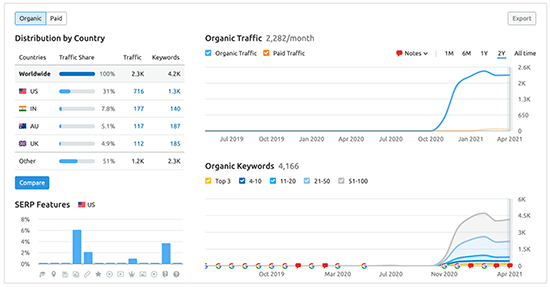
SEMRush Domain Overview Stats

The Traffic Analytics tab gives you the number of unique visitors, total visits, average visit duration, number of pageviews, and the bounce rate the site receives.

This feature is like looking into your competitor’s Google Analytics account.
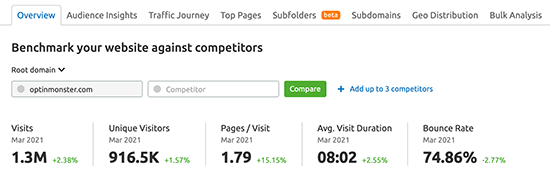
SEMRush Traffic Analysis

Another excellent feature called Bulk Traffic Analysis lets you analyze traffic levels for multiple competitors at once.

Depending on your pricing plan, you can compare up to 200 websites. This gives you a big picture view of your niche, the websites getting the most traffic, and any traffic opportunities you can act on.

You’ll also find detailed traffic analytics reports that give you information like which sites are sending the most referral traffic, which pages on their site are the most valuable, and which locations bring them the most traffic.

You can take advantage of the 14 day trial, or the limited free plan which gives you access to basic website data.

If you want full reports, then the premium plans start at $119.95 per month, which gives you full access to competitor traffic sources, rankings, social media, and more.

2. SimilarWeb
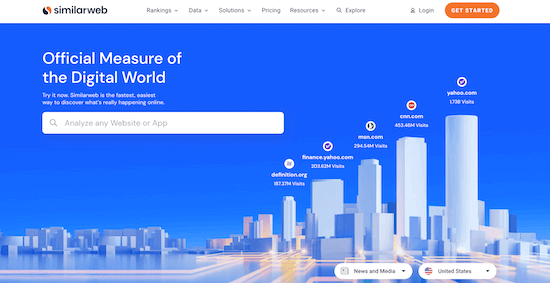
SimilarWeb

SimilarWeb is an online website traffic checker that gives you an overview of your competitor’s traffic and which channels are the most valuable.

Instead of just providing traffic from search, you’ll get detailed reports of a website’s entire traffic strategy.

Once you run a website through the tool, you’ll get a breakdown of the overall traffic, including a country by country report.
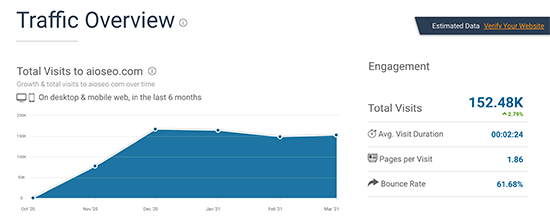
SimilarWeb Traffic Overview Screenshot

You’ll get engagement metrics like bounce rate, number of pages viewed per visit, average visit duration, and the top traffic sources for that website.

Beyond organic search traffic, you’ll find what paid keywords bring the website traffic, what social channels are the most valuable, and the display networks the site uses to monetize.
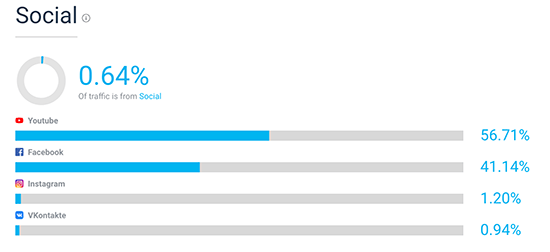
SimilarWeb Social Media Overview

Finally, you’ll get a detailed breakdown of the site’s audience, what kind of other sites they’re interested in, the top referring sites, and a list of competitor sites for you to research further.

The free version of the tool provides you with useful traffic data. If you require more detailed reports, then you can create an enterprise account with custom pricing.

3. Google Search Console
Google Search Console

Google Search Console is a free tool from Google that lets you analyze your search engine traffic.

This tool gives you a complete picture of how your site is viewed by the search engines.
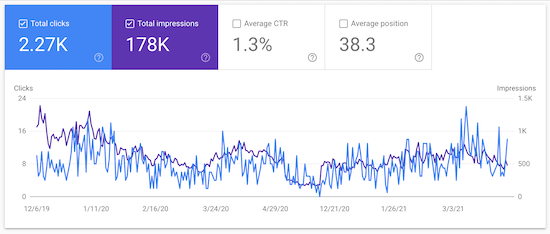
Google Search Console website traffic data

It shows the number of impressions, clicks, click-through rate (CTR), and the average position of your keywords in the search engines.

This helps you understand what keywords you’re ranking for and the search volume they’re bringing in. This information can help you improve your traffic.

For example, if you find that you’re ranking in position 11, then you can optimize the blog post to try to move it to the first page of the search results.

You can also see which pages are indexed, if any errors are present, and more.

Once you add your site to Google Search Console, you can start viewing your website data.

The easiest way is to connect your Google Search Console account with All in One SEO. For more details, see our guide on how to add your WordPress site to Google Search Console.

You can also use the MonsterInsights tool, mentioned below, to view your keyword rankings inside the WordPress admin area using Google Search Console data.

For more details, see our guide on how to see keywords people use to find your WordPress site.

4. Ubersuggest
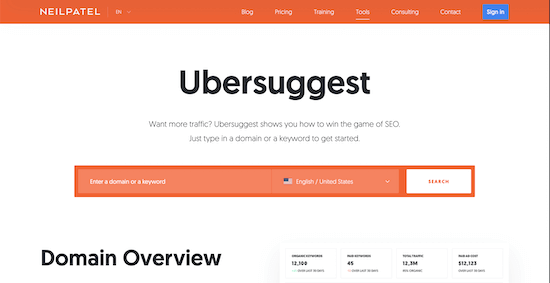
Ubersuggest

Ubersuggest is a free and premium tool from Neil Patel that offers a ton of useful website traffic data.

It’s straightforward to use and the interface is built for beginners. If you’ve never done keyword research or traffic analysis before, then this tool makes it incredibly simple.

The traffic analyzer feature gives you a detailed breakdown of your competitor’s traffic over time, the keywords bringing them the most traffic, and the most popular pages on the site.

All you have to do is enter the website URL you want to analyze and click ‘Search’.
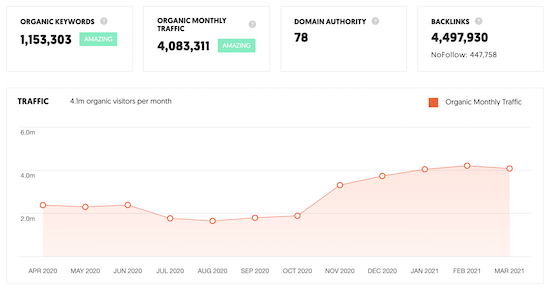
Ubersuggest traffic overview

The ‘Traffic Overview’ page gives you the total number of organic keywords the site ranks for, the organic monthly traffic, domain authority, and the total number of backlinks.

You can also dive deeper into each section of the traffic report. For example, you can expand the ‘Top Pages’ results to get a breakdown of each published page on the site and the estimated amount of traffic it brings in every month.
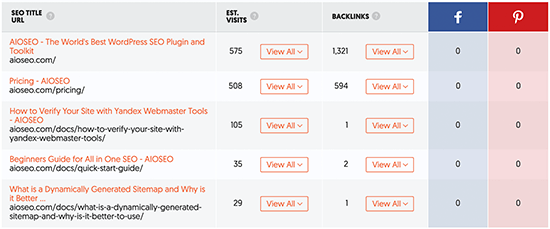
UberSuggest Top Pages

The results also give you the estimated number of backlinks, along with the number of Facebook and Pinterest shares. This data gives you a general overview of what you’ll have to do to outrank that page in the SERPs.

The free version of the tool gives you access to the last 3 months of data. Premium plans start at $29 per month, making it one of the cheapest tools on this list.

5. Serpstat
SERPStat

Serpstat offers a wide range of different SEO tools. What started as a simple keyword research tool has grown into an all-in-one website analysis tool.

Even though it’s packed with features, it’s still very easy to use. Just enter the URL and the tool will generate a traffic report.

There are traffic checking features along with backlink analysis, site auditing, and rank tracking tools.

The traffic analysis features give you all kinds of useful website data, including the organic and paid keywords that are driving traffic, the average number of visitors the site gets per month, and the pages that get the most traffic.
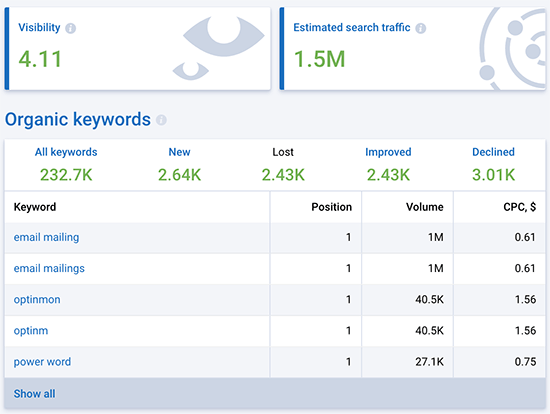
Serpstat Keyword Preview

You’ll also find trend information, so you can see how the site’s rankings, traffic, and keywords are performing over time.

The free version of the tool gives you access to a portion of the total data that’s available for a domain name. Premium plans start at $69 per month and give you access to all of the data the tool provides.

6. Ahrefs

Ahrefs

Ahrefs is one of the most popular SEO tools in the market trusted by brands like Netflix, Uber, and Facebook. It helps you see how much traffic your competition is getting and why they’re ranking so high.

Ahrefs crawls more than 6 billion web pages every day, with more than 200 million websites in their index. It’s a lot of data, but this gives you actionable insights to help you outrank your competitors and get more traffic.

The interface is very simple and user friendly. Simply enter the website URL in the search field and the tool will pull all available website information.

The search overview report gives you an overview of the organic search traffic a site receives, the domain authority, biggest competitors, and much more.
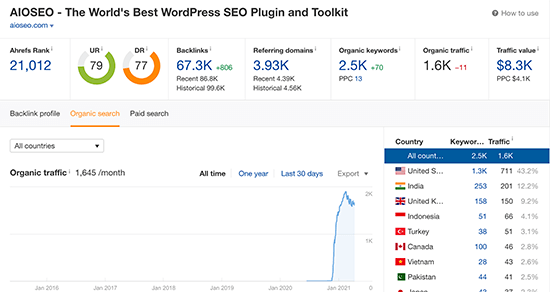
Ahrefs Traffic Stats

You can filter the report to view the traffic stats for the year, last 30 days, or all time.

Even though there’s a ton of data present, it’s easy to filter and find the website metrics you’re looking for.

Keep in mind that the traffic data only shows organic search data and not other sources like social media.

There’s a 7 day trial for $7, after that plans start at $99 per month. Considering the amount of data you have access to, it’s surprisingly affordable.

7. MonsterInsights
MonsterInsights

If you want to analyze your own traffic, then the only tool you should be using is Google Analytics. However, setting up Google Analytics on your own and analyzing your own data can be difficult.

We recommend using MonsterInsights, it’s the best Google Analytics plugin for WordPress and used by over 3 million sites, including Microsoft, Yelp, PlayStation, and more.

It allows you to easily set up Google Analytics in WordPress and view your traffic data directly in your WordPress dashboard.
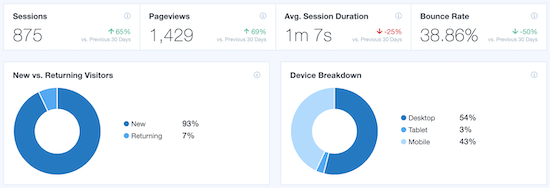
MonsterInsights website statistics

You’ll be able to see your top performing posts, pages, landing pages, homepage traffic, and more. This helps you understand user behavior and makes it much easier to grow your WordPress blog.

WordPress Layout Terms Demystified (Quick Reference)

WordPress Layout Terms Demystified (Quick Reference)

Are you trying to understand what WordPress layout terms mean?

Many beginners come across WordPress layout terms and vocabulary when working on their website. These are words used by designers and developers and average users may find them confusing.
In this guide, we’ll explain some of the most commonly used WordPress layout terms. This will help you understand the lingo used for WordPress website layouts and work on your website like a total pro.
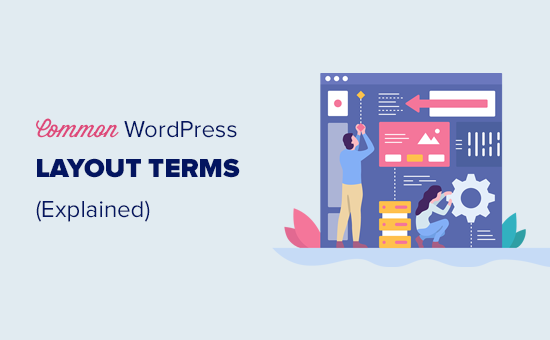
Explaining the common WordPress layout terms for beginners

Why Learn WordPress Layout Terms?

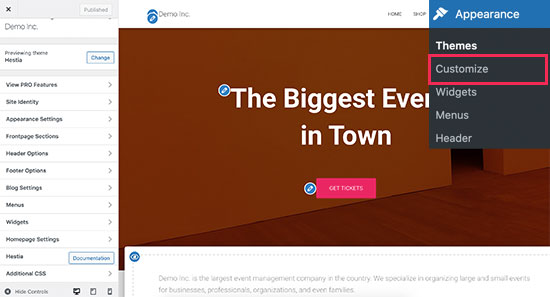
WordPress themes control the appearance of your website. You can customize them by visiting the Appearance » Customizer page.

WordPress theme customizer

All top WordPress themes come with options to modify your website design using customizer settings, but your options are limited depending on the theme.

For even more flexibility, you can use WordPress page builder plugins like SeedProd.

The SeedProd page builder interface

SeedProd allows you to easily create your own custom layouts using simple drag and drop tools without writing any code.

It also comes with dozens of templates that you can use as a starting point. Plus, it supports WooCommerce which helps you create layouts for your online store as well.

However, as you work on creating a layout for your website, you may come across web design terms that you may not be familiar with.

Learning these website layout terms will help you to understand the building blocks of WordPress website design, so you can more easily create any design you can imagine.

That being said, let’s demystify these common WordPress layout terms to learn what they mean and how to use them.

Here is a quick list of the concepts and terms we’ll explain in this article.

Understanding a Typical WordPress Layout

  • Header
  • Custom Header
  • Custom Background
  • Content Area
  • Sidebars
  • Footer

Other Common Components of a WordPress Layout

  • Navigation Menus
  • Widgets
  • Blocks
  • Featured Images
  • Cover Images
  • Patterns
  • Buttons
  • Custom CSS

Layout Terms in WordPress Page Builders

  • Templates
  • Blocks and Modules
  • Sections

Understanding a Typical WordPress Layout

Most websites use a very familiar layout. It looks something like this:

Common WordPress layout

The top area of a website is called the Header, followed by a Content area, and then a Footer at the bottom of the page.

Depending on which page a user is viewing, the layout might be different. For instance, on a WordPress blog page, it may include a sidebar next to the content area.

Blog page layout

This basic layout is then filled with other elements, which we’ll talk about later in this article.

Let’s first talk about each of these main sections in more detail.

Header in WordPress Layout

The header in a WordPress layout is the top section of any page. It usually contains your website logo, title, navigation menus, a search form, and other important elements that you want users to see first.

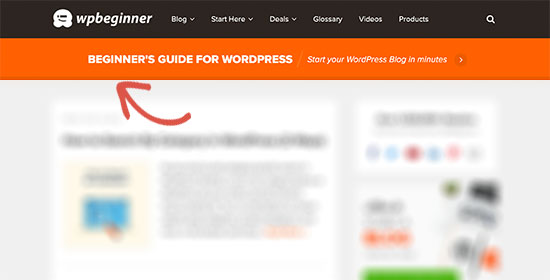
Here is how the header section looks on WPBeginner.

Header layout on WPBeginner website

Custom Header in WordPress Theme Customizer

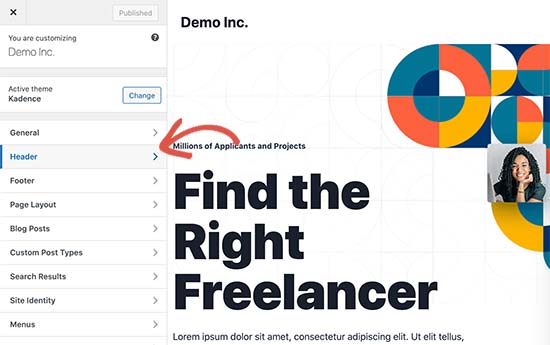
Many popular WordPress themes come with additional features to customize the header area of your WordPress layout. This feature is sometimes called a custom header.

Custom header in a WordPress theme

Depending on your WordPress theme, you may be able to add a full-width image to the header with a tagline or a call-to-action button. Some WordPress themes may allow you to change the position of the logo, navigation menus, and header image.

Custom Background in WordPress Theme Customizer

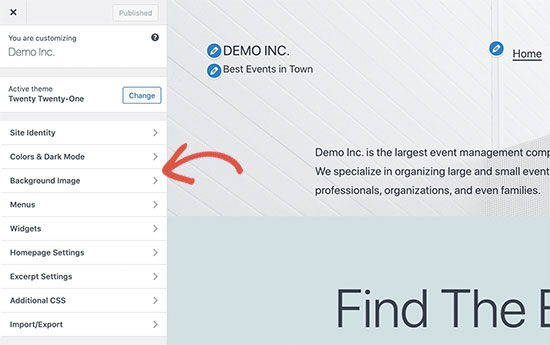
Similar to the custom header feature, some WordPress themes may allow you to set a custom background color or an image across your WordPress website.

Background image option in WordPress theme customizer

You can usually find this option under the theme customizer. However, it is sometimes buried inside other tabs. For more details, take a look at our guide on how to add a background image in WordPress, or how to change the background color in WordPress.

Content Area in WordPress

The content area comes right after the header part of a layout. This is where the main content of the page is displayed.

For a custom homepage layout, the content section may include a call to action, followed by services or products, testimonials, and other important information.

Homepage layout example

Online stores typically use this area to promote ongoing sales, featured products, best-selling items, and more.

A WordPress blog may use a content-heavy layout with excerpts and images from recent articles, a newsletter sign up form, and more.

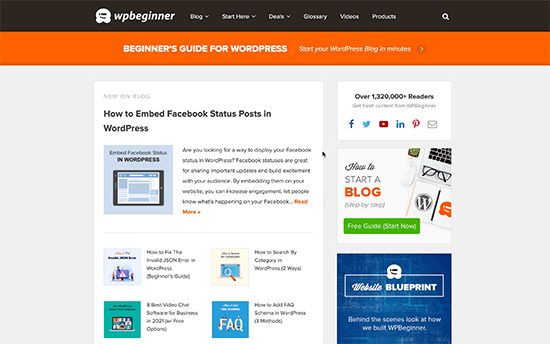
Here is how WPBeginner’s homepage layout looks. It is a content-rich website, and that’s why the recent articles take the whole content area.

WPBeginner homepage

By default, WordPress uses a blog layout showing your most recent blog posts as the frontpage of your website. However, you can change that and use any page as your front page.

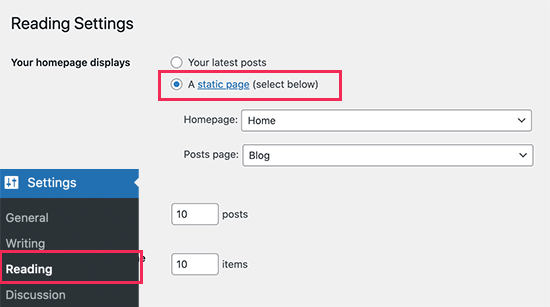
Simply go to Settings » Reading page and choose ‘A static page’ under the ‘Your homepage displays’ option.

Using a static front page

After that, you can choose a page that you want to use as your homepage and another one for your blog page. For more details, see our guide on how to create a separate page for your blog posts in WordPress.

Don’t forget to click on the ‘Save Changes’ button to store your settings.

Now you can edit the page you choose to be your homepage and create a custom homepage layout.

Sidebars in WordPress Layouts

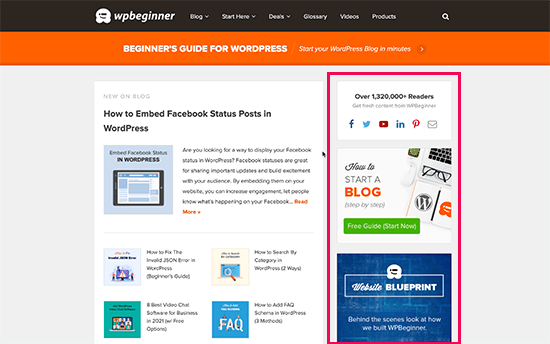
As the name suggests, Sidebars typically appear to the right or the left side of the content area.

Sidebar example

In WordPress, sidebars are also widget-ready areas. This means you can add widgets to this area and display elements like archives, newsletter sign-up forms, categories, popular content, and more.

Footer Area in WordPress Layouts

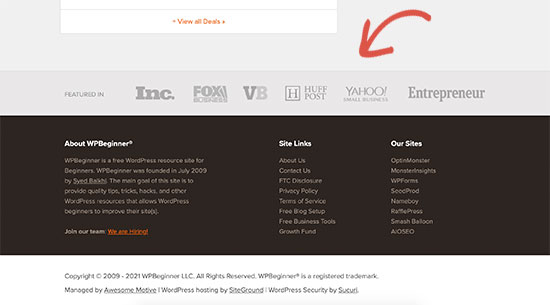
The Footer area appears at the bottom of a page layout below the content area. It usually includes a footer widget area where you can display links to important pages like privacy policy, terms and conditions, about page, and more.

Footer example

Wondering what to put in the footer of your site? See this checklist of things to add to the footer of your WordPress site.

Other Components of a WordPress Layout

Next, we’ll take a look at some of the components of a WordPress layout that you can add to your header, content, sidebar, or footer sections. These are the building blocks that help you make a functioning layout.

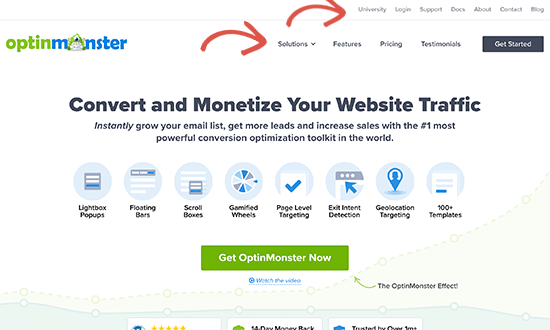
Navigation Menus or Menus are horizontal or vertical lists of links. Most websites have at least one primary navigation menu displayed on top in the header area.

Navigation menus

However, some websites use multiple navigation menus in the header area.

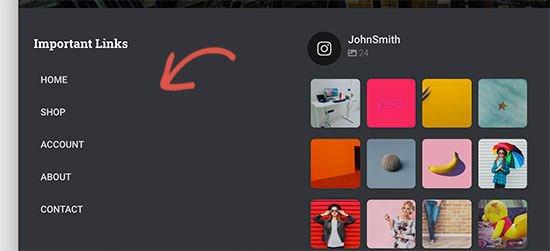
WordPress also allows you to display navigation menus as a widget. These menus appear as a vertical list of links and you can place them in sidebars or the footer widget areas.

Vertical links

For more details, see our guide on how to add navigation menus in WordPress.

Using Widgets in a WordPress Layout

Widgets are elements that you can add to the widget-ready areas or sidebars of your WordPress website. Most WordPress themes come with multiple widget-ready areas where you can add widgets.

WordPress comes with several built-in widgets that you can use. Many popular WordPress plugins also come with their own widgets. For example, you can use widgets to add popular post lists, contact forms, banner ads, social media feeds, and more.

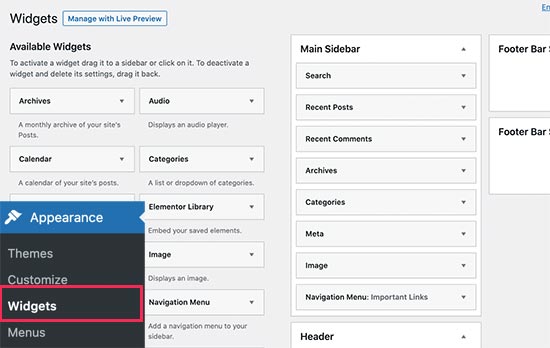
You can see all these widgets by visiting Appearance » Widgets page in WordPress admin area.

Adding widgets in WordPress

For more details, see our guide on how to add and use widgets in WordPress.

Using Blocks in WordPress Layouts

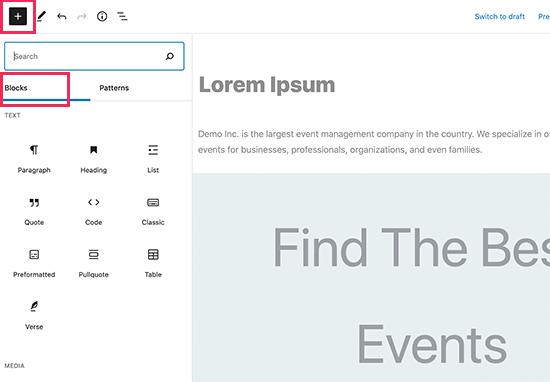
WordPress comes with a powerful content editor called the block editor. This editor is designed to help you create beautiful layouts for your WordPress posts and pages using blocks.

Using blocks to create layouts in WordPress

There are different types of blocks for the most common elements of any content. For instance, you can add paragraphs, headings, images, galleries, video embeds, columns, tables, and more.

This allows you to create different layouts for each post or page on your WordPress website without installing a plugin or changing your theme.

Featured Images in WordPress Layouts

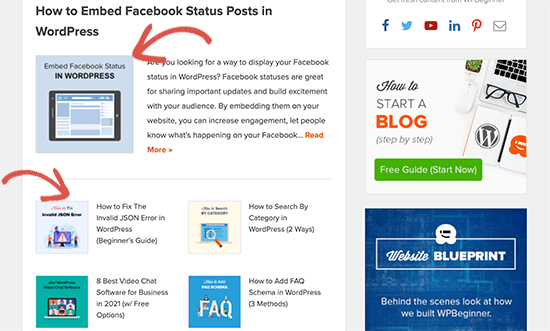
If you visit the homepage of WPBeginner, you’ll notice thumbnail images next to each article title. These are called featured images.

Featured images in WordPress

WordPress allows you to set featured images for your posts and pages. Your WordPress theme then uses these images in different areas of your website. To learn more, see our guide on how to add featured images in WordPress.

Cover Images in WordPress

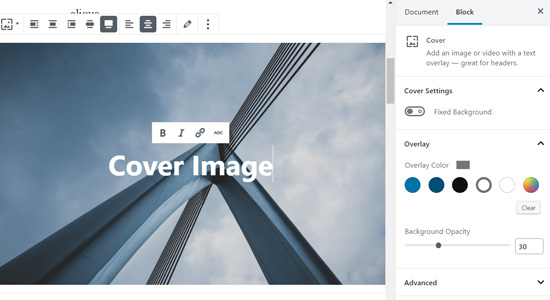
A cover image is usually a wide image used as a cover photo for a new section in a blog post or page.

You can add it to your post or page using the ‘Cover’ block. The cover block also allows you to use a background color instead of an image.

Cover image in WordPress block editor

To learn more, see our detailed guide on the difference between cover image vs featured image.

Using Patterns in WordPress Editor

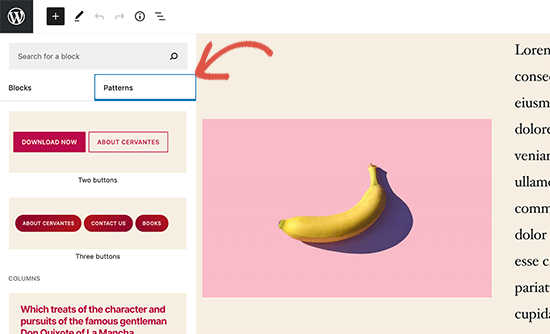
Patterns were introduced to the WordPress block editor in WordPress 5.5. Each pattern is a collection of blocks arranged in a particular order for commonly used layouts.

Block patterns in WordPress

You can choose from buttons, header styles, galleries, columns, and more. This makes it easy for beginners to quickly build layouts using common patterns.

It is a relatively new feature so there are a limited set of patterns available. However, more patterns will become available as more WordPress themes and plugins add their own patterns to the block editor.

Adding Buttons in WordPress Layout

Buttons play an important role in modern website design and layout. They provide users with a clear call to action, which helps you grow your business and conversions.

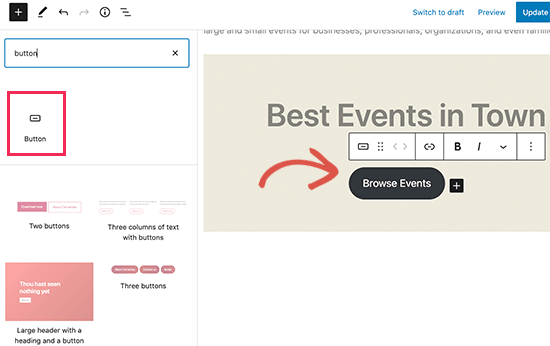
The default block editor comes with its own buttons that you can use in any WordPress post or page.

Adding buttons in WordPress

Your WordPress theme may also come with a call to action button settings under the theme customizer. Most popular WordPress page builder plugins also come with buttons in various styles that you can use.

You can even add click-to-call buttons in WordPress with a plugin.

For more details, see our guide on how to add call to action buttons in WordPress.

Using Custom CSS in WordPress Layouts

CSS is the styling language used to create websites. Your WordPress theme and plugins come with their own CSS rules, but from time to time you may want to change small things like text color, font size, or background color.

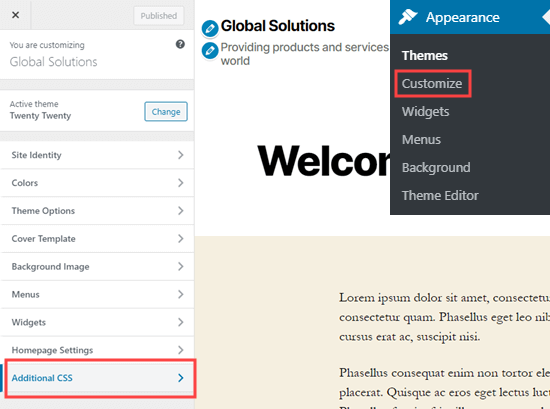
This is where Custom CSS comes in. WordPress makes it easier for you to save your own custom CSS rules. Simply go to the Appearance » Customize page and then click on the Additional CSS tab.

Opening the theme customizer to add custom CSS

From here, you can add your custom CSS rules and you’ll be able to see them applied in the live preview. For more on this topic, see our full guide on how add custom CSS in WordPress.

Layout Terms in WordPress Page Builders

The easiest way to build custom WordPress layouts for your landing pages is by using a WordPress page builder.

We recommend using SeedProd. It is the most beginner friendly WordPress page builder plugin on the market.

Other page builders use similar terms for common tools and features.

Using Templates in WordPress Page Builders

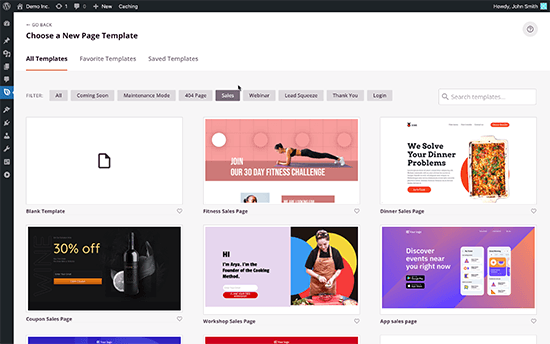
Templates are the quickest way to create a web page layout. All popular page builder plugins come with a bunch of ready-to-use templates that you can use as a starting point.

SeedProd templates

For instance, SeedProd has templates for different types of pages that you may need, including landing pages, sales pages, 404 pages, coming soon pages, and more.

Modules and Blocks in WordPress Page Builders

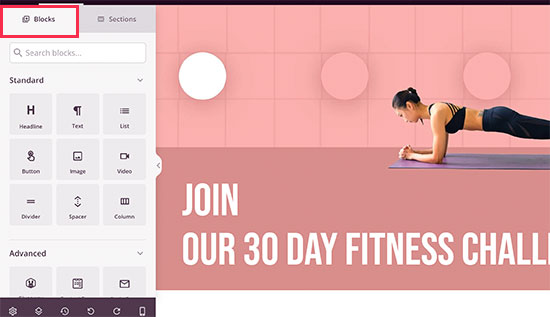
Just like the blocks in the default WordPress editor, page builder plugins also use blocks. Some page builders may call them modules or elements, but they are essentially the same thing.

However, page builder plugins come with more blocks than the default editor. For instance, SeedProd includes blocks for testimonials, WooCommerce blocks, Google maps, contact forms, Facebook embeds, and more.

SeedProd blocks

You can use blocks to create your own layouts, move them around, and play around to figure out what works best for your business.

Using Sections in Your WordPress Layouts

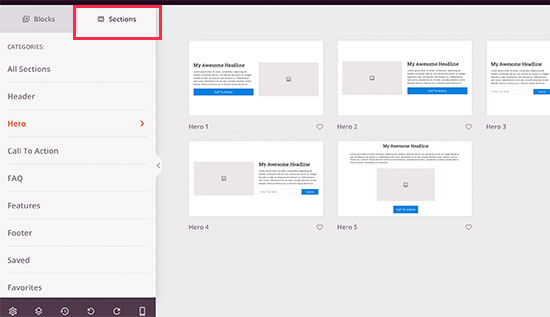
Similar to the ‘Patterns’ feature in the default editor, Sections are a set of blocks grouped together to instantly create common areas of a website. For instance, header section, hero image, pricing tables, and more.

Reusable sections in SeedProd

Different WordPress page builder plugins may use different terms for them. For instance, in SeedProd they are called sections and Beaver Builder calls them saved rows and columns.

Com vs Net – What’s the Difference Between Domain Extensions

Com vs Net – What’s the Difference Between Domain Extensions

Have you ever wondered what the difference is between .com vs .net domain name extensions? Choosing the right domain name is crucial because it can have an impact on your branding and search rankings.

In this article, we will explain the difference between .com vs .net domain extensions and which one is better for your website.

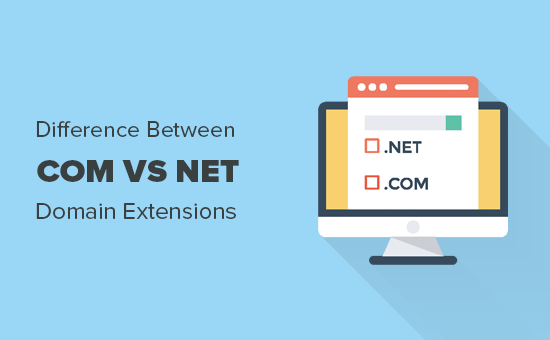
Difference between Com vs Net domain name extensions

What Are .Com and .Net Domain Name Extensions?

A domain name is your website’s address on the internet. Ours is wpbeginner.com.

To learn more about domain names, see our beginner’s guide on what is a domain name and how do domains work.

Domain names always have an extension. This is sometimes also called a TLD, which stands for Top Level Domain. For instance:

example.com
example.net
example.org

You can choose from a wide range of domain extensions when making your website.

Most domain extensions don’t have any restrictions on usage and lots of new domain extensions have been created in recent years.

However, extensions were originally created for different types of websites. They have specific meanings.

You need to choose a domain name extension that fits your business while helping you build a recognizable brand in your industry.

Let’s take a look at the difference between the most popular .com vs .net domain extensions to see which is better for your business.

Difference Between .Com vs .Net Domain Names

The .com vs .net domain extension

Com and Net are two of the most popular domain name extensions. If your preferred .com domain name extension is not available, then you might be tempted to use a .net instead.

However, .net isn’t a good option for your business in most cases.

The “com” in the .com domain name indicates a “commercial” site. This can cover business websites, websites that want to make money online, personal websites, blogs, portfolios, and more.

On the other hand, the “net” in the .net domain name extension stands for “network”. It was designed for the internet, networking, and email service providers.

If you’re wondering about .org, that stands for “organization” and was originally intended for use by nonprofit organizations.

When Should You Choose a .Com Domain Name?

The extension .com on a bulletin board

The .com domain extension has been synonymous with the internet since the “dot-com bubble” in the late 1990s. Over 40% of all registered domain names are .com domains.

It’s much easier for people to remember a .com domain name than any other domain extension. It’s familiar and reassuring, plus it makes your site look professional.

Also, most mobile keyboards have a dedicated .com button. You won’t find that for .net (or any other extension).

There’s just one problem. You’ve probably noticed that .com domain names are so popular that it feels like all the good ones are already taken!

However, there are still plenty of clever ways to get the perfect .com domain name. Here are some things to try:

  • Check that your domain name represents your business and what you do. For example, stargardeningservices.com is better than starservices.com.
  • If your preferred domain name is taken, then you can add a word before or after it to make it unique. Your location could work well here. For example, stargardeninghouston.com.
  • Make sure your domain name can be easily pronounced and remembered. Don’t use hyphens or numbers in your domain name.
  • Take advantage of online domain name generators. These free tools will help you come up with clever domain name ideas that are unique and still available. WPBeginner now has an AI-powered free business name generator.

Need more help? We’ve got lots of practical tips and real-life examples in our article on how to choose the best domain name for your website.

When You Should Use the .Net Domain Extension?

The .net extension still makes sense in some cases. You could use it if you offer internet, networking, database hosting, email hosting, or similar services.

You might even want to use a .net domain name if it truly suits your brand.

For example, Behance.net is a popular online design community which uses a .net domain extension for their website. It suits them because they wanted to be a network of artists, designers, and companies looking for talent.

Under 4% of all domain names registered are using the .net domain extension.

Why You Might Be Tempted to Use the .Net Extension

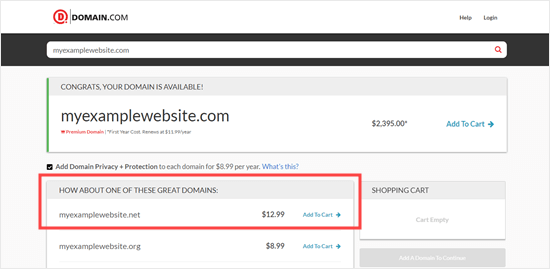
Have you ever tried to register a .com domain and seen something like this?

The .net domain is being promoted as an alternative to the .com one

Domain name registrars often present .net as the top alternative to .com. This might make you think it’s more commonly used than it actually is.

Even the most well-known internet and network service companies use a .com domain name for their business.

Of course, 4% is still a lot of domain names. Over 13 million, in fact. You might wonder who’s using all those .net domain names.

In many cases, the .net domains aren’t really being used.

Many businesses register a .net extension so no-one else can take it. They may not use the .net domain, or they may redirect it to their .com. site.

Also, some companies started with a .net because they couldn’t get the .com they wanted. Most later transferred to a .com domain extension, often keeping the .net domain name registered for technical and legal reasons.

Choosing .Com vs .Net – Which One is Better for SEO?

SEO - search engine optimization - in letters

A lot of our users ask us which domain extension will help them rank higher.

If you’re looking at either .com or .net, it doesn’t make any difference which you choose from an SEO perspective. Search engines will treat both domain extensions the same.

Just focus on SEO best practices and create useful targeted content to rank higher.

The important part is your domain name itself, not the extension.

For example, stargardeningservices.com will rank better than starservices.net because it contains a keyword (gardening services) that people are likely to search for.

How to Buy a Domain Name

There are two ways to get a domain name. You can choose the one that best suits you.

1. Get a FREE Domain Name with Bluehost

To make a website, you need website hosting as well as a domain name.

This may seem a bit confusing when you’re new to creating websites. Make sure you’re clear on the difference between domain name and website hosting.

Usually, you will pay around $14.99/year for a domain name and $7.99/month for hosting. If you are just starting out, then you may feel that’s quite expensive.

Luckily, the folks at Bluehost are offering WPBeginner users a free domain name and a 65% discount on hosting.

→ Click Here to Claim Your Free Domain Name ←

2. Register a Domain Name

If you don’t want to make a website straight away, you can still register a domain name and make a website later.

We recommend using Domain.com for this. They offer features like private registration, easy transfers, easy DNS management, and more. Their search tool shows you premium domains as well as regular ones, too.

Registering a domain name with Domain.com

To get an exclusive 25% discount on your domain, make sure you go through our link to Domain.com. This will automatically apply our Domain.com coupon code.

How Much Does it Cost to Start a Membership Site? (2021 Edition)

How Much Does it Cost to Start a Membership Site? (2021 Edition)

Are you trying to figure out how much does it cost to start a membership site?

There are many different factors that will affect the cost of your membership website. You’ll need to break them down into all the different essentials to keep your budget under control.

In this article, we’ll show you how much does it cost to start a membership site.

Calculating the cost of building a membership website

How to Calculate the Cost of a Membership Website?

To calculate the cost of a membership website, you’ll need to break down your spending into components.

This includes choosing the right platform, subscription addon, payment processor, and other tools / services that you’ll need. All of them depend on your business requirements, budget, and growth strategy.

To keep this article focused, we will break down our membership site cost analysis into the following major expenses:

  • Hosting + Setup Costs for a Membership Site
  • Membership Payment Processing Costs
  • Membership Site Design Costs
  • Essential Addons and Extensions Costs
  • Premium Tools and Addons for a Growth Membership Site
  • Total Cost of a Membership Website
  • Tips on Keeping The Costs Down on Your Membership Website

There are several great membership platforms that you can use to build a membership website. Three major players in the industry are MemberPress (WordPress), Shopify, and Teachable.

Shopify and Teachable are SaaS (Software as a Service) platforms. They offer an easier setup initially, but they have limited flexibility and higher costs. More importantly, they charge you based on transactions which will take away a big chunk of your revenue over time.

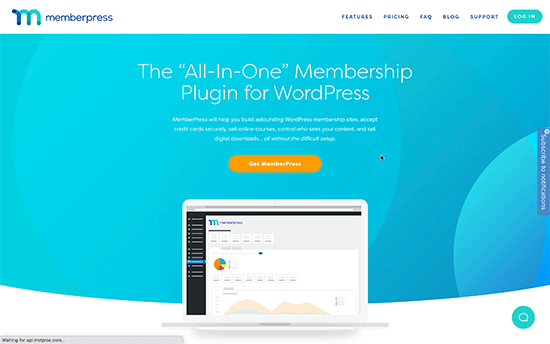
This is why we recommend using MemberPress, which is the best membership site plugin on the market. They allow you sell unlimited memberships with no extra transaction fees.

MemberPress

It runs on top of WordPress, which is already the best website builder in the world used by over 42% of all websites on the internet.

Plus, you get full control over your membership site with the flexibility to choose your own payment service, integrations, and add any feature that you want.

This lets you control the cost of your membership website and adjust it as your business grows. In the long run, you would be able to make a sustainable business while saving a ton of money.

MemberPress has built-in features to sell online courses, digital subscriptions, and even physical memberships like associations.

Business owners using MemberPress are projected to earn over $600 million in 2021.

Membership Website Hosting and Setup Costs

Just like any other type of website, you’ll need a domain name and web hosting account to start a membership website.

Typically, a domain name costs around $16.99 per year and web hosting plans start at $7.99 per month (paid annually).

This is not cheap, considering that you’ll need to spend money on other components as well.

Luckily, the team at Bluehost have agreed to offer WPBeginner readers a generous 60% discount on hosting with a free domain name + SSL certificate which you’ll need in order to accept payments. Basically, you can get started for as low as $2.75 per month.

→ Click Here to Claim This Exclusive Bluehost Offer ←

Bluehost is one of the best web hosting companies in the world and an officially recommended WordPress hosting service.

Alternative options: If you are looking for an alternative, then SiteGround is another excellent option. For more options, see our expert pick of the best WordPress hosting companies.

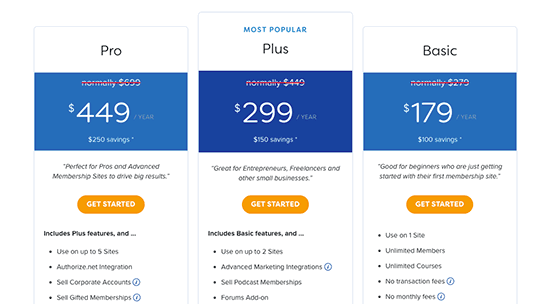
Next, you’ll need to get a MemberPress license which starts at $179 / year for a single site license.

This gives you all the features you need such as unlimited members, no transaction fees, ability to accept payments online, subscription management, email automation, easy course builder, marketing integrations, and more.

MemberPress pricing

After you download MemberPress, you can go ahead and follow our step-by-step instructions on how to make a membership website in WordPress.

Estimated costs of hosting and setup:

Domain and web hosting: Starting from $2.75 per month – $25 per month
MemberPress: $179 – $479 (depending on your licensing plan)

Payment Processing Costs for Membership Website

The recurring revenue model is what makes membership websites a lucrative online business idea.

MemberPress supports both Stripe and PayPal payment gateways that you can use to accept credit cards. You can also use Authorize.Net as a payment method with their Pro plan.

While MemberPress doesn’t charge any additional transactional fee, these payment service providers (merchant banks) do have a payment processing fee, and this is controlled by Visa, MasterCard, Amex, and other credit card companies.

You will have to pay these fees no matter which membership platform you use.

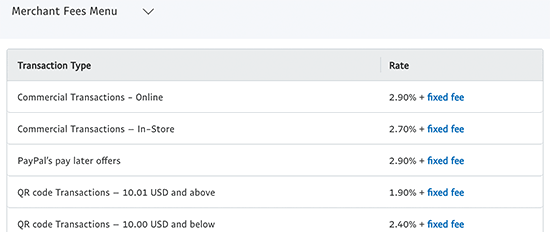
For example, PayPal may charge 2.90% of the transaction amount and a fixed rate of $0.30 USD for domestic transactions. It may also charge an additional 1.50% for international transactions.

PayPal payment processing fees

Similarly, Stripe would charge $2.9%, a $0.30 USD fixed rate fee, and an additional 1% for international transactions.

The benefit of MemberPress is that you don’t pay them any transaction fees for using the platform. Also your payment processing costs only gets lower as your business grows because Stripe offers lower rates for higher processing volumes.

Whereas other providers like Teachable charge you an additional 5% transaction fee for using their platform on top of the fee you pay for payment processing services.

Estimated costs of payment processing:

PayPal: 2.90% + 0.30 fixed rate. Additional 1.50% on international transactions.
Stripe: 2.90% + 0.30 fixed rate. Additional 1% on international transactions.

Design Costs for a Membership Website

Design and templates for membership websites

Next, you need to choose a design for your membership website. Luckily, there are hundreds of free and paid website templates that work beautifully with MemberPress.

However, you’ll want to stand out from the crowd with a stunning design that looks professional and well polished.

Not only will it create a good impression of your brand, but it’ll also help your customers easily navigate your website. This results in higher engagement and sales.

There are three design options you can choose from based on your budget. We’ll discuss them in low to high pricing order:

  • Free WordPress themes
  • Premium WordPress themes
  • Custom WordPress themes

Free WordPress themes:

Free WordPress themes come with the obvious benefit of saving money, but they often include limited support and customization options compared to paid or premium WordPress themes.

Premium WordPress themes:

Premium or paid WordPress themes come with a price tag, but include more customization options and priority support from developers.

Pricing for premium WordPress themes usually starts at $30 USD per year. Here are some of the most popular membership website themes:

  • Divi – One of the most versatile WordPress themes suitable to make any kind of website including membership sites.
  • Astra – Astra is a popular multipurpose WordPress theme that works beautifully with membership sites. It comes with dozens of starter website templates and a 1-click setup.
  • Ocean WP – Another flexible WordPress theme that comes with powerful customization options.

For more design inspiration, see our pick of the best WordPress membership website themes.

A custom WordPress theme:

A custom WordPress theme is when you hire a WordPress designer/developer to code a unique membership website theme for your website.

This allows you to add custom features to your website and have a unique design that stands out from other membership sites.

However, custom WordPress themes can be very expensive. The cost would depend on the features you want to add and the expertise of the developer.

A custom theme could cost between $1500 to $6000 for a medium-sized business. An enterprise-level design may cost even more than that.

Estimated costs of membership website design:

Free to $30 for a WordPress theme.

$1500 – $6000 for a custom design.

Essential Addons and Extensions Costs

WordPress plugins

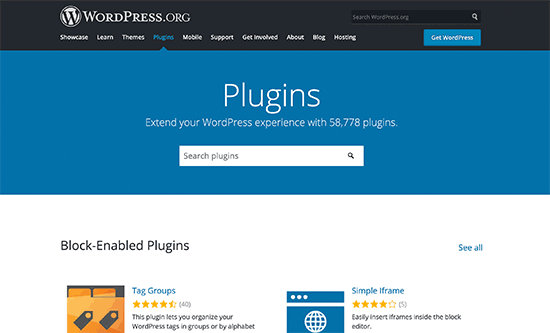
MemberPress runs on top of WordPress, which means you can add more features to your website by using plugins.

A WordPress plugin is a piece of software that adds new functions to your website. For instance, there are contact form plugins, landing page builders, social media plugins, and more.

There are also plugins made specifically for MemberPress as well.

The majority of WordPress plugins are available for free. Even many paid plugins also have a lite or free version that you can use.

You can try to keep your membership website costs down by using free plugins whenever possible.

Here is quick list of essential WordPress plugins that you may need right away. All of them are available for free.

Must-Have Features

WPForms – Allows you to easily add a contact form to your membership website.

MonsterInsights – Connect your membership site to Google Analytics and see how users find and use your website. This helps you learn how to bring more users and make more sales.

WP Mail SMTP – Emails are crucial for running a membership website. WP Mail SMTP fixes WordPress email deliverability by issue by properly sending emails using an SMTP server.

Marketing and SEO

All in One SEO – Easily optimize your membership website SEO to get more free traffic from search engines.

PushEngage – Easily send push notifications to your users on mobile as well as desktop. It helps increase website traffic, improve conversions, and grow your business.

OptinMonster – helps you improve conversion rates by converting website visitors into subscribers and paying customers.

Bonus Tools

SeedProd – An intuitive drag and drop page builder that allows you to quickly create custom landing pages and design layouts.

Uncanny Automator – Create automated workflows to manage your membership website. This helps you save time and create better user experience for your customers.

RafflePress – Easily run giveaways and contests for your members to boost engagement and grow your traffic.

Need even more features? Here are some of the must have WordPress plugins that you may want to check out. Many of them are free or have a free version.

Estimated costs of addons and extensions:

Free to Unlimited.

We recommend starting out with free versions of plugins whenever possible. This keeps your costs down and you can choose to buy premium plugins later as your business grows.

Premium Tools and Addons for a Growth Membership Site

We recommend all users to start with shared hosting and use free plugins and theme to keep the costs down. This saves you money and allows you to focus on growing your business.

Once your business starts growing, then you can choose to invest some money on extra features and premium tools. Following are a few additional features that you can later add to your website when you can justify the cost.

Email Marketing – We recommend using Constant Contact which is the best email marketing service for small businesses. For advanced marketing automation, you can use either Drip, ConvertKit, or HubSpot.

Live Chat Support – Live chat software helps you convert more users into paying members. We recommend using LiveChat which is the best customer service platform on the market. (Cost: Starting from $16 per agent per month)

Business Phone Service – A business phone number allows you to easily manage business calls using one number. We recommend using Nextiva, which is the best phone company for small businesses. (Cost: $18.95 per month)

Note: All of these additional services are not necessary to build a membership website. You can choose to add them to your site as your business grows.

Total Cost of Building a Membership Website

Now that we have covered the main areas of spending, let’s take a look at the total cost to build a membership website.

Keep in mind that your costs would increase as your business grows or you are able to invest more into it. We have broken down the cost range into three categories.

  • Starter Membership Website (Recommended): $212 per year or $17.66 per month (Shared hosting $2.75 / month, MemberPress $179 / year, free plugins and theme).
  • Growth Membership Website: $300 – $1000 (WordPress hosting upgrade $4.99/mo, MemberPress Pro $299/yr, paid plugins and marketing services).

For enterprise level membership websites the costs could go higher. They can choose dedicated hosting server, custom design, and hire developers to write custom WordPress plugins.

The best part about using MemberPress to build your membership website is that you are in charge of controlling the cost.

This means you don’t pay for anything that you don’t need right away, and you can still build a powerful membership website.

Tips on Keeping The Costs Down on Your Membership Site

Keeping costs down

Building a membership website with WordPress and MemberPress allows you to choose how you spend money on your membership website.

HOW TO CHANGE THE ADMIN COLOR

HOW TO CHANGE THE ADMIN COLOR

Do you want to change the admin color scheme in WordPress?

Changing the color scheme of the WordPress admin lets you create a custom dashboard for you and your team. The color scheme can match the design of your brand, or just feature your favorite colors.

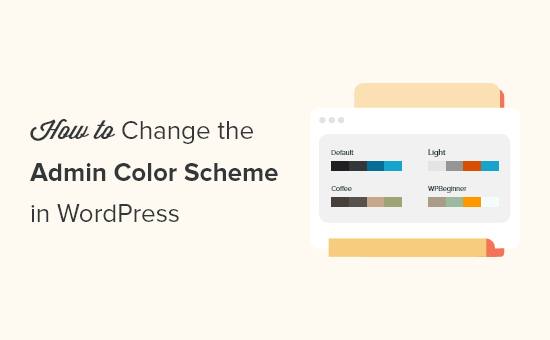
In this article, we’ll show you how to change the admin color scheme in WordPress easily.

How to change the admin color scheme in WordPress

Why Change the Admin Color Scheme in WordPress?

If you’re not a fan of the default admin color scheme in WordPress, then you can easily change the color scheme to something you like.


How to Automatically Post to Facebook From WordPress

How to Automatically Post to Facebook From WordPress

Do you want your blog posts to be automatically posted to Facebook from your WordPress site?

Facebook is one of the largest social media sites in the world with more than 2 billion active users. Sharing your blog posts there will help increase pageviews and drive traffic to your site.

In this article, we’ll show you how to automatically post to Facebook whenever you publish a new WordPress blog post.

How to Automatically Post to Facebook From WordPress

Why Automatically Share WordPress Posts on Facebook?

The easiest way to build a following and staying in touch with your users is by building an email list. Still, you can’t ignore the huge userbase of social media websites like Facebook.

As the largest social media website, Facebook has more than 2 billion active users. This global audience can become a big source of traffic for your WordPress website.

You will need to engage with users on Facebook to build a strong following. This means answering comments, sharing content, and posting regular updates on Facebook.

This can become overwhelming, so we’ve put together a complete social media cheat sheet for WordPress to help you get started.

With that being said, let’s have a look at how to easily post to Facebook when you publish a new post in WordPress.

Automatically Post to Facebook from WordPress Using Uncanny Automator

Uncanny Automator is the best WordPress automation plugin that helps create automated workflows without writing any code.

It connects with 50+ plugins and thousands of apps, including Facebook, Google Drive, Slack, Asana, Twitter, Instagram, and more.

Uncanny Automator

A free version is available and gives you 1,000 free credits to use with Facebook. Once you have used those credits you’ll need a Pro account or higher to continue posting automatically to Facebook.

The first thing you need to do is install and activate the Uncanny Automator plugin. For more details, see our step by step guide on how to install a WordPress plugin.

Upon activation, you will also be asked to install the free version of Uncanny Automator. This light version of the plugin is limited in features but is used as the base for the Pro version.

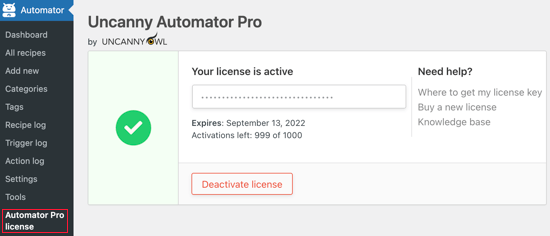
Next, you need to navigate to the Automator » License Activation page to enter your license key. You can find this information under your account on the Uncanny Automator website.

Uncanny Automator License Key

Connecting Your Facebook Page to Uncanny Automator

Before you can start to create a Facebook automation, you’ll need to connect your Facebook page to Uncanny Automator.

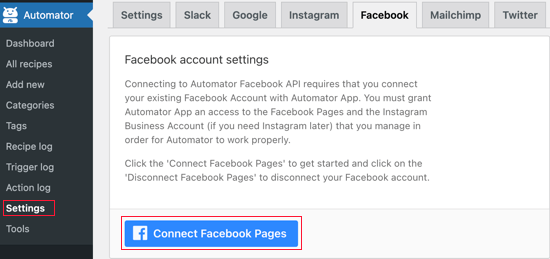
To do that, navigate to Automator » Settings and click on the Facebook tab. Once there, you’ll need to click the Connect Facebook Pages button.

Click the Connect Facebook Pages Button

After you click this button, a popup will appear where you can log in to your Facebook account.

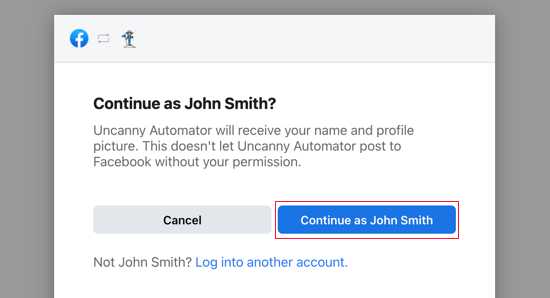
Once you log in you will be asked if you want to continue and let Uncanny Automator receive your name and profile picture. You’ll need to click the ‘Continue as’ button.

Click the Continue Button

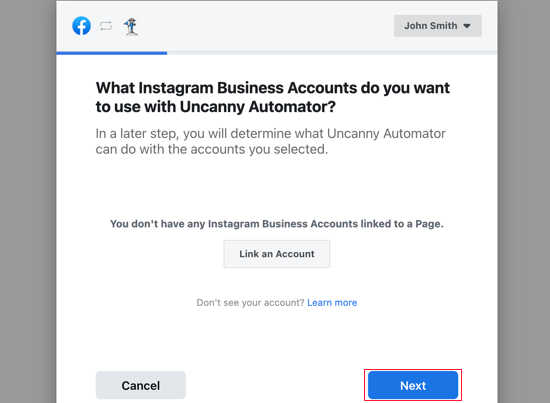
Next, you’ll be asked whether you want to use an Instagram business account with Uncanny Automator. You might like to do that if you plan to create automated workflows with Instagram, too.

For this tutorial, we’ll just click the Next button.

You Can Connect Uncanny Automator to an Instragram Business Account

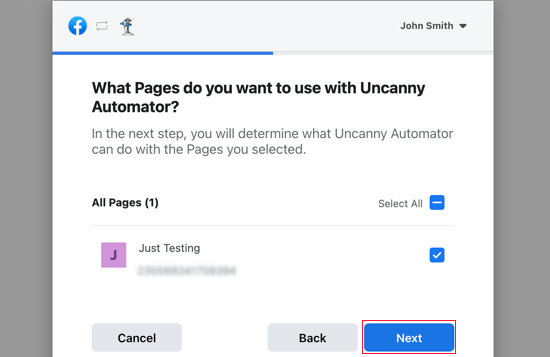
You’ll then be shown a list of your Facebook pages. You need to select the one you wish to post to and then click the Next button.

Select the Page You Wish to Post To

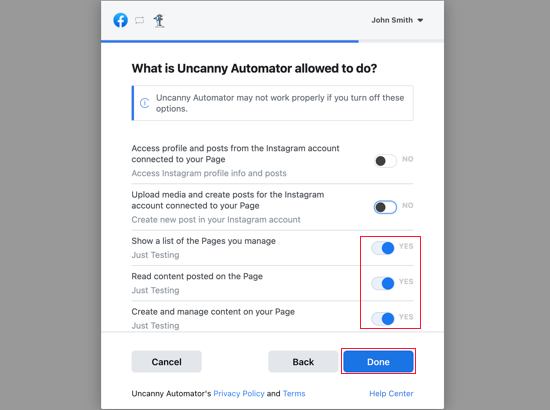
Having done that, you’ll be asked to give Uncanny Automator permission to do certain things with your Instagram account and Facebook page.

You need to answer Yes to the options regarding the Facebook page, and then you should click the Done button.

Give Uncanny Automator Permission

You should answer Yes to the Instagram options as well if you plan to create Instagram automations using Uncanny Automator.

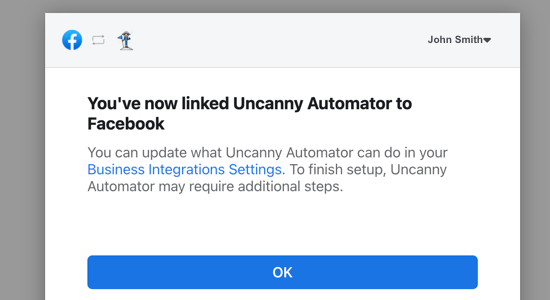
Uncanny Automator is now linked to Facebook and you should click the OK button to finish the setup.

Uncanny Automator Is Now Linked to Facebook

Automatically Posting to Facebook from Uncanny Automator

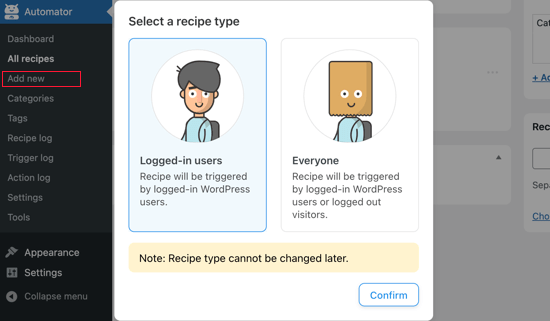
Now we’re ready to create an automated workflow to post to Facebook. Uncanny Automator calls these ‘Recipes’. Simply navigate to the Automator » Add new page to create your first recipe.

You’ll be asked to select whether you want to create a ‘Logged-in’ recipe or an ‘Everyone’; recipe. You should select ‘Logged-in users’ and then click the Confirm button.

Select 'Logged-in Users'

You can now start to build your first Uncanny Automator recipe.

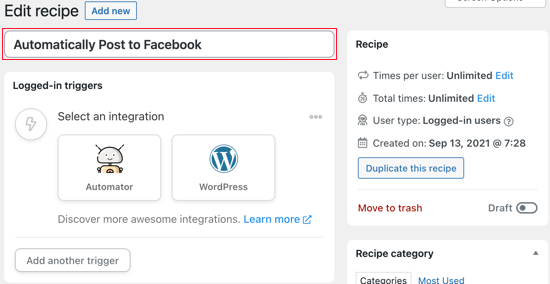
First, you’ll need to add a title. We’ll call the recipe ‘Automatically Post to Facebook’ and type this in the title field.

Add a Title

Next, you need to define the condition that will trigger the action. We want to post to Facebook whenever a WordPress post is published. So you’ll need to click the WordPress icon under ‘Select an integration’.

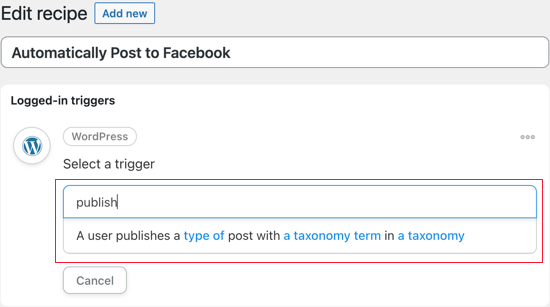
You’ll now see a list of WordPress triggers. You should search for ‘publish’ and choose the trigger called ‘A user publishes a type of post with a taxonomy term in a taxonomy‘.

You'll See a List of WordPress Triggers

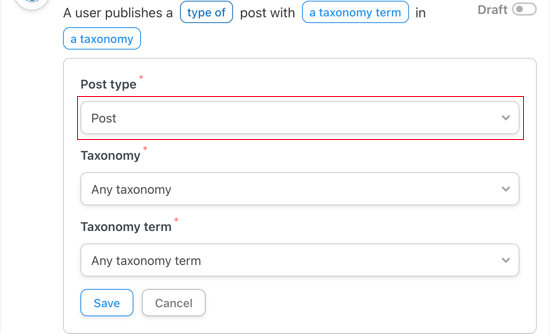
For this tutorial, we want to post to Facebook when we publish a blog post, not a page. So we’ll change the post type to Post and leave the other settings unchanged. Don’t forget to save your settings by clicking the Save button.

Change the Post Type to 'Post'

If you only want certain types of content to be posted on Facebook, then you can choose a single category or tag by selecting the appropriate options from the Taxonomy and Taxonomy term drop downs.

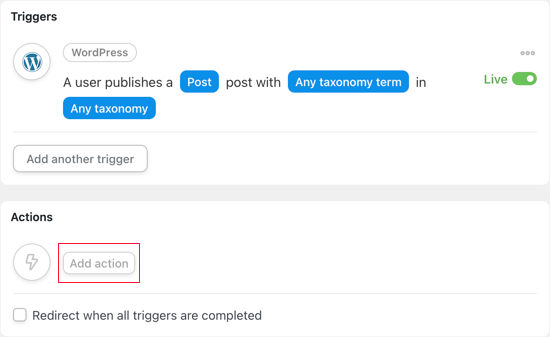
Next, you’ll need to choose the action that will happen each time a post is published. Start by clicking the ‘Add action’ button.

Click the Add Action Button

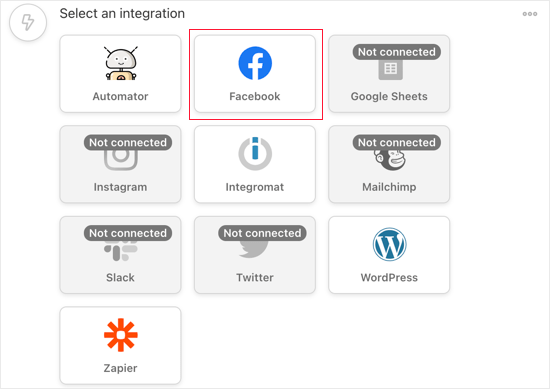
You should now see the list of integrated services that Uncanny Automator supports. Simply click the Facebook button.

Click the Facebook Button

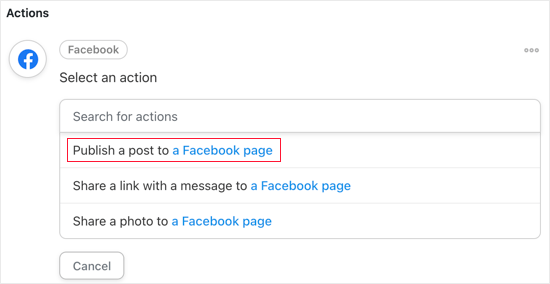
You’ll now see a list of Facebook actions. You should select the option that says ‘Publish a post to a Facebook page’.

Select the Option that Says 'Publish a Post to a Facebook Page

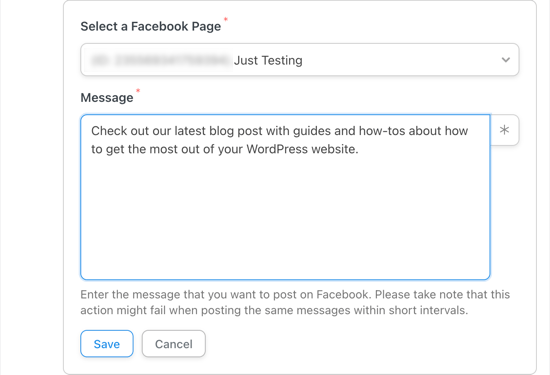
If you have connected to more than one Facebook page, then you’ll need to select the one you wish to post to.

After that, you should type the message in the Message text box that you wish to be published to your Facebook page with each post.

Select the Facebook Page You Wish to Post To

Next, you need to add the post title and URL to the message. You need to press the Enter key to start a new line, and then you should click the asterisk button at the right of the Message text box.

Click the Asterisk Icon

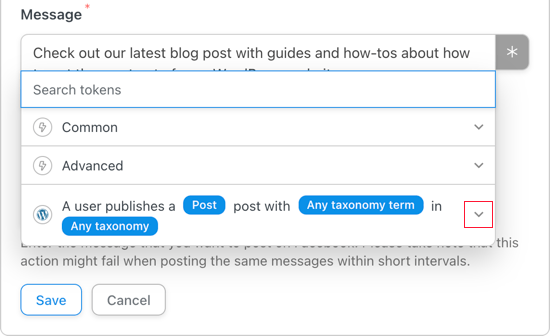
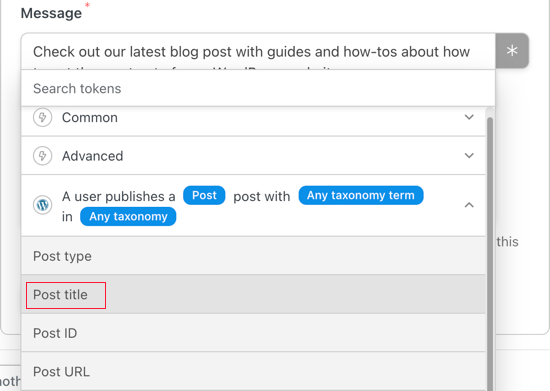
Now you need to click the down arrow icon next to ‘A user publishes a Post’ to access the fields that add information about the post that has been published.

The available tokens include the post type and title, the post URL and content, and more. You should click on ‘Post title’ to insert it into the message.

Click Post Title to Insert It into the Message

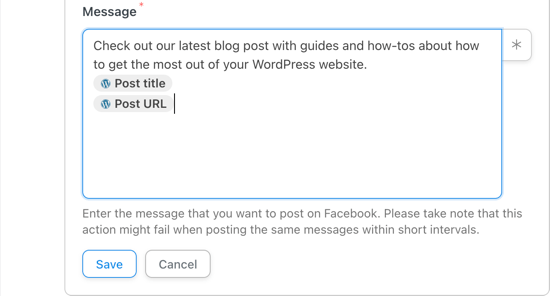
Follow the same steps to add the post URL to a line of its own. The message should now look like the screenshot below, and you can customize it to suit your own WordPress site and Facebook page.

Completed Message

Don’t forget to click the Save button to store your action.

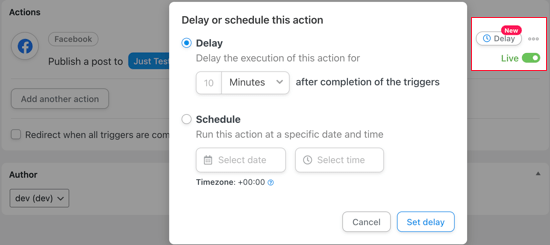
If you like, you can set add a delay before Uncanny Automator posts to Facebook. That way you can schedule the post for when your social media audience is most active.

You need to hover your mouse above the Live switch on the right until a Delay button appears. Once you click it you’ll be able to choose whether the action will be triggered after a time delay or on a specific date and time.

Trigger After a Time Delay or on a Specific Date and Time

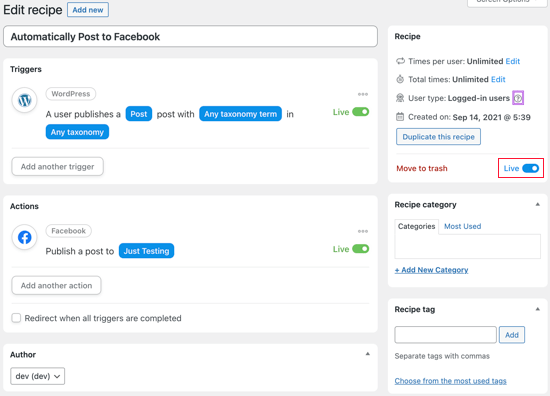
Now your recipe is complete but inactive. The trigger and action have been set, but won’t be activated when you publish a new post. To change that, you need to switch the toggle button from Draft to Live.

Switch the Toggle Button from Draft to Live

Now that your recipe is live, the next time you publish a post on your WordPress website, a message will also be posted to your Facebook page.

To test this, we published a new blog post on our test site, and this is how the post appeared on our Facebook page.

This Is How the Post Appeared on Our Facebook Page

If you see that the right thumbnail image isn’t appearing, then you can see our guide on how to fix the incorrect Facebook thumbnail issue in WordPress.

We hope this tutorial helped you learn how to automatically post to Facebook from WordPress.

Through the cites of the word in classical

Through the cites of the word in classical

Lorem Ipsum is that it has a more-or-less normal distribution of letters, as opposed to using ‘Content here, content here’, making it look like readable English. Many desktop publishing packages and web page editors now use Lorem Ipsum as their default model text, and a search for ‘lorem ipsum’ will uncover many web sites still in their infancy. Various versions have evolved over the years Read More »

Making this the first true generator on the internet

Making this the first true generator on the internet

Lorem Ipsum is that it has a more-or-less normal distribution of letters, as opposed to using ‘Content here, content here’, making it look like readable English. Many desktop publishing packages and web page editors now use Lorem Ipsum as their default model text, and a search for ‘lorem ipsum’ will uncover many web sites still in their infancy. Various versions have evolved over the years Read More »

Versions have evolved over the years

Versions have evolved over the years

Lorem Ipsum is that it has a more-or-less normal distribution of letters, as opposed to using ‘Content here, content here’, making it look like readable English. Many desktop publishing packages and web page editors now use Lorem Ipsum as their default model text, and a search for ‘lorem ipsum’ will uncover many web sites still in their infancy. Various versions have evolved over the years Read More »